AI Voice Input Beginner Tutorial: Let AI Turn Your Voice Into Text
Still typing one character at a time? Every day you spend replying to emails, writing documents, and taking notes — typing alone eats up a huge chunk of your time. In reality, AI voice input can output 150-300 words per minute — over 5x faster than manual typing — and completely frees your hands. This guide walks you through 3 mainstream voice input solutions, zero experience needed.
What Is AI Voice Input
AI voice input is simple: you speak into a microphone, and AI automatically converts your speech to text. Unlike traditional speech recognition, AI voice input has three clear advantages:
- High accuracy: Supports accents, dialects, and mixed Chinese-English with over 95% accuracy
- Context understanding: Not just word-for-word translation — it understands meaning and outputs fluent text
- Auto-correction: Fixes typos and punctuation based on context
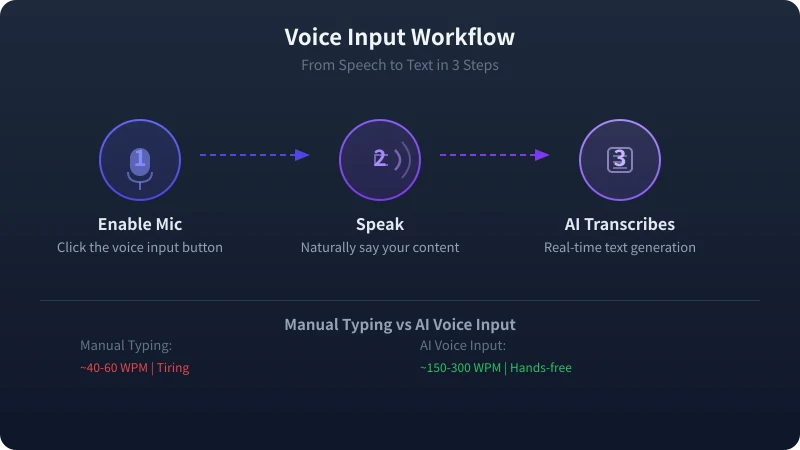
There are currently three mainstream AI voice input solutions. Let us walk through each one.
Solution 1: Browser Built-in Voice Input
The simplest solution — no software installation needed. Just open a browser and start using it.
Best For
Quick short text input, search box input, jotting down temporary ideas.
Steps
Step 1: Open Chrome Browser
Open Google Chrome (other Chromium-based browsers also work) on your computer. Right-click in any text field and select "Voice Input."
Step 2: Grant Microphone Permission
On first use, the browser will request permission. Click "Allow." If you previously denied it, click the lock icon in the address bar and manually enable the microphone.
Step 3: Start Speaking
Click the microphone icon and start speaking. When done, click stop and the text will automatically appear in the input field.
Tip: Browser built-in voice input works best for short text. For longer content, consider the professional solutions below. It works better for English than Chinese.
Solution 2: Mobile Keyboard Voice Input
Mobile voice input is already very mature and is the most convenient solution for daily use.
Best For
WeChat chat, phone notes, capturing inspiration on the go.
Steps (Using iFlytek Keyboard as Example)
Step 1: Install iFlytek Keyboard
Search for "iFlytek Keyboard" in your app store, download and install. After installation, switch to it as your default keyboard in system settings.
Step 2: Open Voice Input
In any text field, tap the microphone icon on the keyboard (usually next to the spacebar). First-time use requires microphone permission.
Step 3: Speak Into Your Phone
Speak at your normal pace — no need to deliberately slow down. iFlytek supports real-time transcription and you will see characters appear one by one.
Step 4: Edit and Send
After speaking, review the text. If there are recognition errors, tap to edit directly. Send when ready.
Recommendation: iFlytek Keyboard has top-tier Chinese speech recognition among domestic keyboards, with dialect support. Apple users can also use the built-in "Dictation" feature, which works equally well.
Solution 3: AI Chat Tool Voice Input
If you already use ChatGPT, Claude, DeepSeek, or other AI chat tools, they also support voice input — and can help you polish your text at the same time.
Best For
Needing AI to organize voice content, polish text, generate formal documents.
Steps
Step 1: Open Your AI Chat Tool
Open your preferred AI tool (ChatGPT App, DeepSeek App, Doubao, etc.) and start a new conversation.
Step 2: Tap the Voice Input Button
Find the microphone icon next to the input field and tap it to start speaking. Most AI apps support long voice input — 30 seconds or more.
Step 3: Let AI Process Your Input
After voice-to-text conversion, you can directly ask AI to:
- Convert casual speech into formal written language
- Organize into clearly structured paragraphs
- Add punctuation and paragraph breaks
- Translate into English or other languages
Example: You said this via voice —
"Had a project meeting this morning, mainly discussed Q3 promotion plan
Budget is about 500k, marketing dept wants to increase
Online ad spend ratio, boss wants a proposal by Friday"

Let AI organize it into —
"[Q3 Promotion Plan Meeting Minutes]
Meeting Time: This morning
Core Topic: Q3 Promotion Plan
Budget: Approx. 500K
Key Decision: Increase online ad spend ratio
Action Item: Complete draft proposal by Friday"
Four Practical Use Cases
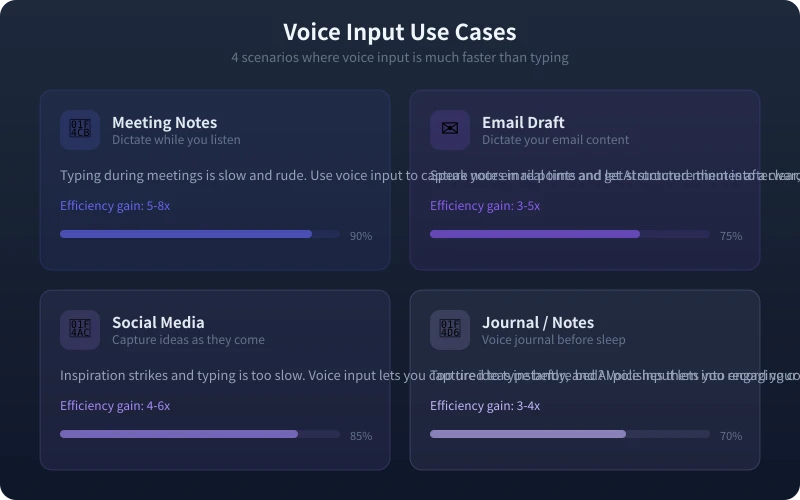
Now that you know the tools, here are the 4 scenarios where voice input shines brightest:
5 Tips to Improve Recognition Accuracy
Want more accurate voice input? Try these tips:
1. Maintain Normal Speech Pace
No need to deliberately slow down — speak at your normal pace. Too fast or too slow will both affect accuracy.
2. Keep the Environment Quiet
Noisy environments affect recognition quality. If outdoors, using a headset microphone works better.
3. Speak in Complete Sentences
Scattered words are easily misrecognized. AI understands context better with complete sentences.
4. Include Punctuation Cues
Say "period," "comma," "new line" and AI will automatically insert punctuation. Most voice input tools support this feature.
5. Speak First, Edit Later
Do not stop to fix errors while speaking. Say everything first, then review and correct recognition errors in one pass. This is the most efficient approach.
Frequently Asked Questions
Does voice input compromise privacy?
Reputable voice input services encrypt audio data during transmission and delete it immediately after processing. If you are particularly concerned about privacy, choose input methods that support offline recognition (such as iFlytek Keyboard offline mode), where all data stays on your device.
Can it recognize dialects?
iFlytek Keyboard supports multiple dialects including Cantonese, Sichuanese, and Shanghainese. ChatGPT and Claude are also improving their Chinese dialect support. However, Mandarin still has the highest recognition rate.
Can voice input replace typing entirely?
In many scenarios, yes — but it is not a complete replacement. Voice input is best for: long text, inspiration capture, meeting notes, etc. Typing is better for: precise editing, sensitive information input, quiet environments, etc. We recommend using both together.
Are there free voice input solutions?
All three solutions introduced above are free: browser built-in voice input is free, iFlytek Keyboard is free, and ChatGPT/DeepSeek voice input is also free.
Conclusion
AI voice input is not some black magic — but it genuinely boosts your text input efficiency. Whether you want to speed up email replies, capture meeting notes, or record inspiration anywhere, voice input is worth a try.
We suggest you try it today: open your phone keyboard voice feature and send a voice-to-text message to a friend. Experience the efficiency boost for yourself. Once you get used to voice input, you will be amazed at how many characters you used to type by hand.
Related Articles
AI Speech to Text: Beginner's Guide to Convert Voice to Text in 3 Steps
Learn how to convert speech to text using AI tools. Perfect for meeting notes, content creation, and video subtitles. Three practical scenarios with step-by-step instructions.
TutorialsAI Local Deployment Guide: Run Large Models in 3 Steps for Free
Learn how to deploy AI models locally in just 3 steps. No coding experience needed, completely free, and your data stays private on your own computer.
TutorialsAI Shopping Decision Guide: From Price Comparison to Avoiding Pitfalls
Learn how to use AI for shopping decisions. From price comparison to avoiding pitfalls - make smarter purchasing choices with AI assistance.
Comments are not yet available, stay tuned