No complex apps to download. No thick manuals to read. Buy a smart speaker and a couple of smart bulbs, and you can start controlling your entire home with your voice. This guide takes you from zero to a working setup in about 10 minutes.
1. What You Need
Setting up a voice assistant only requires three things:
Essential checklist: A smartphone + a voice assistant app + a smart speaker (or smart bulb). No smart devices at home? Start with a cheap smart bulb and you'll feel the magic of voice control immediately.
Which Voice Assistant to Choose?
The main options are: Xiaomi Xiao Ai, Tmall Genie, Baidu Xiao Du, Apple Siri (HomePod), and Amazon Alexa. Pick one from the same ecosystem as your phone or existing appliances for the best compatibility. No preference? Any of them will work.
Which Smart Devices to Pick?
Top three picks for beginners:
Smart Bulb — starts at ~$3, voice on/off + color, most intuitive
Smart Plug — starts at ~$2, turns any appliance smart
Smart Speaker — starts at ~$15, your voice gateway
No need to buy everything at once. Start with one speaker and one bulb, try it for a week, then expand if you like it.
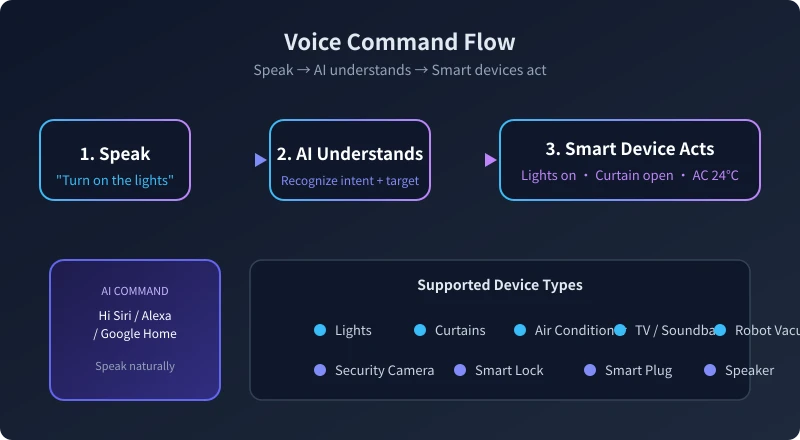
Figure: The complete flow of a voice command. The entire process takes just 2–3 seconds.
2. Three Steps to Get Started
Step 1: Download and Register the App
Using "Xiao Ai" as an example:
- Search for "Xiao Ai" in your app store and install it
- Register with your Xiaomi account or phone number
- On the home screen, tap "Connect Speaker"
- Put the speaker in pairing mode (press and hold the top button for 5 seconds)
- The app finds the speaker automatically — tap "Connect"
Other brands follow the same pattern. The whole process takes about 2 minutes.
Step 2: Add a Smart Device
Using a smart bulb as an example:
- Open the voice assistant app, tap "Add Device" on the home screen
- Select device type "Light" and choose your bulb brand
- The app searches for nearby bulbs (make sure the bulb is powered on)
- The bulb flashes — tap its name in the app to confirm
- Give it a name, like "Living Room Light"
Naming tip: Use room-based names like "Living Room Light" or "Bedroom Light" for the clearest voice commands. Avoid names like "A1" or "Device 01".
Step 3: Say Your First Command
Speak to the speaker: "Xiao Ai, turn on the living room light." — the light turns on, and you're officially started.
Try these common commands:
Xiao Ai, turn on the living room light
Xiao Ai, set brightness to 50%
Xiao Ai, turn off the bedroom light
Xiao Ai, change to warm yellow
Xiao Ai, turn off all lights
Every command executes in under 3 seconds. That's the whole magic of voice assistants.
3. Four Practical Voice Scenarios
Turning on a light is just the beginning. Combining multiple commands creates real "scene modes". Here are the four most useful ones:
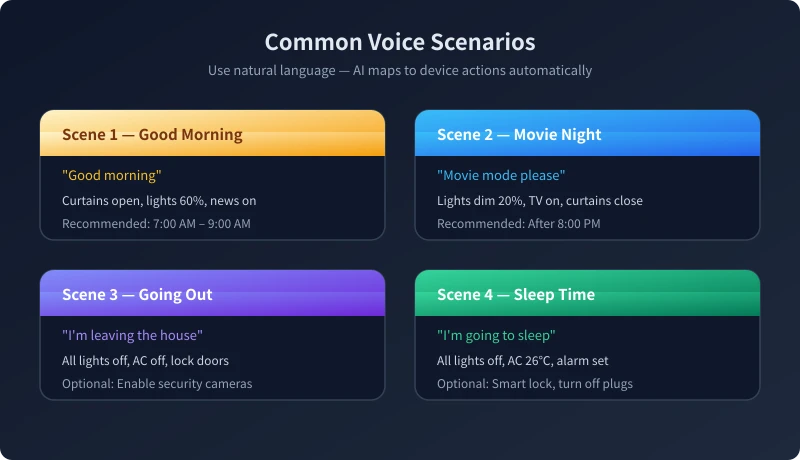
Scene 1: Good Morning Mode
Use case: Every morning when you wake up
Say: "Xiao Ai, good morning."
Setup:
- Open the voice assistant app, go to "Scenes" or "Automation"
- Tap "Create Scene", name it "Good Morning"
- Add actions: open curtains → living room lights 60% → play news
- Set trigger: voice phrase "good morning" or auto-trigger at 7:30 AM
After setup, just say "good morning" each day and your home starts working for you.
Scene 2: Movie Night Mode
Use case: Watching movies or shows in the evening
Say: "Xiao Ai, I want to watch a movie."
Setup:
- Create a scene named "Movie Night"
- Add actions: dim living room lights to 20% → turn TV on → close curtains
- Save, then trigger by voice
If you have multiple smart devices, one scene can execute 3–5 actions at once — much easier than pressing remotes one by one.
Scene 3: Leaving Home Mode
Use case: Before leaving every day
Say: "Xiao Ai, I'm leaving."
Setup:
- Create a scene named "Leaving Home"
- Add actions: all lights off → AC off → smart lock engaged
- Optional: enable security cameras, turn off smart plugs
This scene is especially useful for people who often forget to turn off lights when leaving.
Scene 4: Sleep Mode
Use case: Every night before bed
Say: "Xiao Ai, I'm going to sleep."
Setup:
- Create a scene named "Sleep Mode"
- Add actions: bedroom lights off → AC set to 26℃ → set alarm
- Optional: turn off all smart plugs, lock the door
Pro tip: Set "Leaving Home" and "Sleep Mode" to trigger automatically at fixed times. Then you don't even need to speak a word.
4. Common Problems and Fixes
Problem 1: Speaker can't hear me
- Check if the speaker volume is too low (some default to mute)
- You might be too far away (3–5 meters is optimal)
- Too much background noise — try in a quieter room
Problem 2: Speaker says "Device not found"
- Confirm the device is powered on and flashing
- Confirm it's already added in the app
- Check if the device name was changed — voice assistant needs the updated name
Problem 3: Scene doesn't trigger
- Check if you saved the scene (many people forget to save after configuring)
- Verify the trigger phrase matches exactly what you set in the app
- Some brands require enabling "Scene Mode" in settings first
5. FAQ
Q: Can I only control Xiaomi devices?
No. Most mainstream smart device brands support voice control. Search your device brand in the app — if it appears, it's compatible.
Q: Can I use my phone without a smart speaker?
Yes. Most voice assistant apps support phone microphone activation, but with higher latency. A speaker is recommended if you can get one.
Q: Is it safe?
For everyday use, yes. Two rules: never share passwords or verification codes by voice; keep physical keys as backup for smart locks.
Q: How many devices can one speaker control?
No practical limit. 10–30 devices per speaker works smoothly. Beyond that, consider adding a speaker per zone.
Q: Where should I place the speaker?
In the center of your living room, 1–2 meters from the couch. Avoid placing it near other speakers or AC vents.
6. Summary
A voice assistant plus smart home doesn't require complex networking knowledge or dozens of devices. One speaker + one bulb + 20 minutes is all it takes to have a home that listens.
Start with "turn on the light", gradually build scene modes, and you'll find yourself relying on it more and more. That's the real magic of smart home — turning technology into a habit, not a task.
Three things to get started:
- Buy a smart speaker and download the matching app
- Add a smart bulb and give it a good name
- Say "turn on the light", then gradually build scenes