AI Smart File Organization Guide: Auto Classify, Smart Rename, Duplicate Cleanup — All in One
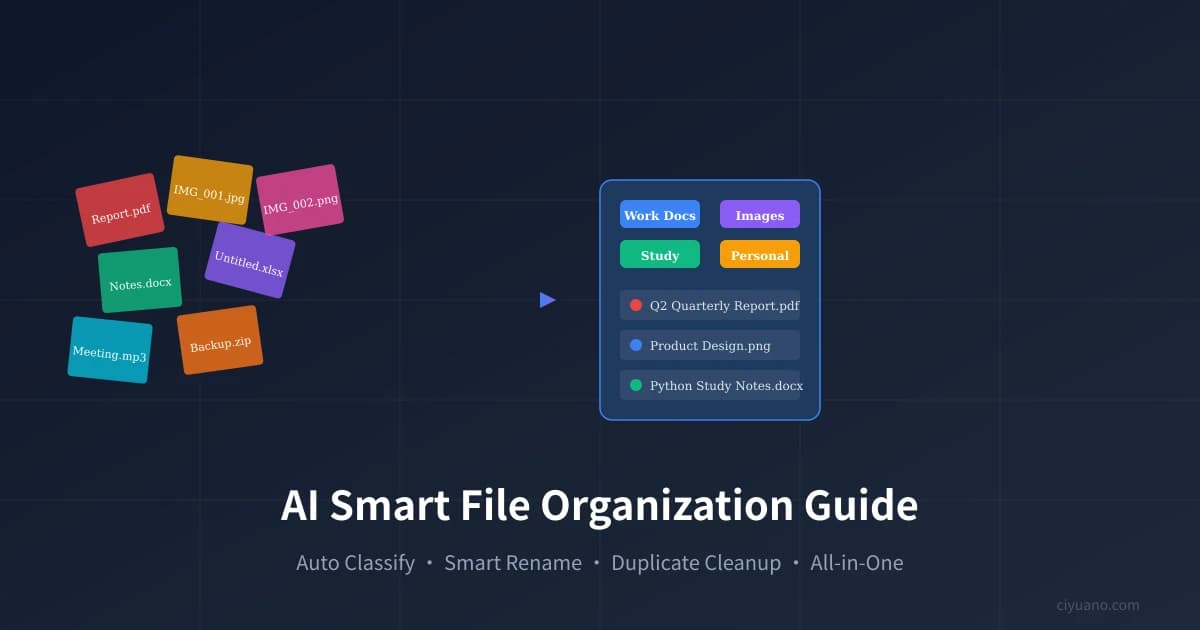
How Messy Are Your Files?
Open your Downloads folder — are there hundreds of files dumped together? "Untitled.docx", "IMG_20260315.jpg", "New Folder (3)", "Final_v2_revised_again.pdf"... Every time you need a file, you spend ages searching, and often can't find it.
This isn't your fault. Manually organizing files is tedious — setting classification standards is hard, batch renaming is a huge workload, and duplicate files are nearly impossible to spot. But now, AI can handle all of this for you.
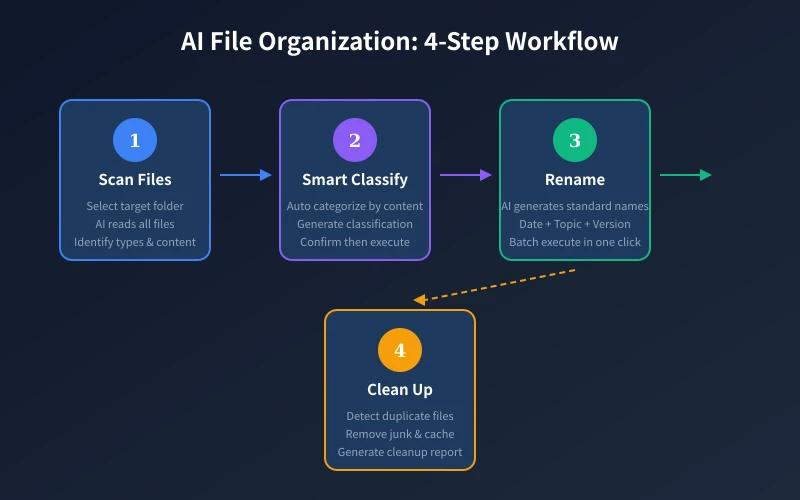
This article teaches you to organize files in four steps with AI: Scan → Classify → Rename → Clean up. No software installation needed, no coding required — just an AI chat tool.
Step 1: Tell AI About Your Files
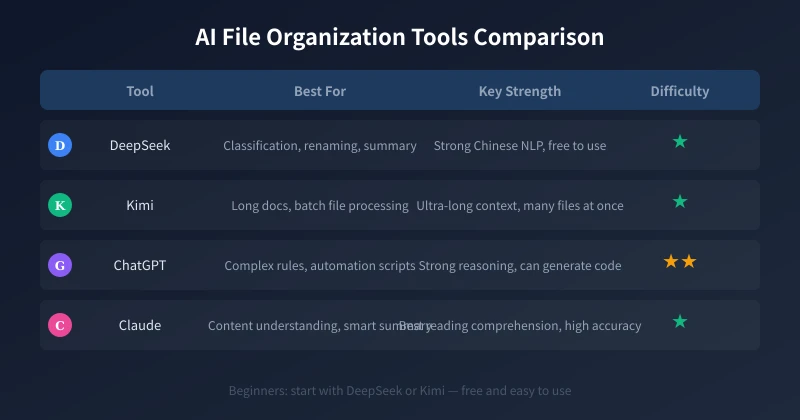
Open DeepSeek, Kimi, or another AI tool, and describe your file situation first. The key here is to let AI understand what files you have.
How to Do It
Type something like this into the chat:
My Downloads folder has about 200 files, including PDFs, Word docs, images, Excel spreadsheets, archives, and some installers. File names are messy — a mix of Chinese, English, and date formats. I want to organize them into clear category folders. Help me plan a classification scheme.
AI will suggest a classification based on your description. For example:
- Work Documents: PDFs, Word, PPT — work-related files
- Images: Photos, screenshots, design files
- Spreadsheets: Excel, CSV — data files
- Installers: Software setup programs, drivers
- Archives: zip, rar — compressed files
- Other: Files that don't fit neatly into any category
Adjust the categories to your needs. If you're a designer, add a "Design Source Files" category. If you're a student, add a "Course Materials" category.
Advanced: Have AI List Your Files
If you have many files, export a file listing first and send it to AI for analysis:
- Windows: Open PowerShell, navigate to the target folder, run
Get-ChildItem | Select-Object Name, Length, LastWriteTime | Export-Csv -Path filelist.csv - Mac: Open Terminal, navigate to the target folder, run
ls -la > filelist.txt
Copy and paste the generated content to AI — it can analyze and classify hundreds of files at once.
Step 2: Generate and Execute a Classification Plan
Once AI suggests a classification plan, the next step is to have it generate specific file-moving commands.
Steps
Tell AI:
The classification plan looks good. Help me generate specific file organization commands. I'm on Windows 11, and my files are in D:Downloads.
AI will generate a complete folder creation and file-moving script. All you need to do is:
- Review AI's plan to make sure it makes sense
- Confirm which files go into which category
- Create folders manually in File Explorer (or let AI generate a one-click script)
- Drag files into the right places
Batch Operation Tips
If there are too many files to drag manually, have AI generate a batch script:
- Windows users can ask AI to create a
.batfile - Mac users can ask AI to create a Shell script
- Always back up the original folder first, just in case
Important: For the first time, try organizing a few folders manually to confirm the results before batch-executing everything.
Step 3: Smart Renaming
After organizing files into folders, you'll notice the file names are still messy. This step uses AI to batch-rename them.
What Makes a Good File Name?
A good file name should include three elements:
- Date: When the file was created or modified, in YYYYMMDD format
- Topic: The core content of the file, brief but meaningful
- Version/Type: If multiple versions exist, mark as v1, v2; if specific type, note it
Examples:
IMG_20260315_1423.jpg→20260315_ProductLaunch_OnSite.jpgUntitled.docx→20260618_Q2WorkSummary_v1.docxFinal_v2_revised_again.pdf→20260620_ProjectProposal_Final.pdf
Have AI Batch-Generate New File Names
Send your file list to AI and ask it to generate new names:
Here is the file list from my Work Documents folder. Help me rename them using the "Date_Topic_Version" format. If you can infer the date and topic from the file name or content, use that. Otherwise, use key info from the original name.
1. Report_Final.pdf
2. MeetingNotes_June.docx
3. IMG_20260310.jpg
4. New Microsoft Word Document.docx
5. Budget.xlsx
AI will give you an old-to-new name mapping table. After confirmation, rename them one by one according to the list.
Recommended Batch Rename Tools
- Windows: Select multiple files, press F2, type a new name — Windows auto-adds numbers
- Mac: Select multiple files, right-click "Rename", use "Format" mode for batch naming
- Advanced needs: Ask AI to recommend batch rename tools for your OS
Step 4: Clean Up Duplicates and Junk Files
After classification and renaming, the final step is cleanup. This step can free up significant disk space.
Common Types of Junk Files
- Duplicates: The same file downloaded multiple times, copies from copy-paste
- Temp files:
.tmpfiles,~$prefixed files, system caches - Installers: Already-installed
.exeor.dmgfiles - Old versions: Files superseded by newer versions
- Empty folders: Empty directories left after file deletion
Have AI Create Cleanup Rules
Tell AI about your folder structure, and it will create a cleanup strategy:
I just organized my files. My Work Documents folder has 50 files. Help me identify which might be duplicates and which old versions can be deleted. Here's the file list...
AI will identify potential duplicates based on file name similarity, dates, and sizes, then give you a cleanup recommendation list.
Safe Cleanup Principles
- Move to trash, don't permanently delete: Only empty the trash after confirming everything is fine
- Back up important files: Before cleanup, copy uncertain files to a "To Review" folder
- Don't touch system files: Only clean your own files, never touch system directories
- Clean in batches: Clean a small portion at a time, continue only after confirming no issues
Maintenance Habits: Keep Files Tidy
Organizing once is easy; staying organized is the real challenge. These habits will help you maintain order long-term:
Weekly 5-Minute Micro-Organizing
Spend 5 minutes each week checking your Downloads folder and desktop, moving new files to their proper categories. Don't let them pile up — the more you accumulate, the messier it gets.
Classify at Download Time
When downloading files in your browser, save them directly to the appropriate folder instead of dumping everything into Downloads.
Regular AI Check-ups
Once a month, spend 10 minutes sending your file list to AI and have it:
- Check for newly created duplicates
- Identify old files that can be archived
- Spot files with non-standard naming
- Clean up newly generated junk files
Use AI to Establish Naming Standards
Have AI help you create a naming convention suited to your work scenario, then follow it for all future files. Once a standard is established, the workload of organizing drops dramatically.
Organization Plans for Different Scenarios
Scenario 1: Students Organizing Coursework
- By course: Calculus, English, Major-specific courses
- By semester: Spring 2026, Fall 2025
- Naming format:
YYYYMMDD_CourseName_DocumentType
Scenario 2: Office Workers Organizing Work Files
- By project: Project A, Project B, Admin
- By file type subcategories: Proposals, Reports, Meeting Notes
- Naming format:
YYYYMMDD_ProjectName_DocType_Version
Scenario 3: Freelancers Organizing Materials
- By client: Client A, Client B
- By status: In Progress, Completed, Archived
- Naming format:
YYYYMMDD_ClientName_ProjectDesc
FAQ
Q: Can AI directly access and modify my computer files?
No. AI chat tools cannot directly access files on your computer. You need to manually share file lists or names with AI — it helps you analyze and plan, but the actual operations are done by you. This is the safest approach.
Q: Can AI handle thousands of files?
Yes, but process in batches. Send 50-100 file names at a time. Or use the file listing export method — AI can analyze hundreds of files at once without issues.
Q: What if I accidentally delete a file during organization?
That's why you should always use "Move to Trash" instead of "Permanently Delete". Files in the trash can be recovered anytime. For important files, always back up first.
Use Ciyuano API for Automation
If you have some coding skills and want more automation, connect to AI APIs through the Ciyuano platform:
- Visit Model List to choose a suitable model
- Create a key at API Key Management
- Write a simple script to auto-read file lists, call AI for classification, and generate organization plans
For most users, the web-based chat tools are more than sufficient.
Summary
The core AI file organization workflow is four steps:
- Scan: Let AI understand what files you have
- Classify: AI generates a classification plan; you confirm and execute
- Rename: AI generates standardized file names; batch-rename
- Clean up: AI identifies duplicates and junk files; safely delete
The entire process requires no technical skills — just an AI chat tool and a bit of patience. Organize once, benefit for a long time.
Open your AI tool now and send that messy folder to it.
Related Articles
AI Speech to Text: Beginner's Guide to Convert Voice to Text in 3 Steps
Learn how to convert speech to text using AI tools. Perfect for meeting notes, content creation, and video subtitles. Three practical scenarios with step-by-step instructions.
TutorialsAI Local Deployment Guide: Run Large Models in 3 Steps for Free
Learn how to deploy AI models locally in just 3 steps. No coding experience needed, completely free, and your data stays private on your own computer.
TutorialsAI Shopping Decision Guide: From Price Comparison to Avoiding Pitfalls
Learn how to use AI for shopping decisions. From price comparison to avoiding pitfalls - make smarter purchasing choices with AI assistance.
Comments are not yet available, stay tuned