AI Home Budget Tracking: From Confused Bills to Clear Budgets
Every month when your salary arrives, after paying rent and credit card bills, where did the rest of the money go? If you also have that feeling of "money just vanished somehow," AI can help you track every transaction clearly. This tutorial teaches you how to use AI tools for home budget tracking, from scanning receipts to creating monthly budgets, all with zero technical skills required.
Why AI Budget Tracking Beats Manual Methods
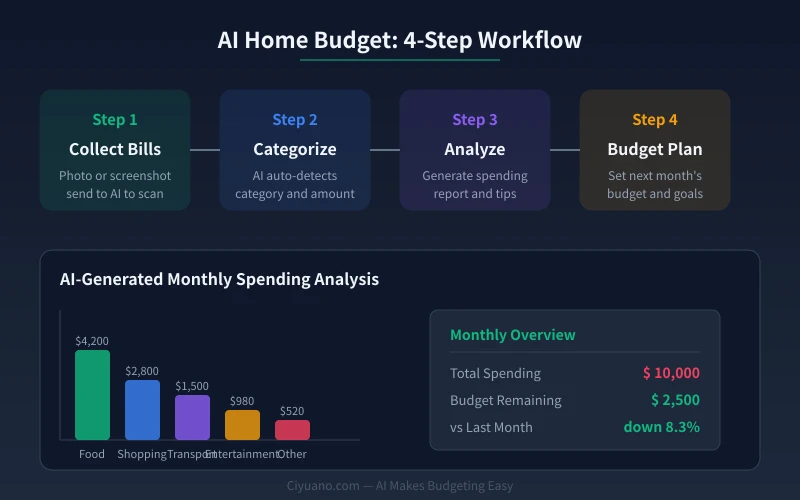
The biggest problem with traditional budgeting is keeping it up. Open the app, enter the amount, choose a category, write a note — after three steps, you've already lost motivation. AI budget tracking solves this with core advantages:
- Photo-based logging — Snap a photo of your receipt or order screenshot, and AI auto-detects merchant, amount, and category
- No manual categorization — AI classifies expenses based on content, more accurately than manual selection
- Built-in analysis — Beyond just recording numbers, AI tells you where money went and what can be saved
- Budget planning — Based on your spending habits, AI helps create reasonable budgets for next month
Step 1: Scan Bills with AI
This is the easiest step. Simply send a receipt photo or screenshot to AI, and it extracts all key information automatically.
Recommended Tools
Doubao (recommended for beginners): Free, supports image recognition, strong Chinese language understanding. Open the Doubao app or web version, upload your receipt image, and you're done.
GPT-4o: Higher recognition accuracy, ideal for complex receipts (English receipts, multi-line details). Requires ChatGPT Plus subscription.
DeepSeek: Great cost-performance ratio, excellent text recognition. Perfect for users already familiar with DeepSeek.
How It Works
Open Doubao, start a new conversation, tap the "Image" button next to the input field, select your receipt screenshot, then enter this prompt:
"Please scan this receipt and extract: merchant name, amount, date, and spending category. Output as a table with five columns: number, merchant, amount, date, category."
AI will return a clean table in seconds. If the receipt contains multiple items (like a supermarket receipt), it lists each item as a separate row.
Batch Scanning Tips
Got many receipts for the month? Send multiple screenshots at once and tell AI: "Here are my expenses this month (5 screenshots total). Please scan them all, merge into one table, and sort by date."
AI will automatically deduplicate, merge, and sort — outputting a complete monthly expense list.
Step 2: Let AI Categorize
After scanning receipts, the next step is categorization. This is critical because classification accuracy directly affects the quality of your analysis.
Custom Categories
Every household's spending structure is different. AI's default categories might not suit you. Tell it your standards:
"Please organize my expenses using these categories: dining (including delivery), transportation (including ride-hailing and transit), daily goods (including supermarket and household items), entertainment (including movies and gaming), education (including courses and books), medical, social (including gifts and events), and other. If you can't determine a category for any expense, list it for me to assign manually."
This way, you define the categories and AI only executes the classification.
Handling Ambiguous Items
Some expenses are hard for AI to classify precisely — for example, "Meituan" might include both food delivery and ride-hailing. AI will ask you: "Meituan $38.50 — is this food delivery or a ride?" You simply reply "food delivery" and AI assigns it to the right category.
Step 3: Generate Spending Analysis
After categorization, ask AI to analyze. This is where AI budget tracking truly shines — not just recording, but helping you understand where your money goes.
Basic Analysis Prompt
"Based on the following expense records, generate this month's spending report, including: 1) total spending and percentage by category; 2) comparison with last month (if available); 3) highest spending category; 4) areas where spending can be optimized."
AI will output analysis like this:
- Dining: $4,200 (35% of total), up 12% from last month
- Shopping: $2,800 (23% of total), mainly from 618 sale event
- Transportation: $1,500 (12% of total), consider optimizing commute
- Recommendation: Dining is high — try bringing lunch 2-3 times per week
Advanced Analysis Techniques
After the basic analysis, you can drill deeper:
- "What percentage of my dining budget went to food delivery?" — Find optimization opportunities in subcategories
- "Is there a big difference between weekday and weekend spending?" — Understand spending time patterns
- "Which purchases were impulse buys?" — AI identifies based on spending characteristics
- "If I want to save 20% of my income, which categories need to be cut?" — Create a savings plan
Step 4: Create a Monthly Budget
After analyzing last month's spending, it's time to set next month's budget. AI can provide reasonable budget recommendations based on your actual spending data.
Budget Planning Prompt
"My monthly disposable income is $12,000. Fixed costs (rent + utilities + phone) are $4,500. Last month's total spending was $10,000. Please help me create next month's budget with: total spending under $9,000, savings target of $3,000. Give me a budget cap for each category."
AI will return a detailed budget table:
- Dining: $3,500 (reduce by $700 from last month)
- Shopping: $2,000 (reduce by $800)
- Transportation: $1,200
- Entertainment: $800
- Education: $500
- Other: $1,000
AI will also provide specific savings tips, such as "reduce food delivery frequency" and "choose free venues for weekend activities."
Weekly Budget Check-ins
After setting your budget, spend 2 minutes each week checking in with AI: "This week I spent $2,300 — dining $900, shopping $600. Based on current spending, will I go over budget this month?"
AI will predict month-end results based on your spending pace and alert you to make timely adjustments.
Practical Prompt Templates
Here are four prompt templates for common scenarios — copy and use directly:
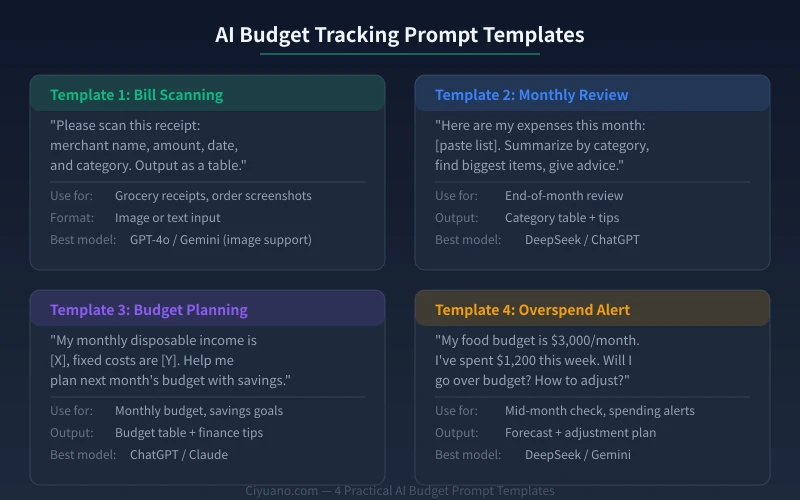
Scenario 1: Bill Scanning
"Please scan this receipt: merchant name, amount, date, and spending category. Output as a table."
Scenario 2: Monthly Review
"Here are my expenses this month: [paste list]. Summarize by category, find the biggest items, and give optimization suggestions."
Scenario 3: Budget Planning
"My monthly disposable income is [X], fixed costs are [Y]. Help me plan next month's budget with a savings target."
Scenario 4: Overspend Alert
"My dining budget is $3,000/month. I've spent $1,200 this week. Will I go over budget at this rate? How should I adjust?"
Advanced Uses: Make AI Your Financial Advisor
Once you've built an AI budgeting habit, try these advanced applications:
Annual Summary: Send a full year of expense records to AI and have it generate an annual spending report with trend analysis.
Family Financial Planning: If your family has major expenses planned (house, travel, education), let AI create a long-term savings plan.
Price Comparison: Tell AI what you're planning to buy and have it compare prices across different channels to find the best deal.
Habit Building: Ask AI to remind you to log expenses at a fixed time daily, or auto-generate a weekly summary every Sunday.
Frequently Asked Questions
Q: Is AI budget tracking safe? Will my spending data be leaked?
A: Major AI tools have privacy protection policies. If you're concerned about data security, use DeepSeek's local deployment version where data never leaves your computer. Or tell AI before starting: "Do not save my conversation history."
Q: What if I can't type?
A: Most AI tools support voice input. Enable voice input and simply describe your spending — AI converts speech to text and records everything automatically.
Q: Can elderly people use it?
A: Yes. Teach them one fixed phrase: "Today I spent [amount] at [place] on [item]" — AI handles everything else automatically.
AI budget tracking requires no technical expertise and no complex app downloads. Open your favorite AI tool, take a photo of today's expense, and start your first AI budget entry.
Related Articles
AI Speech to Text: Beginner's Guide to Convert Voice to Text in 3 Steps
Learn how to convert speech to text using AI tools. Perfect for meeting notes, content creation, and video subtitles. Three practical scenarios with step-by-step instructions.
TutorialsAI Local Deployment Guide: Run Large Models in 3 Steps for Free
Learn how to deploy AI models locally in just 3 steps. No coding experience needed, completely free, and your data stays private on your own computer.
TutorialsAI Shopping Decision Guide: From Price Comparison to Avoiding Pitfalls
Learn how to use AI for shopping decisions. From price comparison to avoiding pitfalls - make smarter purchasing choices with AI assistance.
Comments are not yet available, stay tuned