AI-Powered PPT Presentations: Complete Guide from Outline to Final
Making presentations used to be a painful experience — staring at a blank slide, struggling with formatting, and getting feedback to redo it all. The good news is that AI can help you create professional presentations from scratch in minutes. This guide walks you through the complete workflow of making PPT slides with AI, even if you have zero design experience.
Step 1: Define Your Topic and Structure with AI
Open ChatGPT, DeepSeek, or any AI assistant and use this prompt to get started:
"Create a presentation about [your topic] with [X] slides for [audience]. Please show the outline first, then expand each slide after I confirm."
AI will automatically plan the content and logical flow for each slide. For example, if you say "Create a Q2 sales review PPT with 12 slides for department managers," AI will generate an outline like this:
- Slide 1: Cover (title + presenter + date)
- Slide 2: Table of contents
- Slides 3-4: Q2 key metrics overview
- Slides 5-7: Product line sales analysis
- Slides 8-9: Customer growth and retention
- Slide 10: Challenges and issues
- Slide 11: Q3 plans
- Slide 12: Summary and closing
After confirming the outline, ask AI to expand each slide in detail. The key here is to confirm the structure before filling in content — this prevents wasting time going in the wrong direction.
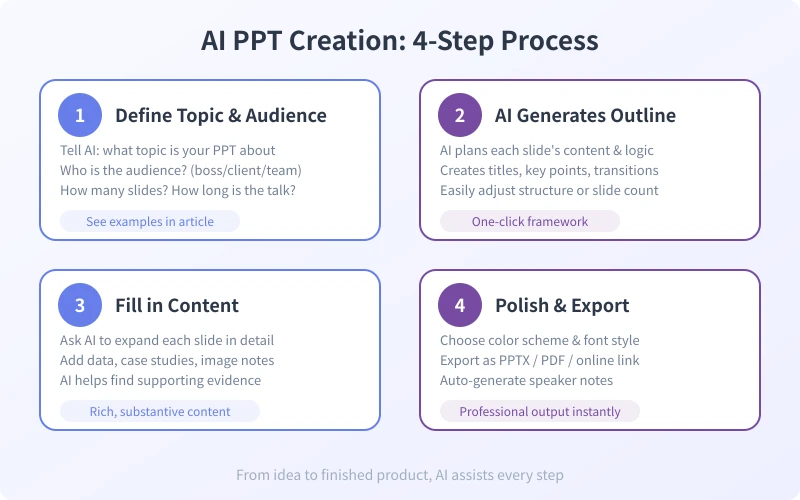
Step 2: Have AI Fill in Slide Content
Once the outline is confirmed, expand each slide one by one. Here are some practical techniques:
Slide-by-Slide Expansion
Don't ask AI to generate all slides at once. Instead, process 2-3 slides at a time. This has two benefits: you can course-correct early, and each slide gets more detailed attention.
Try this prompt: "Please expand slides 3-4 with 3-5 key points each, supported by data. If charts are appropriate, suggest the chart type and data source."
Data-Driven Approach
If you have specific numbers, share them directly. For example: "Q2 revenue was $580K, up 23% YoY, 152 new clients, 87% retention rate. Help me design data visualization for each metric."
AI will suggest bar charts for year-over-year comparison, pie charts for customer composition, and line charts for growth trends.
Story-Based Enhancement
Raw data is less compelling than stories. Ask AI to turn numbers into narratives: "Add a success story to slide 5 that's realistic and highlights the product's value."
Step 3: Choose the Right AI PPT Tool
While text-based AI can write your content, dedicated PPT tools make the process much faster. Here are the top options:
Gamma (Recommended for Beginners)
Gamma is one of the most popular AI PPT tools. Just enter your topic and key points, and it generates a complete presentation with layout, images, and animations.
How to use: Visit Gamma's website, click "New with AI," enter your topic and outline points, choose a style template, and generate with one click. You can then edit each slide's content and design online.
Beautiful.ai (For Professional Polish)
Beautiful.ai offers AI-powered slide design with smart formatting. It automatically adjusts layout as you add content, ensuring your presentation always looks polished.
ChatGPT + Canva Combo
Use ChatGPT to write all the text content, then paste it into Canva's presentation templates. Canva offers thousands of free templates with drag-and-drop editing. This method works well when you need precise control over design.
Step 4: Polish and Export
After generating content, you need final polish. Here are the key steps:
Unify Colors and Fonts
Keep your color palette to 3 colors maximum. Tell AI: "Suggest a color scheme for a business presentation with blue as the primary color." AI will recommend specific hex values you can apply directly.
Trim the Text
PPT slides are not Word documents. Keep text to 5-7 lines per slide, with key points highlighted in larger fonts. Ask AI to help: "Please trim slide 6 to 5 bullet points maximum, keeping only the most essential information."
Add Speaker Notes
Many people skip speaker notes, but they help you stay confident during the presentation. Ask AI to generate notes for each slide: "Generate speaker notes for each slide including: time allocation, key message, and potential questions from the audience."
Export Formats
Choose the right format based on your use case:
- PPTX: Most universal, editable in PowerPoint or WPS
- PDF: Great for sending to clients — formatting stays intact
- Online link: Perfect for remote sharing — no downloads needed
Ready-to-Use Prompt Templates
Here are prompt templates you can copy and use right away:
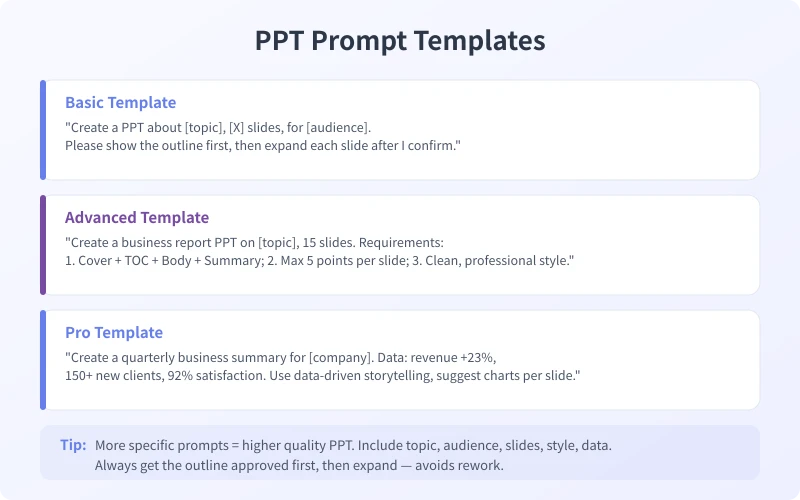
Basic: "Create a presentation about [topic] with [X] slides for [audience]. Show the outline first, then expand each slide after I confirm."
Advanced: "Create a business report PPT about [topic] with 15 slides. Requirements: 1. Cover + TOC + Body + Summary; 2. Max 5 points per slide; 3. Clean, professional style."
Pro: "Create a quarterly business summary for [company]. Data: revenue +23%, 150+ new clients, 92% satisfaction. Use data-driven storytelling, suggest chart types for each slide."
Common Mistakes to Avoid
AI makes PPT creation efficient, but watch out for these pitfalls:
Mistake 1: Generating too many slides at once. AI produces much better results with 5 slides at a time versus 20 in one go. Batch generation lets you course-correct early.
Mistake 2: Using AI output without editing. AI generates generic content — you need to add your own perspective, data, and stories to give the presentation a "soul."
Mistake 3: Ignoring layout details. AI handles content, but you still need to check formatting. Ensure consistent fonts, proper spacing, and clean alignment.
Mistake 4: Not verifying data accuracy. AI can fabricate numbers. Always double-check every statistic before using it.
Summary
The core workflow for AI-powered PPT creation is: define topic → generate outline → fill content → polish and export. Once you're practiced, you can complete a professional presentation in 5-10 minutes. Remember, AI is your assistant, not your replacement — the final judgment and creativity still come from you.
Open an AI tool now and try the prompt templates above to make your first AI-powered PPT. It might not be perfect the first time, but after a few tries, you'll find that AI makes PPT creation far more efficient than you ever imagined.
Related Articles
AI Speech to Text: Beginner's Guide to Convert Voice to Text in 3 Steps
Learn how to convert speech to text using AI tools. Perfect for meeting notes, content creation, and video subtitles. Three practical scenarios with step-by-step instructions.
TutorialsAI Local Deployment Guide: Run Large Models in 3 Steps for Free
Learn how to deploy AI models locally in just 3 steps. No coding experience needed, completely free, and your data stays private on your own computer.
TutorialsAI Shopping Decision Guide: From Price Comparison to Avoiding Pitfalls
Learn how to use AI for shopping decisions. From price comparison to avoiding pitfalls - make smarter purchasing choices with AI assistance.
Comments are not yet available, stay tuned