AI Image Recognition Assistant Guide: Photo Translation, Document Scanning and Object Recognition
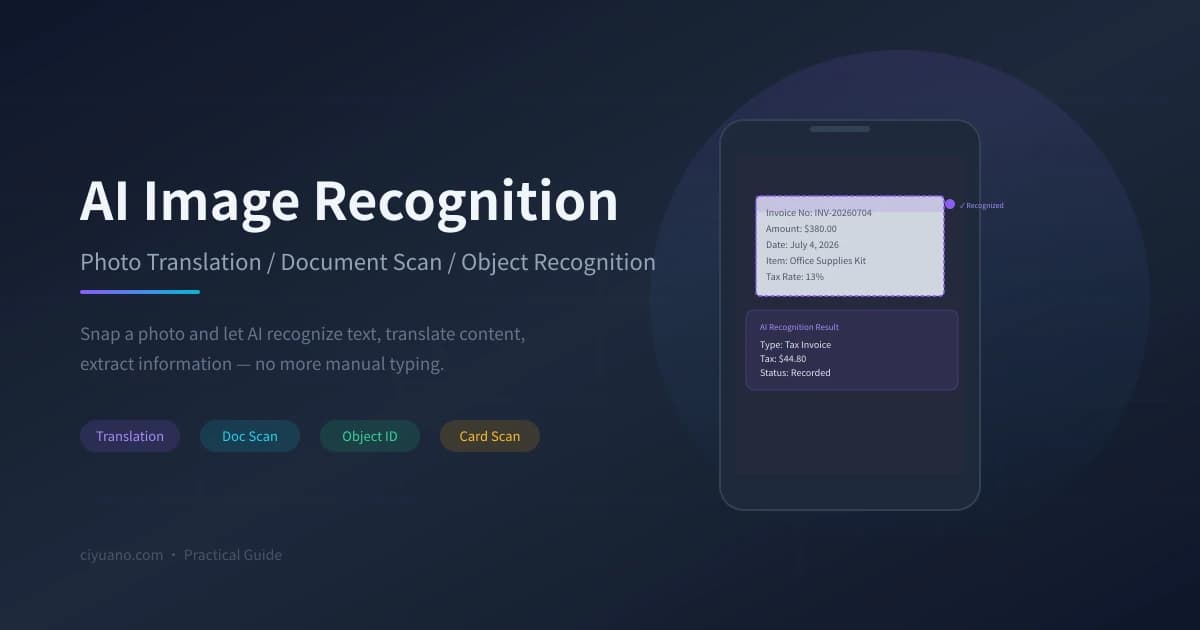
Ever struggled with a foreign menu overseas, translating word by word? Or received a paper invoice and had to type everything into a spreadsheet manually? Or seen a beautiful flower in the park but couldn't name it? With AI image recognition, a single photo can handle all of these. This guide teaches you how to use AI tools to turn your phone into a universal recognition assistant.
What Is AI Image Recognition
In simple terms, you take a photo with your phone, and AI "reads" what's in it. It can recognize text, translate languages, extract information, and identify objects — you just snap a photo, and AI does the rest.
Unlike traditional OCR (Optical Character Recognition) tools, AI image recognition doesn't just "read" text — it "understands" content. For example, photograph an invoice, and AI can tell you it's a tax invoice, calculate the tax amount, and suggest which accounting category it belongs to.
Three Steps to Image Recognition
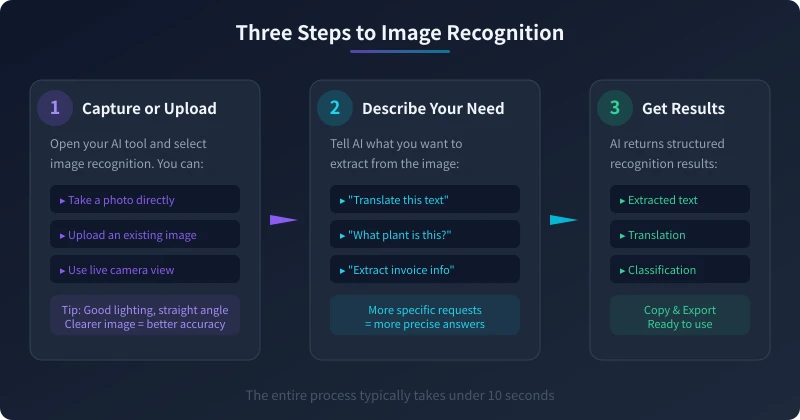
No matter what you need to recognize, the process is three steps: capture, describe your need, and get results.
Step 1: Capture or Upload
Open your AI tool and provide the image using any of these methods:
- Take a photo directly — point at what you want to recognize and snap a clear picture
- Upload an existing image — choose a photo from your gallery
- Live camera view — some tools support real-time camera translation (super useful abroad)
Photography tips: Shoot in good lighting, hold your phone steady, and face the text head-on. Clearer photos = higher accuracy.
Step 2: Describe Your Need
After uploading, describe what you want in natural language. No coding needed — just talk to AI like a friend:
// Translation scenario
"Please translate all the Japanese text in this photo to English"

// Document scenario
"This is an invoice. Please extract all key information"

// Object recognition
"What plant is this?"

// Business card scenario
"This is a business card. Please extract contact info and format it"
Step 3: Get Results
AI returns recognition results in seconds. You can copy the text, export data, or ask AI to process further (e.g., organize extracted invoice info into a table).
Four Practical Scenarios in Detail
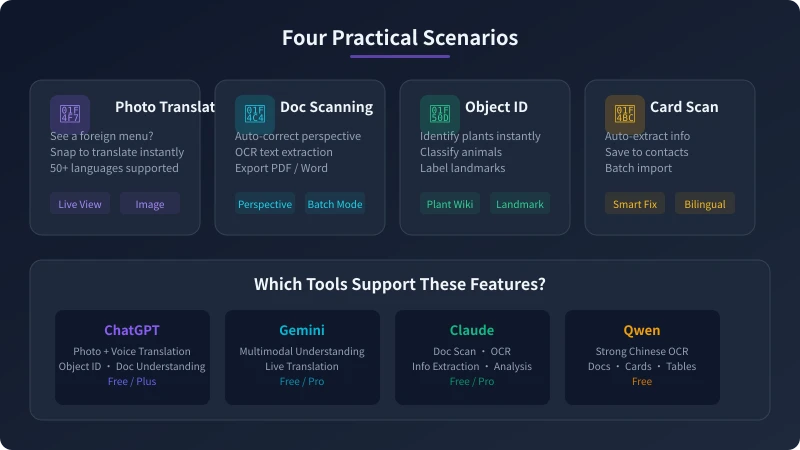
Scenario 1: Travel Photo Translation
The biggest headache when traveling abroad is understanding foreign text. AI photo translation helps you:
- Snap a menu — instantly understand every dish
- Snap a road sign — know what's ahead
- Snap instructions — medicine dosage at a glance
- Snap a contract — key clauses in translation
Prompt template:
This is a photo of a Japanese restaurant menu. Please:
1. Identify all dish names
2. Translate them to English
3. Note prices (if visible)
4. Recommend 3 dishes worth ordering
Tool recommendation: ChatGPT and Gemini both support photo translation. Qwen excels especially at CJK translations. Download offline packs before traveling in case of no internet.
Scenario 2: Document Scanning and Info Extraction
Need to digitize paper documents? Have invoices to process? AI handles it all in one step:
- Invoice recognition — auto-extract invoice number, amount, date, tax rate
- Contract scanning — extract parties, amounts, validity period
- Table recognition — convert paper tables to spreadsheets
- Business card entry — one-tap save to contacts
Prompt template:
This is a photo of a tax invoice. Please extract and organize into a table:
- Invoice code and number
- Issue date
- Buyer name
- Seller name
- Amount (excluding tax)
- Tax amount
- Total amount
Scenario 3: Object Recognition and Encyclopedia
See something unfamiliar? AI can identify it:
- Plant recognition — snap a flower, get species, bloom period, care tips
- Animal recognition — snap a bird, get classification and habitat info
- Landmark recognition — snap a building, learn its history
- Product recognition — snap an item, compare prices and reviews
Scenario 4: Business Card and QR Code Scanning
Got a stack of business cards from a networking event? AI handles batch processing:
- Auto-extract name, title, company, phone, email
- Supports mixed Chinese-English cards
- Scan and decode QR codes
- Organize into contact-list format
Tool Comparison: Which One to Choose?
- ChatGPT (GPT-4o) — strongest all-around performer for translation, recognition, and analysis; supports photo and live view; free tier has daily limits
- Gemini — excellent multimodal understanding; best live camera translation experience; deep Google ecosystem integration
- Claude — strongest document understanding; ideal for complex contracts and reports; high OCR accuracy
- Qwen — strongest Chinese OCR; excellent at recognizing Chinese invoices, cards, and tables; completely free
Recommendation: For daily translation, use ChatGPT or Gemini. For Chinese documents, use Qwen. For complex English contracts, use Claude. Keep 2-3 tools on your phone for different scenarios.
Pro Tips: Better Recognition Accuracy
Tip 1: Mind the Lighting and Angle
80% of recognition accuracy depends on photo quality. Ensure good lighting, face the text head-on, and fill the frame. Glare, blur, and tilt all hurt accuracy.
Tip 2: Give Context in Your Request
Don't just say "identify this image." Tell AI the context: "This is a Japanese restaurant menu — I need English translation and price labels" works far better than "translate this image."
Tip 3: Request Structured Output
If you need to enter recognition results into a system, ask AI to output in table or JSON format — saves manual formatting.
FAQ
How accurate is AI recognition?
Depends on image quality and content complexity. Clear printed text can reach 95%+ accuracy; handwriting and blurry images will be lower. If results aren't satisfactory, try re-photographing from a better angle.
Is recognized content saved?
Depends on the tool and account settings. Major AI tools have privacy policies — check their terms. For sensitive info (IDs, contracts), consider locally-deployed tools or enterprise services.
Can it work offline?
Most AI image recognition requires internet. But you can pre-download offline OCR tools (like Google Lens offline mode) as backup. Qwen's app also supports some offline features.
Summary
AI image recognition makes "snap and recognize" a reality. Whether it's travel translation, document processing, or everyday curiosity, just open your phone, snap a photo, and AI completes recognition in 10 seconds. Starting today, when you encounter unfamiliar text or unidentified objects, try snapping a photo and sending it to AI first.
Related Articles
AI Speech to Text: Beginner's Guide to Convert Voice to Text in 3 Steps
Learn how to convert speech to text using AI tools. Perfect for meeting notes, content creation, and video subtitles. Three practical scenarios with step-by-step instructions.
TutorialsAI Local Deployment Guide: Run Large Models in 3 Steps for Free
Learn how to deploy AI models locally in just 3 steps. No coding experience needed, completely free, and your data stays private on your own computer.
TutorialsAI Shopping Decision Guide: From Price Comparison to Avoiding Pitfalls
Learn how to use AI for shopping decisions. From price comparison to avoiding pitfalls - make smarter purchasing choices with AI assistance.
Comments are not yet available, stay tuned