Complete AI Image Recognition Guide: Let AI Understand Photos for You
AI Can Do More Than Chat — It Can "See" Images
Many people still think of AI as a text-only chat tool. But here's the thing: modern AI can directly understand the images you send.
Snap a photo of a flower, and it can tell you the name and care instructions. Take a picture of a dish, and it can estimate calories and nutrition. Screenshot an error message, and it can walk you through fixing it step by step.
This feature is called "multimodal recognition" — sounds technical, but it's incredibly simple to use. Take a photo, send it to AI, ask a question. That's it.
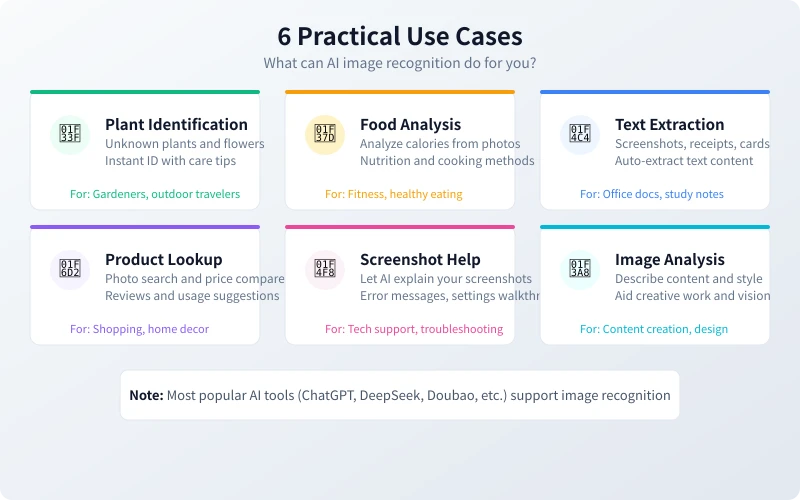
Scenario 1: Identify Unknown Things
See an unfamiliar flower on the street? Spot a fruit you've never seen at the supermarket? Open an AI tool, snap a photo, send it over, and ask "What is this?" — you'll get a detailed answer.
Step-by-step
- Open your preferred AI tool (ChatGPT, DeepSeek, Doubao, etc.)
- Tap the camera/image icon next to the input box
- Take a clear photo or select one from your gallery
- Type your question, e.g., "What plant is this? How do I care for it?"
- Send and wait for the AI response
Works for
- Identifying plants and flowers
- Recognizing animal species
- Identifying ingredients and spices
- Understanding artifacts and artwork
Scenario 2: Analyze Food and Nutrition
Watching your diet or working out? Take a photo of your meal, and AI can estimate calories, analyze nutritional content, and even suggest healthier alternatives.
Example prompt
"How many calories are in this meal? What are the protein, carbs, and fat breakdown? If I'm in a cutting phase, what substitutions would you recommend?"
AI will give you a detailed nutritional analysis based on the food types and portion sizes in the photo. It's not 100% precise, but perfectly useful for everyday reference.
Scenario 3: Interpret Screenshots
Seeing confusing English text, a complex settings page, or an error popup on your phone? Screenshot it and send to AI — it can translate, explain, and even provide step-by-step instructions.
Especially useful for
- English app settings you don't understand — AI translates and explains each option
- Software errors — AI tells you the cause and solution
- Complex charts and data — AI summarizes the key information
- Contract terms — AI explains them in plain language
Scenario 4: Extract Text from Documents
See a passage in a book you want to save? Have a business card to add to your contacts? Need to digitize a paper document? Take a photo and send to AI — it can extract all the text from the image.
How to do it
After taking the photo, simply type "Please extract the text from this image" and AI will output the complete text content. You can then ask it to further process it — organize into a table, translate to another language, or summarize key points.
Scenario 5: Product Identification and Price Comparison
See something you like in a store and want to know if it's available online? Take a photo and send to AI — it can identify the product type and suggest which platforms to search.
Practical tip
AI can't directly browse the web to compare prices, but it can tell you: "This is a XXX brand product, try searching for 'XXX' on Taobao or JD.com." With that info, you can search yourself.
Scenario 6: Describe Image Content
Need to write captions for social media? Describing images for a presentation? Want a thoughtful post caption? Send the image to AI and let it write for you.
Try asking
"Describe this image and write a fun, lighthearted caption for social media."
"What are the composition and color characteristics of this image? What type of presentation would it suit?"
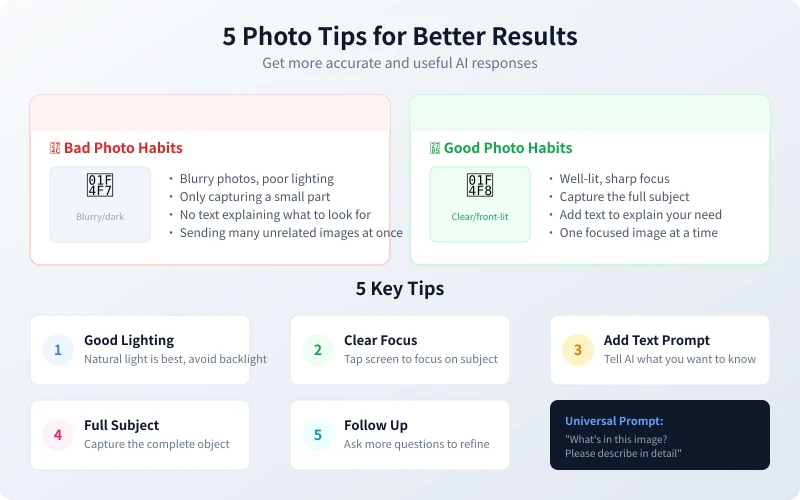
5 Key Tips for Better Photo Recognition
Same image, different prompts — the AI response quality varies dramatically. Remember these 5 tips:
1. Good Lighting
Lighting is the foundation of image recognition. Natural daylight works best; indoors, turn on the lights. Too dark and AI can't see clearly either.
2. Clear Focus
Tap the screen to focus on the subject you want identified. Blurry photos dramatically reduce recognition accuracy.
3. Add a Text Prompt
Don't just send an image without any text. Add a question like "What is this?" or "Help me analyze this image" so AI knows what you want it to do.
4. Capture the Full Subject
Try to photograph the entire object. Cropping too much or being too close/far affects recognition results.
5. Follow Up if Needed
AI's first answer too brief? Simply ask "Can you go into more detail?" or "Any other suggestions?" Multi-turn conversations lead to increasingly precise answers.
Which AI Tools Support Image Recognition?
Most mainstream AI tools now support image recognition:
- ChatGPT (GPT-4o) — Most powerful, most accurate recognition
- DeepSeek — Free Chinese AI with solid recognition
- Doubao — ByteDance's offering, excellent Chinese understanding
- Tongyi Qianwen — Alibaba's tool, supports diverse image analysis
- Kimi — By Moonshot AI, great for long images
All these tools have mobile apps — download, register, and you can start using image recognition right away.
FAQ
Does AI image recognition cost money?
Most AI tools have free tiers. ChatGPT free version offers a certain number of image recognitions per day; DeepSeek and Doubao are essentially free. For heavy use, consider paid plans.
What if recognition is inaccurate?
Three solutions: take clearer photos, add more detailed text descriptions, or try a different AI tool — different tools excel at different things.
Is it privacy-safe?
Images you send to AI may be used for model training (unless you disable this setting). Avoid sending images with sensitive personal information like ID cards or bank cards.
Conclusion
AI image recognition is a seriously underrated feature. It requires zero technical knowledge — just the ability to take photos and type. Starting today, when you encounter something unfamiliar or confusing, try snapping a photo and sending it to AI. You'll discover its capabilities far exceed what you imagined.
Related Articles
AI Speech to Text: Beginner's Guide to Convert Voice to Text in 3 Steps
Learn how to convert speech to text using AI tools. Perfect for meeting notes, content creation, and video subtitles. Three practical scenarios with step-by-step instructions.
TutorialsAI Local Deployment Guide: Run Large Models in 3 Steps for Free
Learn how to deploy AI models locally in just 3 steps. No coding experience needed, completely free, and your data stays private on your own computer.
TutorialsAI Shopping Decision Guide: From Price Comparison to Avoiding Pitfalls
Learn how to use AI for shopping decisions. From price comparison to avoiding pitfalls - make smarter purchasing choices with AI assistance.
Comments are not yet available, stay tuned