AI PDF Assistant Guide: Upload Documents, Smart Summaries, and Content Extraction Made Easy
Have PDFs Ever Driven You Crazy?
You open a 50-page industry report and after 10 minutes you are still on the table of contents. You download a research paper but the abstract alone is too long to finish. You receive a contract and spend ages searching for one specific clause...
PDF is the most common document format, yet it is also the hardest to quickly digest. Text cannot be edited, searching is inconvenient, and charts are mixed with body text — extracting useful information feels like finding a needle in a haystack.
Here is the good news: AI can read PDFs for you in seconds.
This article teaches you the complete method for processing PDF documents with AI tools — upload, summarize, extract, and ask questions — step by step. No prior experience needed.
Getting Started: What Do You Need?
Before you begin, prepare two things:
- An AI tool: Recommended options include ChatGPT, Claude, Kimi (Moonshot AI), Qwen (Tongyi Qianwen), and Doubao. All of these support uploading PDF files.
- A PDF file: A text-based PDF (where you can select and copy text). If your PDF is a scanned image, you will need to convert it with an OCR tool first.
How to Tell If Your PDF Is Text-Based
Try selecting text in the PDF with your mouse. If you can highlight and copy it, it is text-based. If you cannot select it or it comes out as garbled characters, it is a scanned document.
What about scanned PDFs? Use tools like ABBYY FineReader, Adobe Acrobat OCR, or Google Drive (upload and open with Google Docs) to perform OCR conversion first, then upload to AI.
Step 1: Upload Your PDF to an AI Tool
Different tools have slightly different upload methods, but all are straightforward:
ChatGPT (GPT-4o)
Open a chat → click the paperclip icon on the left of the input box → select your PDF file → wait for the upload to complete. Once uploaded, you can type your instructions directly.
Claude
Open a conversation → click the upload button at the bottom left → select your PDF. Claude handles long documents exceptionally well, processing 200+ pages in a single session.
Kimi (Moonshot AI)
Start a conversation → click File Upload → select your PDF. Kimi excels at Chinese language understanding, making it ideal for Chinese reports and papers.
Qwen / Doubao
Similar process: find the upload option → select your file → wait for parsing.
Tip: File size is generally limited to 20-50 MB. If your PDF is too large, try splitting it first or uploading only the relevant chapters.
Step 2: Let AI Summarize for You
After uploading, the first thing to do is ask AI for a summary. This step lets you grasp the core content in 30 seconds.
Common Prompt Templates
Quick Summary:
"Please summarize the core content of this PDF in 200 words."
Structured Summary:
"Please summarize this document in the following format:
1. Document topic
2. Key points (3-5 bullet points)
3. Key data or conclusions
4. What I should focus on"
Chapter-by-Chapter Summary:
"Please summarize this PDF chapter by chapter, using 2-3 sentences for each section."
Results Comparison
A 40-page industry report takes 1-2 hours to read on your own. With AI, you get the key takeaways in 30 seconds, then decide which chapters deserve a closer look.
Step 3: Extract Key Information
Summary is just the beginning. Often you need specific information from the document, not a general overview.
Extract Data and Tables
"Please extract all data metrics from this report, including the numbers and their meanings, and organize them into a table."
Extract Technical Terms
"Please list all technical terms that appear in this document with brief explanations."
Extract Citations and References
"Please extract all references cited in this paper, listed by number."
Extract People and Organizations
"Please list all person names, company names, and organizations mentioned in the document."
Extract Timelines
"Please extract all key events or milestones mentioned in the document in chronological order."
Step 4: Ask Questions About the Document
This is the most powerful feature. You can converse with AI as if talking to an expert who has read the entire document, asking any question you want.
Factual Questions
"What is the market size for 2025 mentioned in this report?"
"What does the penalty clause in this contract say?"
"Do the experimental results support the author's hypothesis?"
Analytical Questions
"What are the main conclusions of this report? What shortcomings do you see?"
"Which contract clauses are unfavorable to our side?"
"What is the innovation of this paper compared to other research in the field?"
Comparison Questions
"Please compare the pros and cons of Option A and Option B as described in the document."
"Is the data consistent across different chapters of the document?"
Practical Questioning Tips
- Specify location: "What does Chapter 3 say about cost control?"
- Set format: "Please summarize all risk factors as a list."
- Follow up: "Can you elaborate on the second point you just mentioned?"
- Request citations: "Please include page numbers or section references in your answer."
Five Practical Use Cases
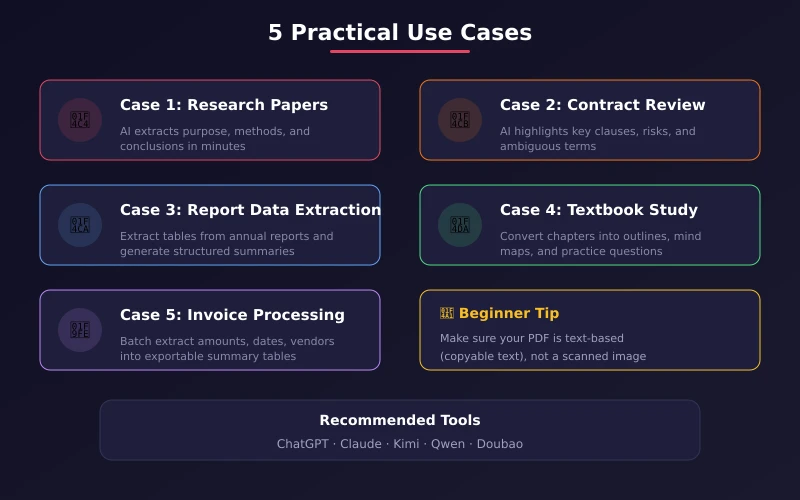
Case 1: Research Paper Speed Reading
After uploading a paper, ask AI to summarize the research purpose, methods, and conclusions. Then ask "What problem does this paper solve?" and "Is the experimental data sufficient?" You can judge whether a paper is worth deep reading in minutes.
Case 2: Contract Clause Review
Upload a contract PDF and ask AI to highlight key clauses (payment terms, liability for breach, confidentiality agreements). Then ask "Are there any clauses unfavorable to us?" and "Which terms are ambiguous and need clarification?" This is 10x faster than reading clause by clause.
Case 3: Industry Report Analysis
Upload an annual report or research study. First extract core data, then ask AI to compare trends across different years, and finally ask "What insights does this report offer for our business?"
Case 4: Textbook Study Aid
Upload textbook chapters and ask AI to generate mind map outlines, key revision notes, and practice questions. Much more efficient than organizing notes yourself.
Case 5: Invoice and Receipt Processing
Batch upload invoice PDFs and ask AI to extract amounts, dates, and vendor names into a summary table. Ideal for expense reporting and bookkeeping.
Advanced Tips
Multi-File Comparison
Some tools (like ChatGPT and Claude) support uploading multiple PDFs at once. You can ask AI to compare differences between two contracts or contrast viewpoints across two papers.
Generate Structured Output
Ask AI to convert PDF content into other formats:
- "Please convert this report to Markdown format."
- "Please organize the key data into an Excel-ready table."
- "Please generate a PPT outline based on the core content of this report."
Translate Foreign Language PDFs
Upload an English paper or report and ask AI to translate key chapters. More accurate than machine translation because AI understands context.
Generate Reading Notes
"Please generate reading notes for me, including: core ideas, notable quotes, directions for personal reflection, and action suggestions."
Frequently Asked Questions
Q: Will AI miss information in my PDF?
Possibly. For very long documents (100+ pages), AI may miss some details. It is recommended to upload in sections or ask targeted questions about specific content.
Q: Is AI-generated content accurate?
Most of the time it is accurate, but you cannot rely on it completely. Especially for critical information like numbers, dates, and legal terms, always verify against the original text.
Q: Are free tools sufficient?
For everyday use, absolutely. ChatGPT free tier, Kimi, and Qwen all support PDF uploads and basic summarization. Consider paid versions for long documents or frequent use.
Q: Will uploading PDFs compromise my privacy?
Mainstream AI tools have privacy protection mechanisms. However, for highly confidential files (such as business contracts and internal reports), consider using enterprise editions or locally deployed AI tools.
Conclusion
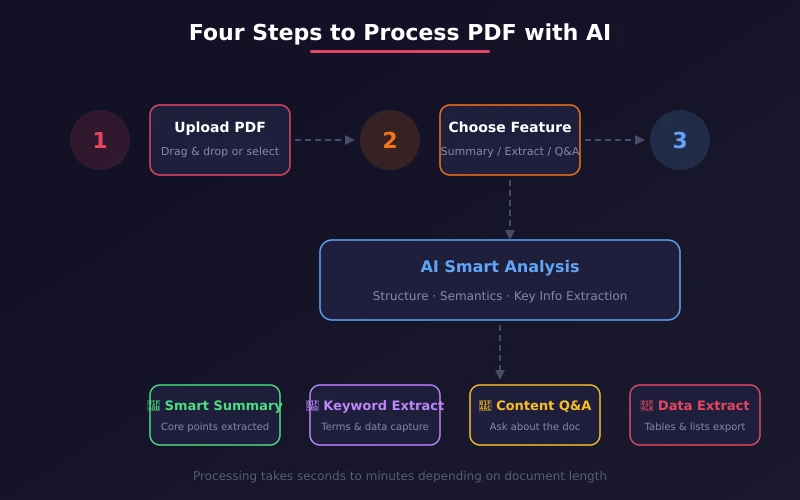
The core workflow for AI-powered PDF processing is four steps: Upload → Summarize → Extract → Ask.
No technical background required. Open an AI tool, upload your file, use the prompt templates from this article, and start reading PDFs efficiently right away.
Bookmark this article and refer back to it next time you encounter a long document. You will discover that reading PDFs can actually be effortless.
Related Articles
AI Speech to Text: Beginner's Guide to Convert Voice to Text in 3 Steps
Learn how to convert speech to text using AI tools. Perfect for meeting notes, content creation, and video subtitles. Three practical scenarios with step-by-step instructions.
TutorialsAI Local Deployment Guide: Run Large Models in 3 Steps for Free
Learn how to deploy AI models locally in just 3 steps. No coding experience needed, completely free, and your data stays private on your own computer.
TutorialsAI Shopping Decision Guide: From Price Comparison to Avoiding Pitfalls
Learn how to use AI for shopping decisions. From price comparison to avoiding pitfalls - make smarter purchasing choices with AI assistance.
Comments are not yet available, stay tuned