AI Schedule Management Guide: Build Your Smart Time Assistant in 4 Steps
Why Do You Need AI to Manage Your Schedule?
Do you often find yourself discovering a meeting conflict only when it starts, forgetting to reply to important emails, or realizing on Friday that a deadline was on Wednesday? Traditional calendar tools can only record events, but AI schedule management can proactively plan, intelligently remind, and automatically review for you.
This article will teach you how to transform your schedule management from "passive recording" to "active planning" in 4 steps. No technical background needed — if you can type, you can get started.
Preparation: Choose Your AI Schedule Tool
Here are several mainstream AI schedule management options — pick one that suits you:
- Google Calendar + Gemini: Free, well-established ecosystem, supports natural language event creation
- Microsoft Copilot: Deep Outlook integration, ideal for enterprise users
- Notion Calendar: Notes and calendar combined, great for knowledge workers
- ChatGPT / Claude: General-purpose conversation-based schedule management, maximum flexibility
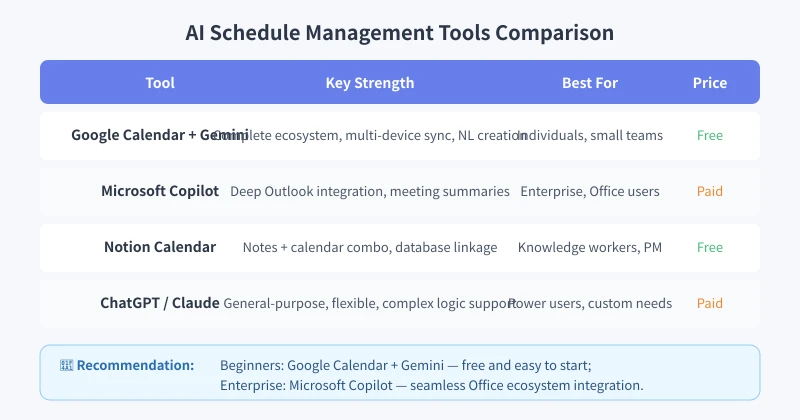
This article uses Google Calendar + Gemini as the main example. Other tools follow similar workflows.
Step 1: Use Natural Language to Input Schedules
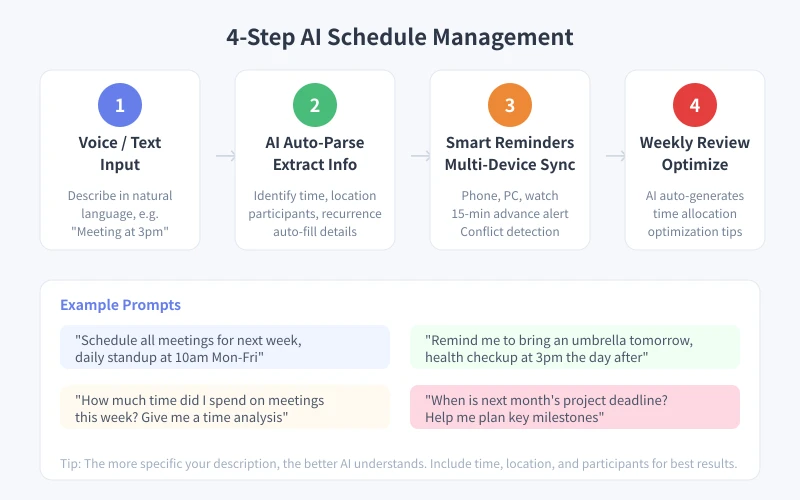
The biggest change AI schedule management brings is — you no longer need to fill out forms manually. Just tell AI in everyday language.
How to Do It
- Open Google Calendar, click the Gemini icon in the bottom right (or open Google Assistant on your phone)
- Speak or type your schedule in natural language
- AI automatically identifies time, location, participants, and other details
- Confirm and create the event with one click
Example conversation:
You say: "Next Wednesday at 2pm, discuss Q3 budget with Manager Zhang in the 3rd floor meeting room, 1 hour"
AI auto-parses:
- Time: Next Wednesday 14:00-15:00
- Location: 3rd floor meeting room
- Participant: Manager Zhang
- Topic: Q3 budget discussion
You just click "Confirm" and the event is created. 10x faster than manual form filling.
Advanced Tips
- Recurring events: "Weekly team standup every Monday at 9am"
- Custom reminders: "Dentist appointment tomorrow at 3pm, remind me 1 hour before"
- Multi-day events: "Business trip to Shanghai next Monday to Wednesday"
Step 2: AI Auto-Parsing and Completion
Once you get used to natural language input, AI's real value lies in its "understanding" — it doesn't just recognize keywords, it understands context.
Scenarios AI Handles Automatically
- Fuzzy time recognition: Say "tomorrow afternoon" and AI sets it to 2:00 PM; say "this Friday" and AI knows the exact date
- Conflict detection: If a new event conflicts with an existing one, AI alerts you and suggests adjustments
- Linked events: Say "remind me to prepare materials 30 minutes before that meeting" and AI links to the previous event
- Time zone conversion: When scheduling with overseas colleagues, AI automatically handles time zone differences
Real-world feedback: Many users report that after a week of natural language input, they can never go back to manual form filling. The fluency of "think it, say it" is something traditional calendar tools simply can't match.
Step 3: Smart Reminders, Multi-Device Sync
Creating events is just the first step. The real headache is "forgetting to check reminders." AI schedule management's smart reminder feature significantly reduces this problem.
How Smart Reminders Work
- Advance notifications: Default 15-minute advance reminder; important events can be set to 1 hour or even 1 day ahead
- Multi-device sync: Phone, computer, and smartwatch all receive reminders simultaneously
- Location awareness: If you set a meeting location, AI considers your position and traffic conditions to remind you when to leave
- Follow-up reminders: For "awaiting reply" emails or "pending" tasks, AI reminds you again at the right time
Recommended Settings
- Daily meetings: 15-minute advance reminder
- Important meetings/interviews: 1-hour advance reminder
- Deadlines: 1 day before + morning of the day, two reminders
- Birthdays/anniversaries: 1 week advance reminder (leaves time to prepare)
Step 4: Weekly Review, Optimize Time Allocation
This is the most underrated feature of AI schedule management — it not only helps you plan the future but also review the past.
How to Do It
- Every Friday afternoon, ask AI to analyze your week's schedule data
- AI generates a time allocation report: how much time was spent in meetings, how much on deep work, how much was wasted
- Based on the report, AI provides optimization suggestions
- Apply these suggestions to next week's schedule planning
Example prompt:
"Analyze my time allocation this week. Which time slots were most productive? Which meetings could be shortened or cancelled? Give me optimization suggestions for next week."
AI might tell you:
- Your deep work time is concentrated between 9-11 AM — schedule important tasks in this window
- Wednesday afternoon has 3 consecutive meetings — consider making one asynchronous
- You spent 8 hours in meetings this week, 2 hours more than last week, mainly from project reviews
Frequently Asked Questions
Is AI schedule management secure? Will my schedule data leak?
Mainstream tools (Google, Microsoft) store schedule data encrypted and do not use it for model training. If you handle highly sensitive schedules, consider localized solutions or enterprise versions.
What if AI creates inaccurate schedules?
There may be a few inaccuracies initially, but AI learns from your corrections. We recommend confirming and correcting actively during the first two weeks — accuracy will improve significantly after that.
Is the free version enough?
The free version of Google Calendar + Gemini is sufficient for personal use. If you need advanced features (like team schedule coordination, automatic meeting summaries), consider the paid version.
Related Articles
AI Speech to Text: Beginner's Guide to Convert Voice to Text in 3 Steps
Learn how to convert speech to text using AI tools. Perfect for meeting notes, content creation, and video subtitles. Three practical scenarios with step-by-step instructions.
TutorialsAI Local Deployment Guide: Run Large Models in 3 Steps for Free
Learn how to deploy AI models locally in just 3 steps. No coding experience needed, completely free, and your data stays private on your own computer.
TutorialsAI Shopping Decision Guide: From Price Comparison to Avoiding Pitfalls
Learn how to use AI for shopping decisions. From price comparison to avoiding pitfalls - make smarter purchasing choices with AI assistance.
Comments are not yet available, stay tuned