A Practical Guide to AI Voice Input and Dictation Assistants: Voice Memos, Recording Transcription, and Subtitle Generation All in One
Don't want to type? Can't take notes fast enough in meetings? Need subtitles for a video? Now just speak, and AI can turn your voice into text, automatically organize, translate, and generate summaries. Voice input isn't new technology, but AI-powered voice assistants today go far beyond simple "speech-to-text" — they understand your meaning, help you extract key points, and even reorganize content as you wish. This article walks you through how to boost your productivity with an AI voice assistant.
What Is an AI Voice Assistant
Traditional voice input (like your phone's built-in speech-to-text) can only do one thing: convert what you say into text verbatim. AI voice assistants go a step further — they not only transcribe but also understand the content, extract key points, correct errors, and generate summaries.
Think of it this way: traditional voice input is like a "stenographer" that writes down everything you say; an AI voice assistant is like a "smart secretary" that not only records but also helps you organize it into useful notes.
Mainstream AI tools that support voice input:
- ChatGPT (GPT-4o): Supports real-time voice conversations, high recognition accuracy, strong in both Chinese and English
- Doubao: Developed by ByteDance, excellent Chinese speech recognition, free to use
- Tongyi Tingwu: Developed by Alibaba, specially optimized for meeting recording transcription
- iFlytek Spark: Developed by iFlytek, a veteran in Chinese speech recognition
- DeepSeek: Supports uploading audio files for transcription, generous free tier
Five Practical Use Cases
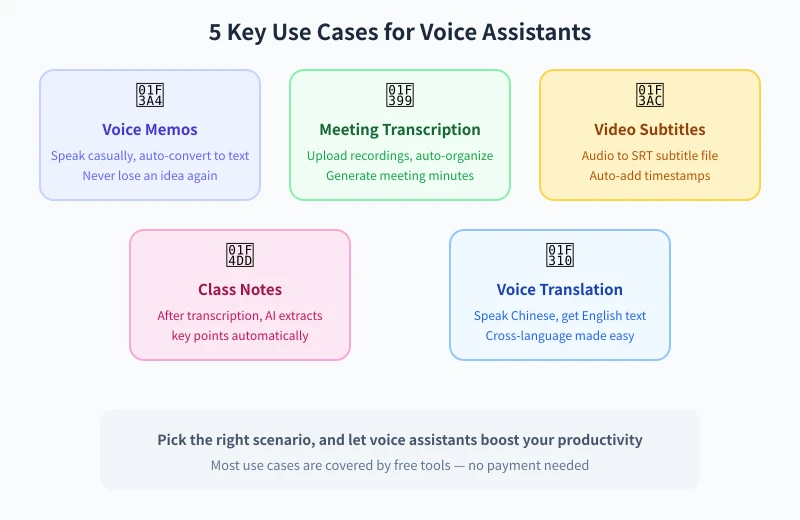
Use Case 1: Voice Memos
Struck by inspiration but can't type? Came up with a great idea while walking? Just say it out loud and let AI turn it into text for you.
How to do it:
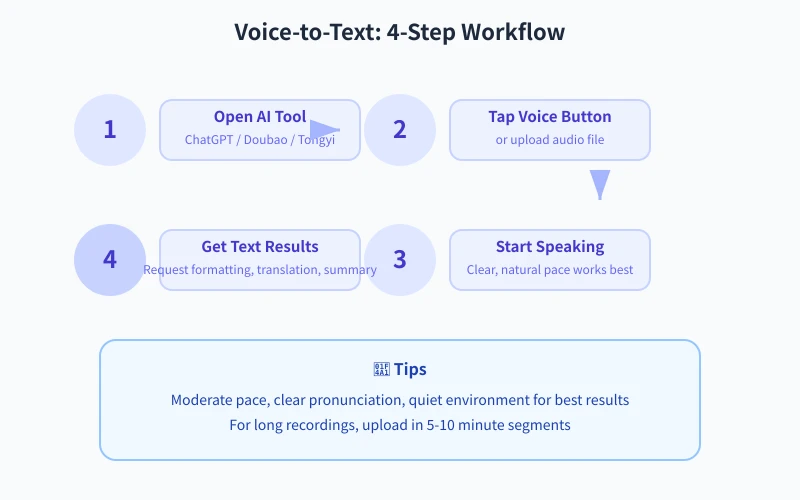
- Open an AI app on your phone (Doubao, ChatGPT, etc.)
- Tap the microphone icon next to the chat box
- Speak what you want to record, for example: "Meeting with client tomorrow at 3 PM, need to prepare product demo slides"
- AI will automatically convert it to text. You can then add: "Format this as a to-do list for me"
- Copy the text and save it to your notes or memo app
Tip: After speaking, you can add commands like "Organize what I just said into a bullet list" or "Translate it into English" — AI will reorganize the content as you request.
Use Case 2: Meeting Recording Transcription
Ended a meeting with messy notes? If you have a recording of the meeting, just upload it to AI, and it can transcribe the audio and generate meeting minutes.
How to do it:
- Record the meeting audio using your phone or computer (most meeting software has recording features)
- Open an AI tool and select "Upload file" or "Voice input"
- Upload the recording file (usually supports mp3, m4a, wav, etc.)
- Give the instruction: "Please transcribe this recording into text and break it down by speaker"
- Once transcription is done, add: "Please generate meeting minutes containing the agenda, discussion points, and action items"
Note: Make sure you have consent from all participants before uploading recordings. Some AI platforms store uploaded audio; for sensitive meetings, consider using platforms that support a "do not save data" mode.
Use Case 3: Video Subtitle Generation
Need subtitles for a short video? In the past, you had to type each word manually. Now, upload the audio and AI automatically generates subtitle files with timestamps.
How to do it:
- Export the audio track of your video using editing software (or use the video file directly)
- Upload it to an AI tool
- Give the instruction: "Please transcribe this audio into SRT subtitle format, with no more than 20 characters per line"
- AI will generate a subtitle file with timestamps
- Import the .srt file into your editing software
Use Case 4: Class Note Organization
After recording a lecture, let AI transcribe the audio and extract key points.
How to do it:
- Record the lecture with your phone (place it close to the speaker if possible)
- After class, upload the recording to an AI tool
- Give the instruction: "Transcribe this lecture recording and extract the key knowledge points, organized by chapter"
- AI will output structured notes containing important concepts, formulas, and examples
- You can follow up with: "Turn the key content into flashcard format for easy review"
Use Case 5: Voice Translation
Traveling abroad and don't speak the language? Speak Chinese to AI, and it can directly transcribe and translate into English (or other languages) in text form.
How to do it:
- Open the voice input feature in an AI tool
- Say what you want to express in Chinese
- Give the instruction: "Translate what I just said into English, using a natural conversational style"
- AI will output natural English
- You can copy it directly to send to someone, or ask AI to translate it into another language
Voice Capabilities Comparison by Platform
| Platform | Real-time Voice | File Transcription | Chinese Performance | Free Tier |
|---|---|---|---|---|
| ChatGPT | ✅ Real-time conversation | ✅ | ⭐⭐⭐⭐⭐ | Limited |
| Doubao | ✅ Real-time conversation | ✅ | ⭐⭐⭐⭐⭐ | Free |
| Tongyi Tingwu | ✅ | ✅ Professional transcription | ⭐⭐⭐⭐⭐ | Free credits |
| iFlytek Spark | ✅ Real-time conversation | ✅ | ⭐⭐⭐⭐⭐ | Free |
| DeepSeek | ❌ | ✅ | ⭐⭐⭐⭐ | Free |
6 Tips for More Accurate Transcription
1. Keep a Quiet Environment
Background noise is the biggest enemy of speech recognition. Try to record in a quiet environment, avoiding the sounds of air conditioning, keyboards, or other people talking. If it's noisy, speak close to your phone's microphone.
2. Speak at a Moderate Pace and Enunciate Clearly
You don't need to slow down deliberately, but make sure every word is clearly pronounced. Mumbling, swallowing syllables, or excessive slurring will affect accuracy. Normal conversational pace works well.
3. Split Long Recordings into Shorter Segments
If a recording exceeds 10 minutes, consider splitting it into several segments for upload. This avoids file size limits and also makes it easier to check and correct errors in each segment.
4. Provide Context
When uploading a recording, tell AI what kind of recording it is. For example: "This is a product requirements review meeting with product managers, designers, and developers." With context, AI can more accurately recognize technical terms and names.
5. Specify the Output Format
Don't just say "transcribe this" — adding format requirements yields better results. For instance: "Please transcribe in chronological order, label each speaker, and bold the key points."
6. Ask AI to Polish After Transcription
Voice transcriptions often contain filler words (um, ah, like). After transcription, ask AI to "remove conversational fillers and keep only the core content" for cleaner text.
Universal Prompt Templates
🎤 Basic Transcription:
"Please transcribe this recording into text, arranged chronologically, with each speaker labeled."
📋 Meeting Minutes:
"Please generate meeting minutes from this meeting recording, including: 1) Meeting topic; 2) Discussion points; 3) Consensus reached; 4) Action items and responsible persons."
🎬 Subtitle Generation:
"Please transcribe this audio into SRT subtitle format, with no more than 20 characters per line and accurate timestamps."
📝 Lecture Notes:
"Please transcribe this lecture recording into structured notes, organized by chapter, highlighting key concepts and formulas."
🌐 Voice Translation:
"Please translate this Chinese recording into English, using a natural conversational style while preserving the original meaning."
Limitations of Voice Assistants
- Limited dialect recognition: Current mainstream tools work best with Mandarin; accuracy for dialects (e.g., Cantonese, Sichuanese) is lower
- Difficulty handling multiple speakers at once: If several people speak simultaneously, AI may not correctly distinguish speakers
- Possible errors with specialized terminology: Medical, legal, technical, and other domain-specific terms may be misrecognized
- Background noise significantly affects quality: Recordings made in noisy environments will see a noticeable drop in transcription quality
- Long recordings may lose content: Some platforms may not fully process recordings exceeding 30 minutes
Important Reminder: Before uploading any recording, make sure you have obtained consent from all involved parties. Do not record or upload others' speech content without authorization.
Frequently Asked Questions
Is there a file size limit for recordings?
Limits vary by platform. ChatGPT typically supports audio files up to 25 MB, while Doubao and Tongyi Tingwu support larger files. If your recording is too large, you can compress it or split it using an audio editor.
Which audio formats are supported?
Most platforms support common formats like mp3, m4a, wav, and ogg. If your format isn't supported, you can re-record using your phone's native recording app or convert the format using a free tool like Audacity.
What if there are errors in the transcription?
You can send the transcription back to AI and ask it to "review and correct any transcription errors, using context to infer the likely correct content." AI can usually fix most mistakes based on context.
Are free tools sufficient?
For daily use, absolutely. Free versions of Doubao and iFlytek Spark handle common transcription tasks well. Tongyi Tingwu also offers free credits. Paid versions are only necessary when handling large volumes of professional recordings.
Can it handle conversations that mix Chinese and English?
Yes. Both ChatGPT and Doubao do a good job with mixed Chinese-English conversations. If the entire recording is in English, ChatGPT is recommended as it has the highest English recognition accuracy.
Related Articles
AI Speech to Text: Beginner's Guide to Convert Voice to Text in 3 Steps
Learn how to convert speech to text using AI tools. Perfect for meeting notes, content creation, and video subtitles. Three practical scenarios with step-by-step instructions.
TutorialsAI Local Deployment Guide: Run Large Models in 3 Steps for Free
Learn how to deploy AI models locally in just 3 steps. No coding experience needed, completely free, and your data stays private on your own computer.
TutorialsAI Shopping Decision Guide: From Price Comparison to Avoiding Pitfalls
Learn how to use AI for shopping decisions. From price comparison to avoiding pitfalls - make smarter purchasing choices with AI assistance.
Comments are not yet available, stay tuned