AI Image Generation Complete Guide: From Zero to Mastering Text-to-Image

Want to generate stunning images with AI but don't know where to start? This guide walks you through AI text-to-image generation from scratch - from prompts to parameters.
What is AI Text-to-Image
AI text-to-image is a technology that generates images from text descriptions. Unlike traditional graphic design tools, it requires no artistic skills and produces professional-quality results in seconds.
Popular models include Midjourney, DALL-E 3, FLUX, and Stable Diffusion. Ciyuano's API provides unified access to multiple models through a single interface.
Where to Use AI Image Generation
- Social media: Quick covers for blogs, Instagram, TikTok
- Product design: Visual references before prototyping
- Marketing: Posters, banners, ad creatives at scale
- Personal creation: Avatars, wallpapers, illustrations, stickers
- Story illustrations: Book covers, children's books, indie games
Step 1: Open the Tool
- Visit www.ciyuano.com
- Navigate to AI Image / Text-to-Image section
- Select model: FLUX for realism, Midjourney for art, SDXL for speed
- Enter editor: You'll see a prompt box, parameter panel, and generate button
Step 2: Write a Good Prompt
The prompt is the heart of AI image generation. A good prompt = a great image.
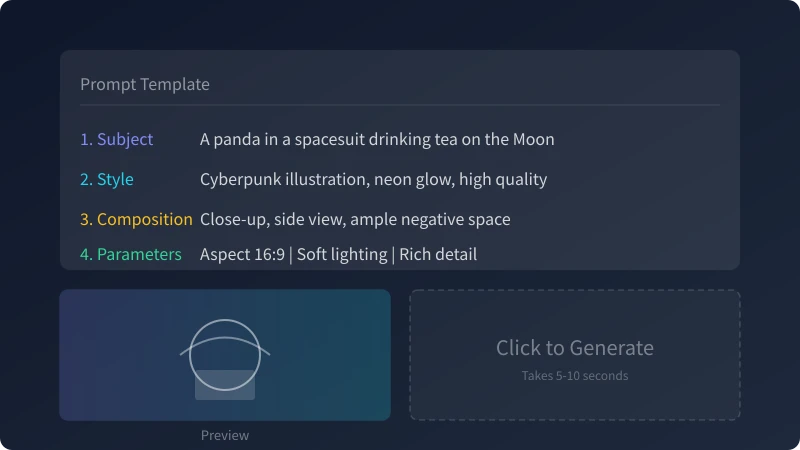
Four Core Elements
| Element | Description | Example |
|---|---|---|
| Subject | What's in the image, who is the focus | A panda in a spacesuit |
| Style | Artistic genre and aesthetic | Cyberpunk illustration |
| Composition | Layout, camera angle, perspective | Close-up, side view |
| Parameters | Ratio, lighting, detail level | 16:9, neon glow, rich detail |
Prompt Writing Tips
- Both Chinese and English work; English tends to support more detail
- Specific beats vague: "a cat" vs. "an orange tabby cat on a windowsill watching the sunset"
- Add mood: "warm afternoon" or "quiet night" shape the tone
- Comma-separated keywords work well in most models
- Negative prompts exclude unwanted elements like blur, low-res, watermarks
Step 3: Set Parameters
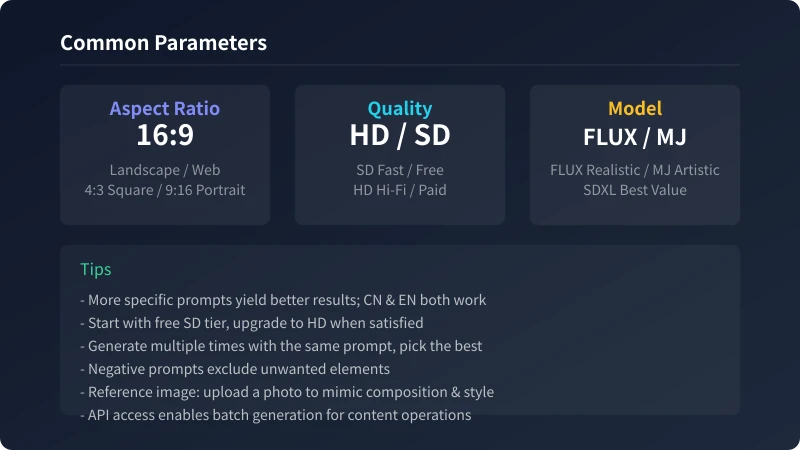
1. Aspect Ratio
| Ratio | Use Case |
|---|---|
| 16:9 Landscape | Web banners, video covers, desktop wallpapers |
| 4:3 Standard | Blog images, document illustrations |
| 1:1 Square | Social avatars, Instagram posts |
| 9:16 Portrait | Phone wallpapers, TikTok, Xiaohongshu |
2. Quality Tier
Most platforms offer SD (Standard) and HD (High Definition). SD is fast and free/low-cost - use it for quick testing. HD delivers higher detail and resolution - use it for final output.
3. Model Selection
FLUX for realistic portraits, Midjourney for cyberpunk/fantasy, SDXL for speed and budget. Beginners should start with SDXL before upgrading to premium models.
Step 4: Generate and Refine
Click "Generate" and wait 5-10 seconds. Most platforms produce 4 images in one batch.
- First generation: Use a short prompt to validate direction
- Pick the best: Choose from the 4 results
- Add details: Refine the prompt with more specifics
- Use variations: Generate similar images or upscale
- Final HD: Switch to HD mode for the final output
Advanced Features
| Feature | Use Case |
|---|---|
| Reference Image | Upload a photo to mimic composition and style |
| Inpainting | Mask specific regions for targeted edits |
| Upscale | 4x enlargement without blur |
| Batch Generation | Multiple prompts in one go |
| Style Templates | One-click style presets |
Batch Generation via API
For large-scale image needs, use Ciyuano's OpenAI-compatible API:
curl -X POST https://www.ciyuano.com/v1/images/generations \
  -H "Authorization: Bearer YOUR_API_KEY" \
  -H "Content-Type: application/json" \
  -d '{
    "model": "dall-e-3",
    "prompt": "A panda in a spacesuit drinking tea on the Moon, cyberpunk style",
    "n": 1,
    "size": "1792x1024"
  }'
Supported models: dall-e-3, flux-realistic, midjourney-v6. Unified API, transparent pricing.
Summary
- Start with the subject, then add style, composition, mood
- Use SD tier first to test, then HD for final output
- Generate 4 images at a time and pick the best
- Use negative prompts to exclude blur, artifacts, and extra elements
- Use reference images for style and composition guidance
- Use API for batch generation instead of manual clicks
It usually takes 3-5 iterations to reach a satisfactory result. Don't expect perfection on the first try.
Related Articles
AI Speech to Text: Beginner's Guide to Convert Voice to Text in 3 Steps
Learn how to convert speech to text using AI tools. Perfect for meeting notes, content creation, and video subtitles. Three practical scenarios with step-by-step instructions.
TutorialsAI Local Deployment Guide: Run Large Models in 3 Steps for Free
Learn how to deploy AI models locally in just 3 steps. No coding experience needed, completely free, and your data stays private on your own computer.
TutorialsAI Shopping Decision Guide: From Price Comparison to Avoiding Pitfalls
Learn how to use AI for shopping decisions. From price comparison to avoiding pitfalls - make smarter purchasing choices with AI assistance.
Comments are not yet available, stay tuned