AI Account Security and Password Manager Guide: Password Generation, Breach Detection, and Privacy Protection Made Easy

Why Should You Care About Account Security?
Have you ever reused the same password everywhere, used "123456" or your birthday, or ignored suspicious login alerts? Your account security may already be at risk.
Billions of credentials are leaked every year. The good news is AI tools can help you manage account security systematically, and it's surprisingly simple.
This guide teaches four things: generate strong passwords, assess password security, check for data breaches, and get privacy protection advice. No tech background needed.
What You Need
Any AI chat tool works: ChatGPT (recommended), DeepSeek, Claude, or others.
Important: Never paste your actual passwords into AI chat. Ask AI to generate new ones or evaluate rules, but never share passwords you're currently using.
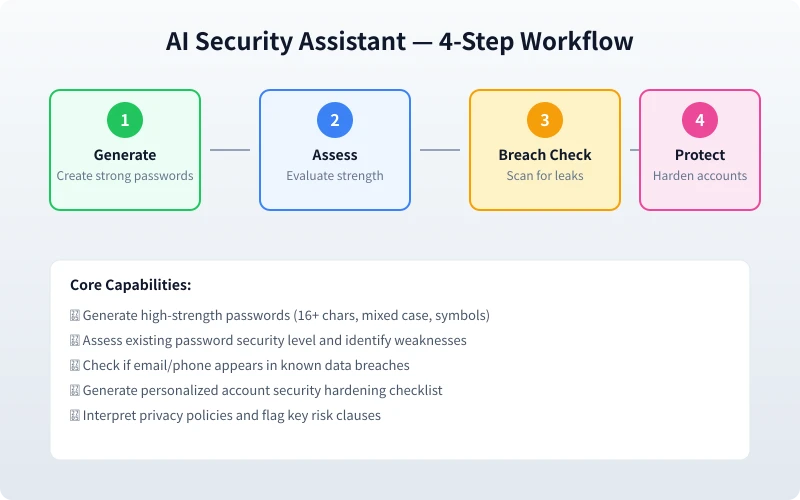
Step 1: Generate High-Strength Passwords with AI
Weak passwords are the #1 cause of breaches. A good password should be 12+ characters (16+ recommended), include mixed case, numbers, and symbols, contain no personal info, and be unique per site.
Copy This Prompt
"Generate 5 high-strength passwords: 16+ chars, mixed case + numbers + symbols, no consecutive chars, no repeats. Include a mnemonic for each. Display as table."
Batch Generate for Multiple Sites
"Generate unique 16-char passwords for: Gmail, Banking, Shopping, Social Media, Email. Include memory tips. Table format."
Step 2: Assess Your Password Security
Don't send real passwords to AI. Describe your rules instead:
"Rate these password strategies 1-10 with improvement suggestions:
1. 8 lowercase only
2. 12 mixed case + numbers
3. 16 mixed case + numbers + symbols
4. Name + birthday + !
5. Password manager generated 20-char"
Expect: 8 lowercase = 2/10, Name+Birthday = 1/10, Manager-generated = 10/10.
Step 3: Check If Your Accounts Have Been Breached
Even strong passwords can be compromised if a site gets hacked.
Key Tools
- Have I Been Pwned (haveibeenpwned.com): Enter your email, click "Pwned?" to check
- Mozilla Monitor (monitor.mozilla.org): Free ongoing monitoring with email alerts
If Breached
- Change password immediately on affected site
- Change it on any other site using the same password
- Enable two-factor authentication
- Check for unusual account activity
Step 4: Create a Security Hardening Plan
"Generate a personalized security hardening checklist. I use 5-8 apps daily, same password everywhere, no 2FA, no password manager, sometimes use public Wi-Fi. Prioritize actions."
Priority 1 (Today)
- Change all duplicated passwords to unique ones
- Enable 2FA on email, banking, payment apps
Priority 2 (This Week)
- Install a password manager (1Password, Bitwarden, Apple Keychain)
- Import all passwords
- Revoke unknown authorized apps
Priority 3 (This Month)
- Change important passwords every 3-6 months
- Enable login anomaly notifications
- Avoid public Wi-Fi for sensitive accounts
Interpret Privacy Policies with AI
"Interpret this privacy policy: What data is collected? Shared with third parties? Can I delete my data? What risk clauses should I watch?"
Two-Factor Authentication (2FA)
2FA adds a second layer beyond your password. Even if stolen, hackers can't log in without the second factor.
Recommended apps: Google Authenticator, Microsoft Authenticator, 1Password, Authy.
FAQ
Q: Safe to share passwords with AI? No. Never paste real passwords into AI conversations.
Q: Are password managers safe? Yes — military-grade encryption. Recommended: 1Password, Bitwarden, Apple Keychain.
Q: SMS vs app verification codes? App codes are safer (SMS vulnerable to SIM-swap attacks).
Q: How often to change passwords? Important accounts: every 3-6 months. General accounts: only if breach detected.
Conclusion
Four actions: generate strong passwords, assess security, check breaches, harden protection.
- Unique strong passwords per site
- Regular breach checks via Have I Been Pwned
- 2FA on important accounts
- Password manager for unified management
10 minutes reading + 30 minutes action = 10x better security. Start now.
Related Articles
AI Speech to Text: Beginner's Guide to Convert Voice to Text in 3 Steps
Learn how to convert speech to text using AI tools. Perfect for meeting notes, content creation, and video subtitles. Three practical scenarios with step-by-step instructions.
TutorialsAI Local Deployment Guide: Run Large Models in 3 Steps for Free
Learn how to deploy AI models locally in just 3 steps. No coding experience needed, completely free, and your data stays private on your own computer.
TutorialsAI Shopping Decision Guide: From Price Comparison to Avoiding Pitfalls
Learn how to use AI for shopping decisions. From price comparison to avoiding pitfalls - make smarter purchasing choices with AI assistance.
Comments are not yet available, stay tuned