AI Browser Extension Guide: Turn Your Browser into an AI Assistant
How much time do you spend in your browser each day? Researching, reading news, writing emails, scrolling social media — your browser handles about 80% of your online work. What if it could automatically summarize long articles, translate foreign content, and help you write? The answer: just install one AI extension.
What Are AI Browser Extensions?
Browser extensions (also called add-ons) are small programs installed in your browser that add new features. AI browser extensions have large language model capabilities built in, allowing them to:
- Understand web content: Read the current page and help you summarize or extract key information
- Real-time translation: Translate selected text instantly, or translate entire pages with one click
- Writing assistance: Help you write emails, comments, and social media posts in any input field
- Enhanced search: Display AI-generated summaries and answers alongside search results
Unlike standalone AI apps, browser extensions offer seamless integration — you don't need to switch windows, and the AI works right on the page you're viewing.
Installation Steps (Universal Process)
The installation process is nearly identical for all Chromium-based browsers (Chrome, Edge, Brave, Arc):
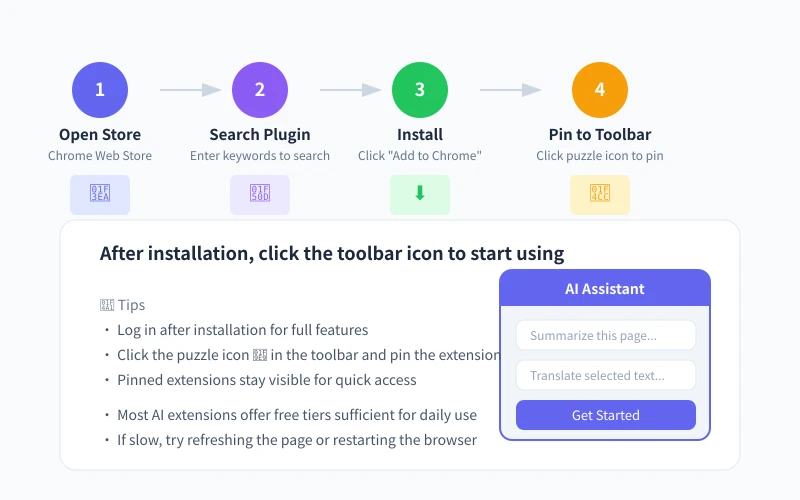
Step 1: Open the Extension Store
- Open Chrome browser
- Type chrome://extensions in the address bar and press Enter
- Click the "Open Chrome Web Store" link on the left
- Or simply search "Chrome Web Store" on Google
Step 2: Search and Select an Extension
- Enter the extension name in the store's search box (e.g., "Sider" or "Monica")
- Find the correct extension in the results and check its rating and user count
- Prioritize extensions with 4.5+ ratings and 100K+ users
- Click into the extension detail page to review features and user feedback
Step 3: Install the Extension
- Click the blue "Add to Chrome" button on the extension detail page
- A permission confirmation popup will appear — carefully read the permissions the extension requires
- Click "Add Extension" to confirm installation
- After installation, the extension icon will appear in the top-right corner of your browser
Step 4: Pin to the Toolbar
- Click the puzzle icon 🧩 in the top-right corner (extension manager)
- Find the newly installed extension in the popup list
- Click the 📌 pin icon next to the extension to pin it to the toolbar
- Once pinned, the extension icon stays permanently on the right side of the address bar for quick access
Four Most Practical AI Browser Extensions
There are hundreds of AI extensions on the market. After hands-on testing, these four stand out as the best in their respective categories:
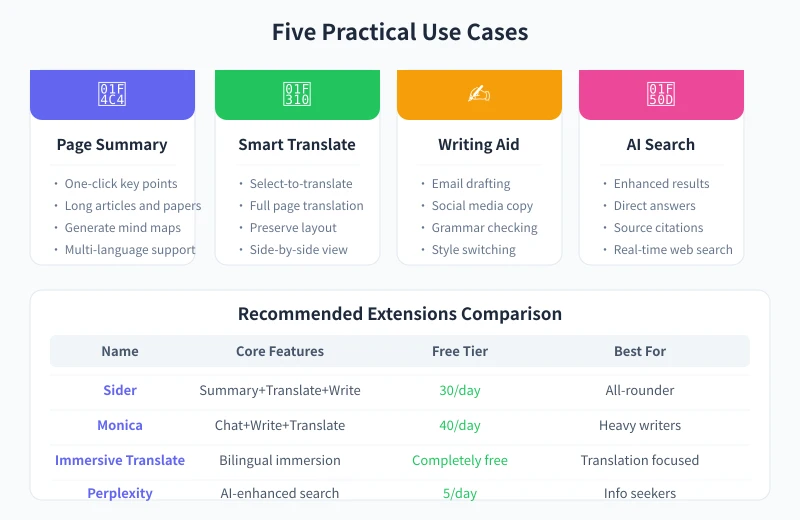
① Sider — The All-Rounder
Best for: Users who want one extension to do it all
Sider is one of the most popular AI browser extensions, integrating GPT-4, Claude, and multiple other models with comprehensive features.
Core Features:
- Page Summary: Open any webpage, click the Sider icon, and generate an article summary instantly
- Select-to-Translate: Select any text to see a translation popup with side-by-side display
- Writing Assistant: Helps you compose and edit text in Gmail, Twitter, web WeChat, and more
- Sidebar Chat: Chat with AI anytime without leaving your current page
Tips:
- Press Ctrl+Shift+S to quickly open the sidebar
- Switch between AI models in settings — use GPT-4 for complex tasks, GPT-3.5 for speed
- Free tier offers 30 calls per day, usually sufficient for daily use
② Immersive Translate — The Translation Champion
Best for: Users who frequently read foreign web pages, papers, and documents
If translation is your primary need, this extension is currently the best choice. Its "immersive translation" mode inserts translated text directly between original paragraphs, creating a smooth reading experience.
Core Features:
- Bilingual Translation: Original and translated text displayed alternately for easy comparison
- Full Page Translation: Translate entire web pages with one click while preserving layout
- PDF Translation: Translate PDF files directly in the browser
- Video Subtitle Translation: Supports bilingual subtitles on YouTube, Netflix, and more
Tips:
- Press Alt+A to quickly translate/untranslate the current page
- Configure "always translate" site lists in settings for sites you frequently visit
- Completely free — translation quality depends on your chosen service (Google, DeepL, etc.)
③ Monica — The Writing Powerhouse
Best for: Users who frequently write emails, copy, and content
Monica's writing assistance capabilities are the strongest among similar extensions. It doesn't just "rewrite" — it generates complete emails, articles, and social media posts from your brief descriptions.
Core Features:
- Smart Writing: Enter a few keywords to generate complete emails or articles
- Grammar Correction: Automatically checks and corrects grammar errors with suggestions
- Multilingual Writing: Describe your needs in Chinese, generate English emails directly
- Template Library: Built-in templates covering emails, reports, social media posts, and more
Tips:
- Select text in any input field, click the Monica icon, and choose "Rewrite" or "Polish"
- When writing emails, input the recipient and key points — Monica generates the full email
- Free tier offers 40 calls per day, enough for everyday writing
④ Perplexity — AI Search Enhancement
Best for: Information seekers who frequently research and fact-check
Perplexity's extension displays AI-generated summaries with source links on the right side of Google search results. It doesn't replace search engines — it enhances the search experience.
Core Features:
- Enhanced Search Results: AI summary panel appears alongside Google/Bing search pages
- Source Citations: Every answer includes source links for verification
- Follow-up Questions: Continue asking questions about search results for deeper exploration
- Page Summaries: Quickly get page summaries when browsing any website
Tips:
- After searching, check the AI panel on the right — no extra steps needed
- Click source links to jump to original articles and verify information accuracy
- Free tier offers 5 Pro searches per day, unlimited regular searches
Practical Usage Scenarios
Scenario 1: Quickly Understand a Long Article
- Open a long English article (tech blog, news report, etc.)
- Click the Sider icon in the toolbar
- Select "Summarize this page"
- Within seconds, the sidebar displays a summary with key points
- If a point interests you, select the original text and ask AI to explain further
Scenario 2: Write a Business Email in English
- Open Gmail and click "Compose" for a new email
- In the email body area, click the Monica icon
- Input: "Write an email to a client explaining a two-week project delay, apologizing, and providing a new delivery date"
- Monica generates a professional English business email
- Review the content, make any adjustments, and send
Scenario 3: Read Foreign Technical Documentation
- Open an English technical documentation page
- Press Alt+A to enable Immersive Translate's bilingual mode
- The page displays in side-by-side format
- When encountering technical terms, refer to the original text for precise meaning
- After reading, press Alt+A again to restore the original
Usage Notes
Privacy and Security
- AI extensions read your current page content, which may include sensitive information
- Avoid using AI extensions on banking and payment pages
- Regularly review extension permissions and remove unused extensions
- Prioritize products from well-known companies over unknown extensions
Performance Impact
- Too many extensions consume browser memory and slow page loading
- Limit active AI extensions to 2-3 at a time
- Disable extensions when not needed; re-enable when necessary
- Manage all installed extensions at chrome://extensions
Free Tier Management
- Most AI extensions have daily free call limits
- Use free tiers for simple tasks (translation, grammar checking)
- Pair with free ChatGPT web for complex tasks (long-form writing, deep analysis)
- Consider paid subscriptions only if usage frequency is high
FAQ
The extension icon doesn't appear after installation?
Click the puzzle icon 🧩 in the top-right corner, find the extension in the list, and click "Pin." If it's still not there, try refreshing the page or restarting the browser.
What's the difference between AI extensions and ChatGPT web?
ChatGPT web is a standalone chat window where you paste content. AI extensions are embedded directly in the browser, providing AI assistance while you browse — much more seamless. They work great together.
Can I use these extensions on Edge?
Yes. Edge is Chromium-based and supports Chrome extensions. You can search in the Edge Add-ons store or install directly from the Chrome Web Store.
Will extensions slow down my browser?
A single extension has minimal impact. But installing too many (10+) may cause noticeable lag. Keep only your 2-3 most-used AI extensions active.
What if I run out of free credits?
Switch to another extension — if Sider runs out, temporarily use Monica. Additionally, ChatGPT and DeepSeek web versions are free and serve as great supplements.
Related Articles
AI Speech to Text: Beginner's Guide to Convert Voice to Text in 3 Steps
Learn how to convert speech to text using AI tools. Perfect for meeting notes, content creation, and video subtitles. Three practical scenarios with step-by-step instructions.
TutorialsAI Local Deployment Guide: Run Large Models in 3 Steps for Free
Learn how to deploy AI models locally in just 3 steps. No coding experience needed, completely free, and your data stays private on your own computer.
TutorialsAI Shopping Decision Guide: From Price Comparison to Avoiding Pitfalls
Learn how to use AI for shopping decisions. From price comparison to avoiding pitfalls - make smarter purchasing choices with AI assistance.
Comments are not yet available, stay tuned