AI Client Integration Guide: Multi-Platform Setup for NextChat, Open WebUI & ChatBox
Why Do You Need an AI Client?
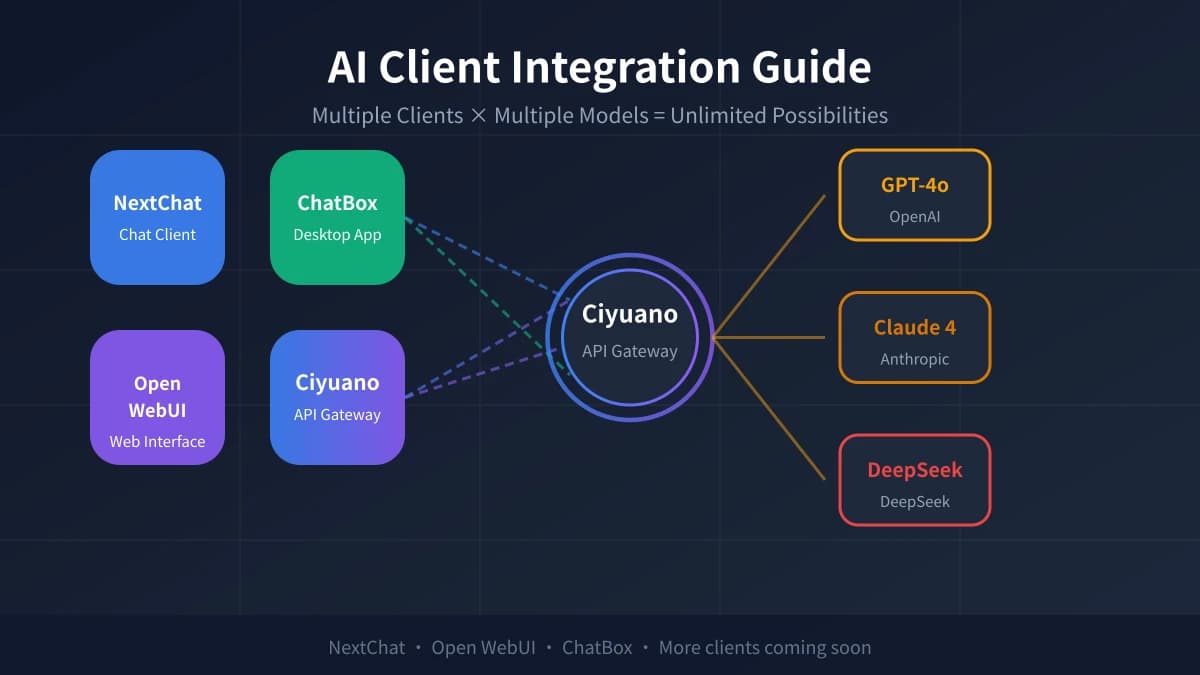
Most people first experience AI chat through a web browser. But as you use it more, you will notice the limitations: poor chat history management, no way to compare multiple models side by side, and a basic interface with few features.
AI clients solve these problems. They act as a universal remote control that connects to different AI models (GPT-4o, Claude, DeepSeek, etc.), letting you switch freely within one app while managing conversation history and saving your favorite prompts.
This guide will walk you through setting up three popular AI clients from scratch, taking your AI experience to the next level.
Before You Start
You need two things to get started:
- An AI platform account (such as Ciyuano) to obtain an API key
- An AI client application (detailed below)
If you do not have a Ciyuano account yet, register on the official website. After registration, go to the "API Keys" page in the dashboard, click "Create New Key", and copy the generated key. Note: the key is only shown once, so save it securely.
3 Steps to Configure Your Client
Regardless of which client you choose, the configuration process is essentially the same — just three core steps:
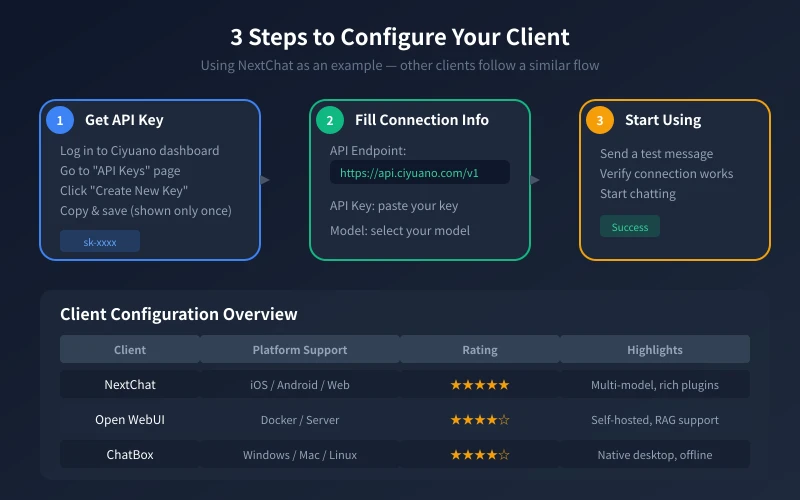
Step 1: Get Your API Key
Log in to the Ciyuano dashboard and navigate to the "API Keys" management page. Click "Create New Key", give it a name (e.g., "NextChat dedicated"), and confirm. The system will generate a key string starting with sk-. Copy and save it immediately to a secure location.
Step 2: Fill in Connection Details
Open your chosen client app and find the "Settings" or "API Configuration" section. Enter the following information:
- API Endpoint: https://api.ciyuano.com/v1
- API Key: paste the key you copied earlier
- Model Name: choose based on your needs, such as gpt-4o, claude-4, or deepseek-chat
Step 3: Test and Start Using
After configuration, send a test message (e.g., "Hello, please introduce yourself"). If you receive a normal reply, the configuration is successful. You can now chat freely in the client.
Detailed Comparison of Three Clients
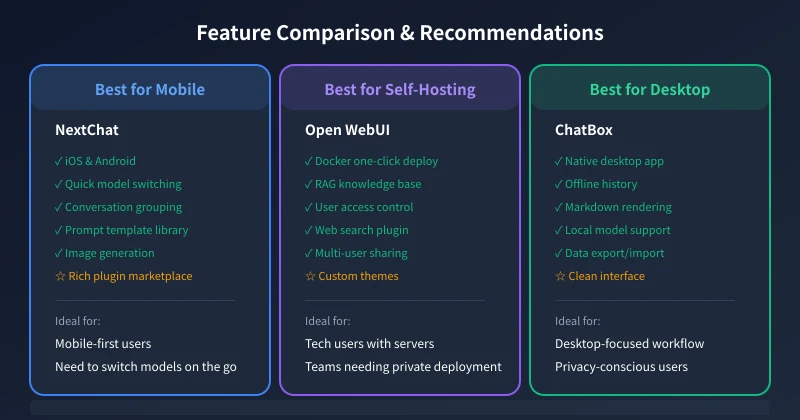
There are many AI clients available. Here are three of the most practical ones, covering mobile, desktop, and self-hosted scenarios.
NextChat — Best for Mobile
NextChat is one of the most popular AI chat clients, supporting both iOS and Android. Its advantages include:
- Multi-model switching: quickly switch between GPT-4o, Claude, DeepSeek, and more in one interface
- Conversation management: groups, search, and chat history export
- Prompt templates: built-in library of practical prompt templates for one-click use
- Plugin ecosystem: support for image generation, voice input, and other extensions
Setup: open NextChat, go to Settings, API Configuration, select "Custom API", enter the API endpoint and key, then save.
Open WebUI — Best for Self-Hosting
Open WebUI is an open-source AI web interface that can be deployed on your own server. Ideal for technical users who value data privacy:
- Docker one-click deployment: a single command starts the service
- RAG knowledge base: upload documents for AI to reference when answering questions
- Multi-user management: assign accounts to team members
- Web search plugin: AI can search the internet in real time
Setup: after deploying Open WebUI, go to Admin Settings, Connections, add the Ciyuano API endpoint and key, then save. All users can use this configuration.
ChatBox — Best for Desktop
ChatBox is a native desktop application supporting Windows, Mac, and Linux. Its key features:
- Offline capable: chat history saved locally, accessible without internet
- Local model support: connect to locally deployed models via Ollama
- Data export: export conversations as Markdown or JSON
- Clean interface: minimal design focused on conversation
Setup: download and install ChatBox, open Settings, select "OpenAI API" as the API type, enter the API endpoint and key, choose a default model, then save.
Common Issues and Solutions
Connection Failed?
- Check that the API endpoint is correct (no extra spaces or missing slashes)
- Confirm the API key is valid (you can regenerate one in the dashboard)
- Verify your network connection (some regions may require a proxy)
Empty Model List?
- Some clients require you to manually enter the model name instead of selecting from a list
- Confirm your account has access to the corresponding model
Slow Response?
- This is normal — different models have different response speeds
- GPT-4o and Claude typically respond within 2-5 seconds
- DeepSeek is faster, usually 1-3 seconds
Advanced Tips
After basic configuration, you can further enhance your experience:
- Create multiple API keys: use different keys for different clients for easier management and billing
- Set a default model: configure your most-used model as the default to save time
- Import prompt templates: find useful prompt templates online and import them into your client
- Enable plugins: if supported, turn on image generation, web search, and other extensions
Summary
AI clients are essential tools for improving your AI workflow. This guide covered three mainstream clients: NextChat for mobile users, Open WebUI for self-hosted scenarios, and ChatBox for desktop work.
Regardless of which you choose, the core setup is the same: get a key, fill in connection details, and test. Once configured, you will have an AI workstation that lets you switch models freely and manage conversations efficiently. Start today and leave the limitations of web-based AI behind.
Related Articles
AI Speech to Text: Beginner's Guide to Convert Voice to Text in 3 Steps
Learn how to convert speech to text using AI tools. Perfect for meeting notes, content creation, and video subtitles. Three practical scenarios with step-by-step instructions.
TutorialsAI Local Deployment Guide: Run Large Models in 3 Steps for Free
Learn how to deploy AI models locally in just 3 steps. No coding experience needed, completely free, and your data stays private on your own computer.
TutorialsAI Shopping Decision Guide: From Price Comparison to Avoiding Pitfalls
Learn how to use AI for shopping decisions. From price comparison to avoiding pitfalls - make smarter purchasing choices with AI assistance.
Comments are not yet available, stay tuned