AI Coding Assistant for Beginners: Write Code with AI — No Experience Needed
Many people think "writing code" is only for programmers. But the AI era is different — you just need to describe what you want in plain language, and AI will write runnable code for you. This guide uses 4 real-world projects to walk you through completing your first programming project.
Why AI Can Help Complete Beginners Write Code
In the past, learning to code meant spending months studying syntax, logic, and debugging. With AI coding assistants, you only need to do two things: figure out what you want, then describe it in plain language.
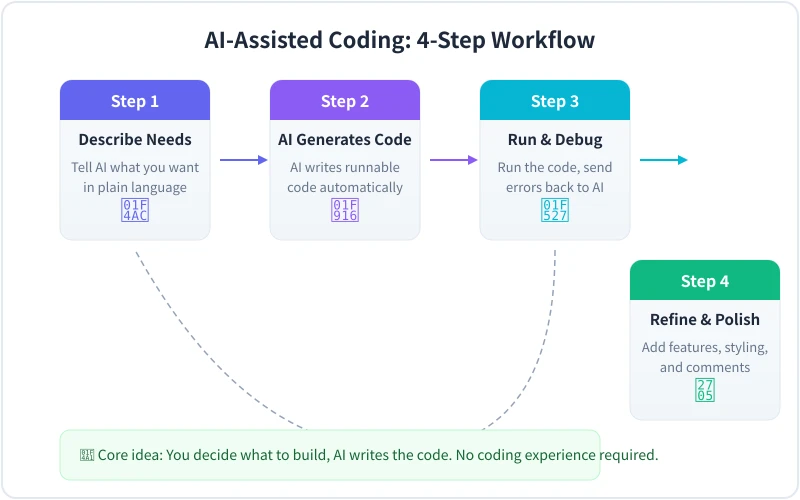
The diagram above shows the core workflow of AI-assisted coding: you describe your needs, AI generates the code, you run it, and if there's an issue, you send it back to AI for fixing.
Before You Start: What You Need
Good news: you don't need to install any programming software. Here's what you actually need:
Essentials Checklist:
- An AI chat tool — ChatGPT, Claude, DeepSeek, or any similar tool
- A text editor — your system Notepad works; VS Code (free) is recommended
- A web browser — Chrome, Edge, or Safari
- 15–30 minutes — enough to complete your first project
No need to install Python, Node.js, or any programming environment. Our first project only needs a single HTML file that runs in your browser.
Project 1: Build a Personal Webpage (~10 min)
This is the simplest beginner project. You'll use AI to generate a beautiful personal introduction page.
Step 1: Open Your AI Chat Tool
Open your preferred AI chat tool and type the following:
Please create a personal introduction webpage with these requirements:
1. HTML + CSS in a single file
2. Clean, modern style with a dark background
3. Include: name, bio, skill tags, contact info
4. Responsive design that works on mobile
5. Add some simple animations
Step 2: Copy the Code and Save
AI will give you HTML code. Next:
- Open Notepad (Windows) or TextEdit (Mac)
- Copy and paste all the AI-generated code
- Click "File → Save As", name it
index.html - Important: set "Save as type" to "All Files" and encoding to UTF-8
- Save to your desktop or any location you'll remember
Step 3: View in Browser
Find the index.html file and double-click it. It opens in your browser and displays your personal webpage.
See the result? Congratulations — you just completed your first programming project!
Step 4: Ask AI to Make Changes
Not satisfied? Go back to your AI chat tool and say:
"Change the background to dark blue, make the name bigger, and add a GitHub icon linking to github.com/myusername"
AI will give you updated code. Just repeat the "copy → paste → save → refresh browser" cycle.
Project 2: Build a To-Do List (~15 min)
Slightly more complex, but you still don't need to understand code. We'll build a to-do list that can add, complete, and delete tasks.
Step 1: Describe Your Needs
Please build a to-do list web app with these requirements:
1. Single HTML file with HTML + CSS + JavaScript
2. Can add new tasks
3. Can mark tasks as "completed" (strikethrough effect)
4. Can delete tasks
5. Data saved in browser local storage (persists after refresh)
6. Clean, beautiful interface with rounded corners and shadows
7. Fade-in animation when adding tasks
Step 2: Save and Test
Same as the first project: copy code → paste into Notepad → save as todo.html → double-click to open.
Try these operations:
- Type a task and press Enter or click the add button
- Click the task text to see if a strikethrough appears
- Click the delete button to see if the task disappears
- Close the browser, reopen it, and check if data persists
Pro tip: Press F12 in your browser to open Developer Tools, switch to the "Console" tab to see specific error messages. Copy the error to AI for faster fixes.
Project 3: Build a Data Processing Script (~20 min)
If you often process spreadsheet data, this project is very practical. We'll use Python + AI to build an automated CSV processor.
Prerequisites
This project requires Python:
- Visit
python.org - Download the latest version
- Be sure to check "Add Python to PATH" during installation
- Open Command Prompt (Windows) or Terminal (Mac)
- Type
python --version— seeing a version number means success
Step 1: Tell AI What Your Data Looks Like
I have a CSV file called sales.csv with these columns:
Date, Product Name, Unit Price, Quantity, Customer City

Please write a Python script that:
1. Reads this CSV file
2. Summarizes sales by product (Unit Price x Quantity)
3. Finds the top 5 products by sales
4. Counts orders by city
5. Outputs results to a new Excel file result.xlsx
6. Prints a summary to the console
Step 2: Run the Script
- Save the AI-generated code as
process_data.py - Place your CSV file in the same folder
- Open Command Prompt/Terminal, navigate to that folder
- Run
pip install pandas openpyxl - Run
python process_data.py
If you get an error, send it to AI — it will tell you how to fix it.
Project 4: Build a Calculator (~10 min)
Let's finish with something fun — a beautiful calculator.
Please build a web calculator with these requirements:
1. Single HTML file
2. Support add, subtract, multiply, divide, and percentage
3. Interface mimics a phone calculator style
4. Button press visual effects
5. Support keyboard input
6. Show calculation history
Save as calculator.html, double-click to open, and it's ready to use.
What Can You Build with AI as a Beginner?
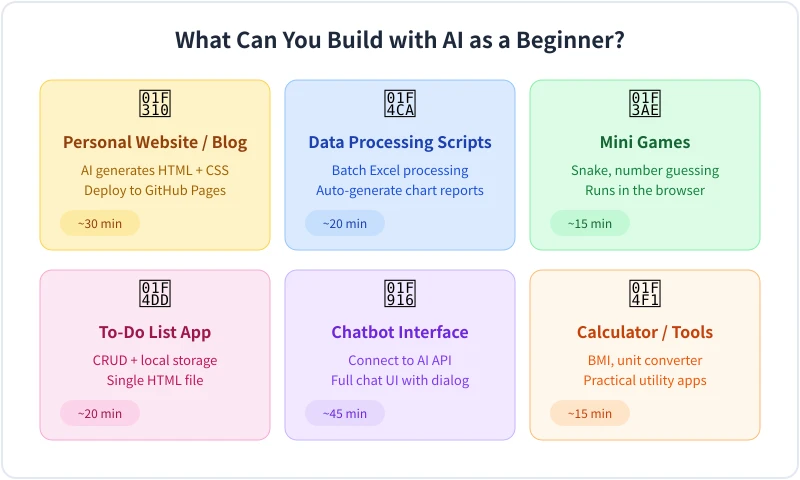
The diagram above shows real projects completed by beginners using AI — from simple webpages to data processing scripts, each completable in 15–45 minutes.
Universal Coding Prompt Templates
Creating a New Project
Please help me build a [project type] with these requirements:
1. Technical: [single HTML file / Python script / ...]
2. Features: [specific feature list]
3. Style: [minimal / cute / business / ...]
4. Other: [responsive / animations / local storage / ...]
Fixing Issues
This code has issues, please help fix it:
[paste code]

Error message:
[paste error]

Expected behavior:
[describe what you want it to do]
Improving Code
Here is my code. Please help:
1. [Add a specific feature]
2. [Optimize performance / improve UI / add comments]
3. [Fix a specific bug]

[paste code]
5 Common Mistakes Beginners Make
| Mistake | Correct Approach |
|---|---|
| Vague description: "make me a website" | Describe specific features, style, and page count |
| Randomly editing code when errors occur | Send the exact error message to AI |
| Requesting too many features at once | Build core features first, then add more |
| Not saving intermediate versions | Save a backup copy after each improvement |
| Giving up when encountering errors | Errors are normal — AI excels at fixing bugs |
What to Learn Next
After completing the projects above, you can continue exploring:
- Deploy online: use GitHub Pages to host your web projects for free
- Learn Git: let AI teach you version control for managing code
- Learn JavaScript basics: with AI assistance, basic syntax comes quickly
- Build a complete web app: combine frontend and backend, from pages to databases
- Join developer communities: find open-source projects on GitHub, let AI help you understand the code
Remember: coding is not talent — it is a tool. AI makes this tool easier to pick up than ever. Your first program might only take 10 minutes.
Related Articles
AI Speech to Text: Beginner's Guide to Convert Voice to Text in 3 Steps
Learn how to convert speech to text using AI tools. Perfect for meeting notes, content creation, and video subtitles. Three practical scenarios with step-by-step instructions.
TutorialsAI Local Deployment Guide: Run Large Models in 3 Steps for Free
Learn how to deploy AI models locally in just 3 steps. No coding experience needed, completely free, and your data stays private on your own computer.
TutorialsAI Shopping Decision Guide: From Price Comparison to Avoiding Pitfalls
Learn how to use AI for shopping decisions. From price comparison to avoiding pitfalls - make smarter purchasing choices with AI assistance.
Comments are not yet available, stay tuned