AI Image Generation Tutorial: Create Images with Text Prompts
Why Learn AI Image Generation?
Have you ever struggled to find the right image for your content? Or wanted to create a unique avatar for social media but didn't know how to use Photoshop? AI image generation tools make it simple — just describe what you want in words, and AI creates it for you.
This tutorial will take you from zero to generating your first AI image in just 5 minutes.
Step 1: Choose an AI Image Generation Tool
There are many AI image generation tools available. Here are the best options for beginners:
- ChatGPT (GPT-4o): Describe images directly in the chat — the simplest approach, perfect for everyday use
- Midjourney: Beautiful output with strong artistic quality, ideal for high-quality images
- DALL·E 3: Made by OpenAI, excellent at understanding complex descriptions
- Stable Diffusion: Open source and free, runs locally, great for tech enthusiasts
If you're a complete beginner, start with ChatGPT — it's the easiest to use and requires no special commands.
Step 2: Learn to Write Prompts
A prompt is your text instruction to the AI. How well you write it directly determines the quality of the generated image.
The Four Core Elements of a Prompt
- Subject: What do you want to draw? (a cat, a girl, a building)
- Scene: Where is it? What environment? (beach, city street, under the stars)
- Style: What art style? (photography, anime, oil painting, watercolor)
- Details: Lighting, colors, composition (warm tones, backlit, top-down angle)
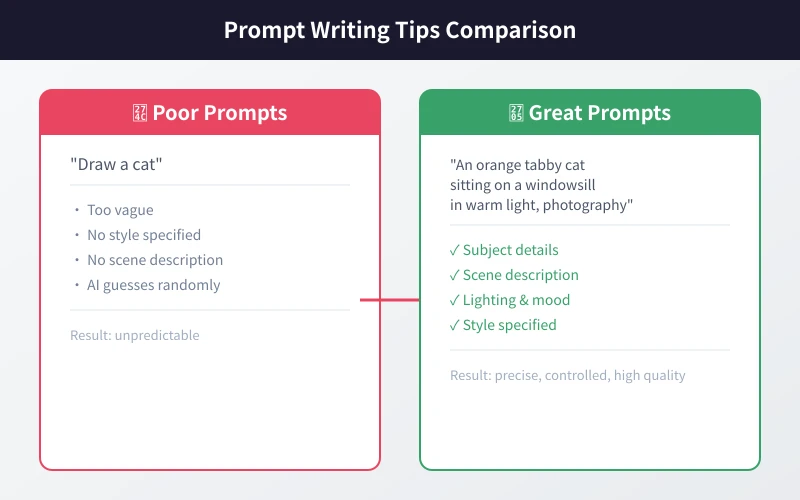
Side-by-Side Comparison
| Description Type | Input | Expected Result |
|---|---|---|
| Vague | "Draw a cat" | Random, uncontrollable |
| Detailed | "An orange tabby cat sitting on a windowsill basking in warm afternoon sunlight, photography style" | Precise, attractive, on-target |
Step 3: The Actual Workflow
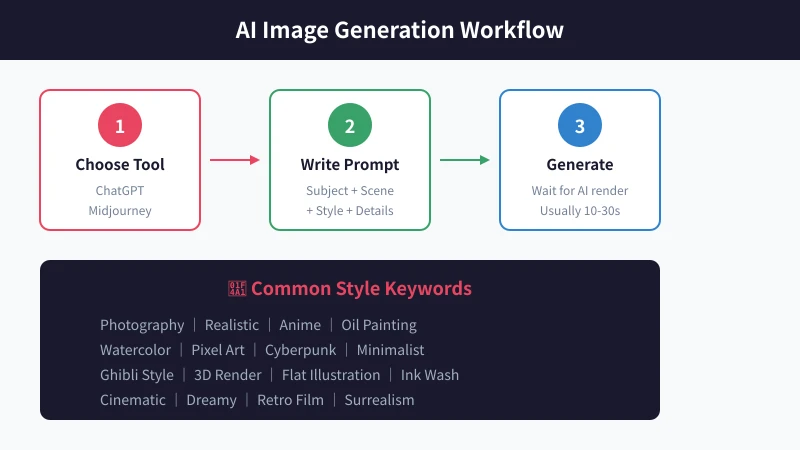
Here's the complete workflow using ChatGPT as an example:
- Open ChatGPT: Visit chat.openai.com and log in to your account
- Enter your description: Type the image description in the chat box
- Wait for generation: AI typically takes 10-30 seconds to generate an image
- Refine and adjust: If not satisfied, add more details or modify keywords and regenerate
- Download and save: Right-click the image and select "Save image" to download
Step 4: Common Style Keywords Quick Reference
Mastering these style keywords will elevate your image results:
- Photography: photography, realistic, cinematic, film grain
- Illustration: illustration, flat design, watercolor, oil painting
- Anime: anime, manga, Ghibli style, Studio Ghibli
- 3D: 3D render, isometric, low poly, claymation
- Art: impressionist, surrealist, pop art, art nouveau
Frequently Asked Questions
Q: Can I use AI-generated images commercially?
It depends on the tool and your subscription plan. Images generated with ChatGPT Plus are generally available for commercial use, but always check each platform's terms of service.
Q: Why don't my generated images match what I imagined?
The most common reason is insufficient detail in your description. Try adding more specifics: colors, lighting, angle, composition, etc. AI can't read minds — it can only work with what you provide.
Q: How much does it cost to generate an image?
ChatGPT Plus ($20/month) includes image generation; Midjourney basic plan is about $10/month; Stable Diffusion can run locally for free (requires a decent graphics card).
Conclusion
The key to AI image generation is writing good prompts. Remember the four elements: subject, scene, style, and details. The more detailed your description, the more precise the result. Go ahead and try it — create your first AI image with just one sentence!
Related Articles
AI Speech to Text: Beginner's Guide to Convert Voice to Text in 3 Steps
Learn how to convert speech to text using AI tools. Perfect for meeting notes, content creation, and video subtitles. Three practical scenarios with step-by-step instructions.
TutorialsAI Local Deployment Guide: Run Large Models in 3 Steps for Free
Learn how to deploy AI models locally in just 3 steps. No coding experience needed, completely free, and your data stays private on your own computer.
TutorialsAI Shopping Decision Guide: From Price Comparison to Avoiding Pitfalls
Learn how to use AI for shopping decisions. From price comparison to avoiding pitfalls - make smarter purchasing choices with AI assistance.
Comments are not yet available, stay tuned