AI Music & Audio Creation Guide: Generate Music, Voiceover & Sound Effects with AI
Ever thought about writing a song without knowing any instruments, creating voiceover without hiring a narrator, or making sound effects without learning audio editing? AI audio creation tools have made all of this possible. Just type a text description, and AI can generate a complete song, realistic voiceover, or various sound effects. This guide teaches you how to complete your first AI audio creation from scratch using three mainstream tools.
Three Essential Tools at a Glance
AI audio creation mainly falls into three categories: music generation, voice synthesis, and sound effects. Each has its own dedicated tool:
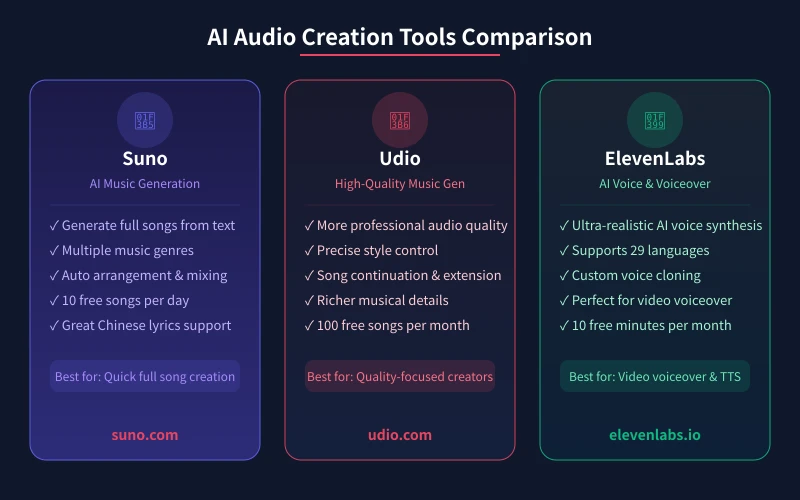
- Suno (suno.com): The most popular AI music generation tool. Type a description and get a complete song with melody, arrangement, and vocals. Free tier allows 10 songs per day.
- Udio (udio.com): Higher quality AI music generation, ideal for detail-oriented creators. Free tier allows 100 songs per month.
- ElevenLabs (elevenlabs.io): The most powerful AI voice synthesis tool for ultra-realistic voiceover and narration. Supports 29 languages. Free tier gives you 10 minutes per month.
AI Music Creation: 4-Step Workflow
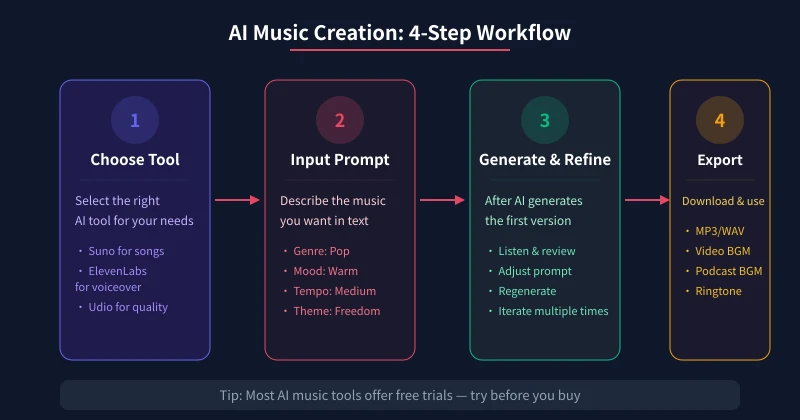
No matter which tool you use, the basic AI audio creation flow is the same: Choose Tool → Write Description → Generate & Refine → Export & Use. Let us walk through the entire process using Suno as an example.
Step 1: Create Your First Song with Suno
Sign Up & Log In
- Open your browser and visit suno.com
- Click the "Sign Up" button in the top right corner
- You can sign up with Google, Discord, or email
- After registration, you will automatically enter the creation page
Create Your First Song
- On the creation page, you will see an input box labeled "Describe the song you want"
- Describe your desired song style in Chinese or English. For example: "A warm acoustic folk song about summer and the ocean, slow tempo, perfect for relaxing on a lazy afternoon"
- If you do not want AI to write lyrics, toggle on "Instrumental" to generate pure music
- Click "Create" and wait 30-60 seconds
- AI will generate two versions simultaneously. Click the play button to preview
- Choose your preferred version, click "..." menu to download as MP3
Custom Lyrics
If you want to use your own lyrics instead of AI-generated ones:
- On the creation page, switch to "Custom" mode (default is "Simple" mode)
- Enter your lyrics in the lyrics input box
- Describe the music style in the "Style of Music" input box, for example: pop, acoustic, warm, female vocal
- Click "Create" to generate
Lyrics Formatting Tips
Add formatting markers in your lyrics to help AI better understand the song structure:
- [Verse] — Marks the verse section
- [Chorus] — Marks the chorus section
- [Bridge] — Marks the transition section
- [Outro] — Marks the ending
- Leave a blank line between markers, and AI will automatically adjust melody and rhythm
Step 2: Generate High-Quality Music with Udio
If you have higher quality requirements, try Udio:
- Visit udio.com and sign up with Google or email
- On the homepage, describe your desired music in the input box, for example: "cinematic orchestral piece, epic and dramatic, suitable for movie trailer"
- Click "Generate" and wait for it to process
- Udio displays a waveform visualization, letting you see the audio structure visually
- After previewing, click "Extend" to let AI continue generating the next section
- Click "Download" to save the complete audio
Udio Exclusive Features
- Song Continuation: After generating a section, let AI continue writing the rest of the melody
- Style Blending: Combine multiple styles simultaneously, like "jazz + electronic + lo-fi"
- Reference Tracks: Upload a reference audio clip and let AI mimic its style
Step 3: Generate Voiceover with ElevenLabs
If you need human voice narration (video voiceover, audiobooks, podcasts), ElevenLabs is the best choice:
- Visit elevenlabs.io and create an account
- Go to the "Text to Speech" page
- Enter your text in the left text box
- Select a voice on the right: choose from male, female, different ages, and different accents
- Click "Generate" and hear the result in seconds
- When satisfied, click "Download" to save as MP3 or WAV
Voice Cloning (Advanced)
ElevenLabs supports cloning your own voice:
- Go to "Voices" → "Add Voice"
- Select "Instant Voice Cloning"
- Upload a clear voice sample of at least 1 minute
- The system will automatically clone your voice characteristics
- After that, you can generate any content narration using your own voice
Practical Tips
Tip 1: More Specific Descriptions = Better Results
Do not just write "a nice song." Tell AI the specific style, mood, instruments, and tempo. For example: "A lyrical pop song with piano and strings, slow tempo, warm and healing mood, perfect for listening alone on a rainy day."
Tip 2: Generate Multiple Times, Pick the Best
Each generation produces different results. For the same description, click "Create" multiple times and select the best version from the batch. The free tier gives you plenty of attempts.
Tip 3: Mix and Match Tools
You can use Suno to generate background music and ElevenLabs for voiceover narration, then combine them in CapCut or any video editor. This is the most common AI audio creation workflow today.
Tip 4: Watch Out for Copyright
Music generated with free tiers is usually for personal use only. If you plan to use it commercially (YouTube videos, ads), consider purchasing a paid plan for commercial licensing.
Real-World Use Cases
Use Case 1: Video Background Music
When making short videos or vlogs, use Suno to generate BGM that matches the video mood. Describe the emotion and rhythm, and AI will create matching music. Much more efficient than searching through music libraries.
Use Case 2: Podcast Intro & Outro
Use Suno to generate a 30-second intro track and ElevenLabs for the show introduction voiceover. A professional-sounding podcast opening is done in minutes.
Use Case 3: Audiobook Production
Paste your text into ElevenLabs, choose a voice that fits the story atmosphere, adjust speed and emotion, and generate near-professional narration quality.
Use Case 4: Game & App Sound Effects
Need button click sounds, notification tones, or ambient effects? Describe the sound effect you need, like "short cheerful notification sound," and generate it quickly.
FAQ
Can I use the generated music commercially?
Free tier music from Suno and Udio is for personal use only. Paid users can use it commercially. Always check each platform for the latest terms.
Will AI-generated songs have copyright issues?
Currently, AI-generated music is considered new original content and generally does not conflict with existing songs. However, avoid specifying to mimic a specific singer voice in your description, as this may involve likeness rights.
How good are Chinese songs?
Suno handles Chinese lyrics quite well, with correct pronunciation and rhyme. Udio is slightly weaker with Chinese but excels at English songs. ElevenLabs supports Chinese voice synthesis, though English sounds the most natural.
Is the free tier enough?
It is more than enough for personal learning and small projects. Suno gives 10 songs per day, Udio 100 per month, and ElevenLabs 10 minutes per month. Consider upgrading only if you need to produce content at scale.
Related Articles
AI Speech to Text: Beginner's Guide to Convert Voice to Text in 3 Steps
Learn how to convert speech to text using AI tools. Perfect for meeting notes, content creation, and video subtitles. Three practical scenarios with step-by-step instructions.
TutorialsAI Local Deployment Guide: Run Large Models in 3 Steps for Free
Learn how to deploy AI models locally in just 3 steps. No coding experience needed, completely free, and your data stays private on your own computer.
TutorialsAI Shopping Decision Guide: From Price Comparison to Avoiding Pitfalls
Learn how to use AI for shopping decisions. From price comparison to avoiding pitfalls - make smarter purchasing choices with AI assistance.
Comments are not yet available, stay tuned