AI PPT Guide: Create Professional Slides from Zero Experience

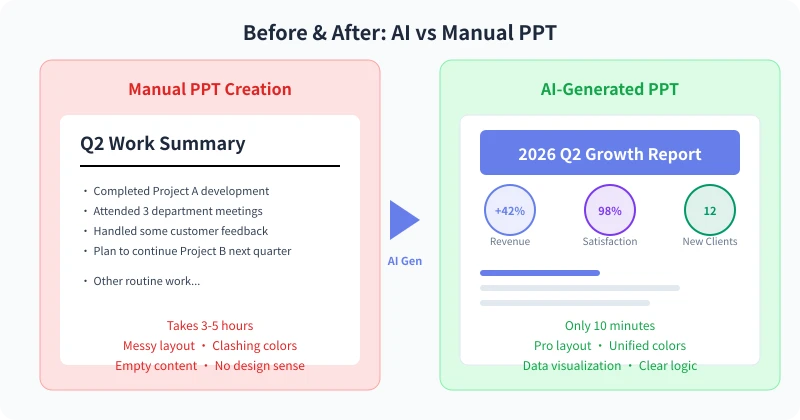
Making PPTs is a nightmare for many—choosing templates, adjusting layouts, finding images, tweaking colors. A simple 10-slide deck can take 3-5 hours. But AI tools can compress that to under 10 minutes: just enter your topic, and AI generates a polished, well-structured presentation automatically.
Why Use AI for PPTs
Let us be clear: using AI for PPTs is not cutting corners—it is freeing up time for what matters. Here is how traditional PPT time breaks down:
- 60% of time spent on layout, colors, and finding materials
- 30% of time spent on formatting and alignment
- Only 10% of time actually thinking about content
AI tools handle that 90% of grunt work, letting you focus on what truly matters—your content.
Recommended Tools
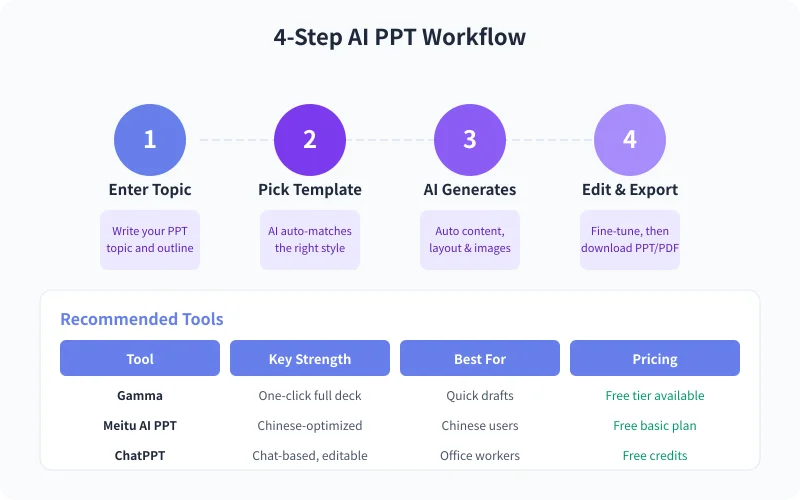
Today AI PPT tools are quite mature. Here are the top three worth trying:
Gamma (Top Pick)
The most popular AI presentation tool worldwide. Enter a one-line topic, and it generates a complete PPT. Supports online editing and export. The free tier is enough to get started.
Meitu AI PPT
Best Chinese language optimization with a rich template library. Especially suited for users who prefer Chinese aesthetics. Supports one-click conversion from Word documents to PPTs.
ChatPPT
Chat-based PPT generation—you can tell AI to add a data comparison slide like chatting, and it makes changes instantly. Great for scenarios requiring frequent iterations.
Hands-On: Create a PPT with Gamma in 10 Minutes
Step 1: Sign Up and Open Gamma
Open gamma.app in your browser and sign up with a Google account or email. After signing up, click Create new, then Presentation.
Step 2: Enter Your Topic
Write your PPT topic in the input box. The more specific you are, the better the generated content.
Good input example: 2026 Q2 e-commerce operations review, focusing on user growth, conversion rate changes, and H2 strategy
Bad input: Work summary (too vague—AI can only generate generic content)
Step 3: Choose Style and Page Count
Gamma will ask you to select:
- Theme style: Business blue, minimalist white, tech black—pick the closest match to your brand
- Page count: 8-12 pages recommended; too many feels tedious
- Language: Select your preferred language
Step 4: Wait for AI Generation
After clicking Generate, Gamma will produce a complete PPT in 30-60 seconds. You will see every slide title, body text, and charts auto-populated.
Step 5: Fine-Tune and Edit
AI-generated content usually needs minor adjustments:
- Update data: AI generates sample data—replace it with your real numbers
- Adjust wording: Make the language match your communication style
- Add or remove slides: Add or delete pages as needed
- Replace images: Upload your own assets if the AI images do not fit
Step 6: Export
When editing is done, click Share then Export in the top right. You can export as PPT, PDF, or share a direct link.
Pro tip: For formal business use, export as PPT and do a final polish in PowerPoint to ensure fonts and formatting match your company template.
5 Tips for More Professional AI PPTs
1. Give AI Specific Structure
Do not just say make a product intro. Instead: Create a product intro PPT with 5 sections: product background, core features, user cases, competitor comparison, and pricing plan. Clearer structure means higher quality output.
2. Provide Real Data
If you have data, share it with AI directly. Revenue grew 42% to 5.8M is far better than revenue grew significantly. AI will automatically create data visualizations.
3. Use Regenerate Wisely
Unhappy with a slide? Do not spend ages manually editing—just ask AI to regenerate that slide. Usually the second attempt nails it.
4. Keep Text Minimal
The golden rule: no more than 6 lines per slide, no more than 15 words per line. If AI generates too much text on a slide, ask it to trim.
5. Maintain Color Consistency
Stick to one color scheme across all slides. Most AI tools maintain consistency by default, but if you manually changed a slide color, check the overall coherence.
Common Use Cases
Work Reports: Weekly or monthly summaries—enter keywords and data, done in 5 minutes.
Product Pitches: Present to investors or clients with professional visual design.
Training Materials: Feed your training outline to AI for illustrated courseware.
Thesis Defense: Combine your abstract and findings into a defense presentation quickly.
FAQ
Q: Can AI-generated PPTs be used commercially?
A: Yes. Content generated by tools like Gamma is commercially usable. However, check for any third-party assets like images and replace them with your own if needed.
Q: Is the free tier enough?
A: Absolutely for casual use. Gamma free tier has monthly credits that are sufficient for occasional use. Consider a paid plan if you are a heavy user.
Q: Can AI make animated PPTs?
A: Gamma supports simple transition animations. For complex animations, export to PPT and add them in PowerPoint.
Conclusion
The real value of AI PPTs is not replacing you—it is freeing you. Hand off the repetitive work of layouts, colors, and materials to AI, giving yourself more time to refine content and logic. Generate an 80-point PPT in 10 minutes, then spend another 10 minutes polishing it to 95—that is the right way to make PPTs in the AI era.
Head to gamma.app and enter your next PPT topic to give it a try.
Related Articles
AI Resume Writing: From Zero to Professional in 5 Steps
Learn how to use AI to write a professional resume. Five simple steps from basic information to polished final draft. Perfect for job seekers who want to stand out.
Productivity ToolsAI Note Organization: Build a Personal Knowledge System in 5 Steps
Learn how to use AI for note organization. Build a personal knowledge system in 5 steps. Perfect for knowledge workers and students.
Productivity ToolsAI Side Hustle Planning: Find Your Second Income Source
Want to earn extra income through a side hustle but don't know where to start? AI can help you analyze your skills, match directions, make plans, and track progress. Find your ideal side hustle within a month, even with zero experience.
Comments are not yet available, stay tuned