A Practical Guide to AI Presentation Assistants: Outline Generation, Content Layout, and Visual Design All in One
Creating a professional presentation, from outlining to layout design, often takes a lot of time. With AI assistance, you can focus on the content itself and let AI handle structure building, copywriting, and visual design. This article teaches you step by step how to efficiently create PPTs with AI, suitable for work reports, project proposals, training materials, and more.
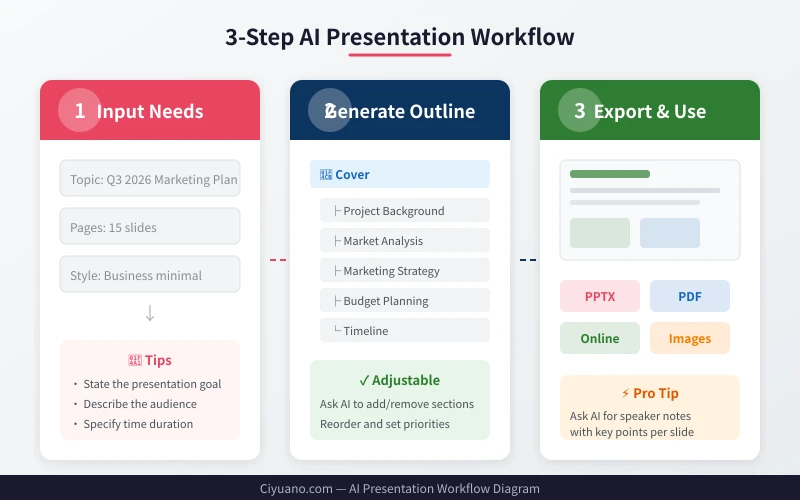
Step 1: Define Your Needs and Let AI Generate an Outline
A great presentation starts with a clear outline. You don't need to plan every section from scratch—just tell AI the basic information, and it will build a complete framework for you.
Input Your Requirements
Provide AI with the following details for best results:
- Presentation Topic — e.g., "Q3 2026 Marketing Plan"
- Target Audience — Reporting to management? Proposing to a client? Training your team?
- Time Limit — A quick 10-minute talk or a detailed 30-minute session?
- Style Preference — Professional and clean, creative and lively, academic and rigorous?
- Special Requirements — Do you need data charts, case studies, comparison tables?
Reference Prompt Template
Create a presentation outline for a "Q3 Marketing Plan."
Target audience: company management. Duration: about 15 minutes. Style: professional and clean.
Must include: market analysis, competitor comparison, promotion strategy, budget allocation, execution timeline.
List each slide's title and 3-4 key points.
Refine and Optimize
The first outline generated by AI may not be perfect. You can further request:
- "Add an industry trend forecast page after the market analysis."
- "Split the budget allocation into two pages: one table and one chart."
- "Add a summary and next steps page at the end."
- "Change the competitor comparison page to a SWOT analysis format."
Iterate 2-3 rounds until you're satisfied with the outline structure.
Step 2: Fill in Content Slide by Slide
Once the outline is set, let AI write the specific content for each slide. The titles and key point frameworks are ready; now you need to supplement detailed data and descriptions.
Generate Slide by Slide
Ask AI to write one or two slides at a time—this works far better than generating everything at once. Example:
Now help me write the content for Slide 3, "Market Analysis."
Must include:
1. A summary sentence within 50 characters
2. Three key data points with explanations
3. A 60-character concluding judgment
Keep the style concise and suitable for a PPT—no long paragraphs.
Make Content Presentation-Ready
Presentation text differs from documents and has specific requirements:
- Keep it concise — Limit each slide to 80 characters or less, using bullet points.
- Support with data — Let AI suggest chart types (bar, pie, trend line).
- Visual hierarchy — Distinguish titles, subtitles, and body text with different font sizes and colors.
- Leave white space — Don't crowd the slide; allow room to breathe.
Generate Speaker Notes
Many presentation tools support speaker notes. Have AI generate talking points for each slide simultaneously:
Generate speaker notes for the Slide 3 you just wrote.
Keep it to 3-5 sentences, including an opening lead-in, key data interpretation, and transition to the next slide.
Step 3: Layout and Visual Design
With content ready, the next step is making the presentation look great. AI can help enhance visuals on multiple levels.
Choose a Color Scheme
Have AI recommend colors based on your topic:
- Business Report — Dark blue + white + gray: professional and stable
- Product Launch — Brand colors as the primary palette, paired with neutrals
- Education & Training — Bright, lively multi-color combinations
- Tech Theme — Dark background with neon accents
Use AI Tools to Generate the PPT Directly
Several AI tools on the market can turn your text outline into polished slides:
- Gamma — Input an outline and automatically generate a presentation with images; supports multiple style switches
- Beautiful.ai — Smart layout engine that automatically adjusts element positions and sizes
- Tome — Great for narrative presentations; supports AI-generated images
- SlidesGPT — Quickly generates PPTs from text descriptions; supports export to PPTX format
- WPS AI — User-friendly for Chinese users; generates presentations directly within WPS
Manual Fine-Tuning Tips
AI-generated PPTs usually need some manual polishing:
- Unify fonts — Use no more than two fonts throughout (one for titles, one for body text)
- Align elements — Ensure text, images, and charts have aligned edges
- Check hierarchy — Is the visual focus clear on each slide? Is there too much information?
- Add brand elements — Insert the company logo and a consistent footer format
Advanced Tip: An Efficient Collaborative Workflow
Once you're comfortable with the basic process, you can establish a more efficient way of working:
Generate a Complete Plan in One Go
If you're short on time, use a more detailed prompt to have AI output everything at once:
Create a complete "Project Progress Report" presentation.
10 slides: cover, table of contents, project overview, milestone completion, current progress, risks and issues, next-phase plan, resource needs, Q&A, thank-you page.
Each slide includes: title, 3-4 key points, and speaker notes.
Style: tech-blue color scheme, clean and elegant.
Output each slide in the following format:
## Slide X: Title
- Key point 1
- Key point 2
- Key point 3
[Notes] Explanation content...
Reuse and Iterate Content
Once created, a presentation can serve as a reusable template:
- Ask AI to modify an existing PPT with new topic content
- Save common outline templates to reduce repeated descriptions
- Quickly switch styles for the same content (formal vs. creative versions)
Frequently Asked Questions
Can AI-generated PPTs be used directly?
Usually, 10-20% manual adjustment is needed. AI excels at content generation and basic layout, but you still need to manually check detail alignment, brand adaptation, and data accuracy.
Which tool is best for beginners?
Start with Gamma or WPS AI. Gamma is easy to use with rich templates; WPS AI is more friendly to Chinese users and requires no extra registration.
How can I make AI-generated PPTs more professional?
The key is to give AI enough context: specify the audience, purpose, style preference, and even provide reference images or brand color codes. The more detailed the information, the higher the output quality.
Can AI make PPTs with animations?
Currently, most AI tools produce static slides. You'll need to add animations manually in PowerPoint or Keynote. However, AI can suggest which pages would benefit from animations and what type of animation to use.
Related Articles
AI Speech to Text: Beginner's Guide to Convert Voice to Text in 3 Steps
Learn how to convert speech to text using AI tools. Perfect for meeting notes, content creation, and video subtitles. Three practical scenarios with step-by-step instructions.
TutorialsAI Local Deployment Guide: Run Large Models in 3 Steps for Free
Learn how to deploy AI models locally in just 3 steps. No coding experience needed, completely free, and your data stays private on your own computer.
TutorialsAI Shopping Decision Guide: From Price Comparison to Avoiding Pitfalls
Learn how to use AI for shopping decisions. From price comparison to avoiding pitfalls - make smarter purchasing choices with AI assistance.
Comments are not yet available, stay tuned