AI-Powered Speech Writing: A Complete Guide from Draft to Stage
Why Use AI for Speech Writing?
Next week you need to give a speech. You've been staring at a blank screen for two hours, cursor blinking on line one. Sound familiar?
The hardest part of writing a speech isn't the writing itself — it's knowing where to start. What does the audience want to hear? How should you structure it? How do you open strong? How do you close memorably?
AI can solve exactly these "zero to one" problems. It doesn't speak for you — it helps you organize your thoughts, build a framework, and polish your language so you can focus on delivery.
This guide walks you through 5 steps to write a structured, story-driven, compelling speech in 30 minutes using ChatGPT, Claude, or any AI tool.
Step 1: Define Your Goal and Audience
Before writing, answer three questions:
- Who's listening? Colleagues? Clients? Students? Judges?
- What's the outcome? Persuade? Report? Inspire? Share?
- How long? 3 minutes? 10 minutes? 30 minutes?
How to Do It
- Open any AI chat tool
- Use this prompt to set the context:
Prompt Template:
"I need to write a speech. Here's the context:
- Setting: [company annual meeting / project update / wedding toast / graduation / product launch]
- Audience: [colleagues and bosses / clients / friends and family / judges]
- Duration: [3 min / 10 min / 20 min]
- Goal: [persuade them to accept my proposal / report project progress / express gratitude]
- My role: [project manager / new employee / founder]
Please analyze: What should this speech emphasize? What tone should I use? How should I design the opening and closing?"
The AI will give you a detailed writing brief covering style, structure, and key considerations — much faster than brainstorming alone.
Step 2: Generate an Outline
With your goals defined, let AI build the skeleton of your speech.
How to Do It
Continue in the same conversation:
Prompt Template:
"Based on the analysis above, generate an outline for this speech. Requirements:
1. Include opening, body (3 key points), and closing
2. Estimate time for each section
3. Summarize each key point in one sentence
4. Make the opening engaging and the closing actionable"
Sample AI-Generated Outline (10-min project update):
- Opening (1 min): Start with a real customer feedback story
- Point 1 (3 min): Project background and objectives — why we did this
- Point 2 (3 min): Key results and data — what we achieved
- Point 3 (2 min): Lessons learned and next steps
- Closing (1 min): Thank the team + call to action
Step 3: Expand Each Section
Once the outline is confirmed, have AI expand it paragraph by paragraph. The key is to write one section at a time so you can adjust direction as you go.
Opening
Prompt Template:
"Write the opening section. Requirements:
- Don't start with 'Hello everyone, today I'll talk about...' — that's boring
- Open with a specific story, question, or data point
- Use conversational language, like talking to a friend
- Keep it under 100 words"
Body Sections
Prompt Template:
"Expand the first key point: [topic]. Requirements:
- Include a concrete example or data to support it
- Use conversational phrases like 'You might wonder...' to engage the audience
- Keep each section around 150 words
- End with a transition sentence to the next point"
Closing
Prompt Template:
"Write the closing section. Requirements:
- Circle back to the opening story or question for a satisfying callback
- End with a memorable line the audience will remember
- If appropriate, include a call to action (e.g., 'Let's...')
- Keep it under 80 words"
Step 4: Polish and Refine
Once the draft is complete, it's time to make it sound natural when spoken aloud.
How to Do It
Paste the full draft into AI with this prompt:
Prompt Template:
"Please polish this speech. Requirements:
1. Change formal written language to conversational tone (like actually speaking on stage)
2. Remove filler words and repetitive content
3. Add pause markers (use ... for pauses)
4. Highlight words that should be emphasized (use [brackets] for key words)
5. Check logical flow and transitions between sections"
Add Interactive Elements
Good speeches aren't one-way lectures. Ask AI to add engagement:
"Design 2-3 interactive moments in this speech — like audience questions, show of hands, or brief discussions — to keep the audience engaged."
Step 5: Rehearse
Don't wait until you're on stage to test your speech. Use AI for a rehearsal run.
How to Do It
- Timed reading: Read the speech aloud and time it. Chinese speeches average 200-250 characters per minute.
- Mock Q&A:
Prompt Template:
"You are an audience member. Based on this speech, ask 3 questions I might face — including one tough one. Help me prepare answers."
- Evaluate the speech:
Prompt Template:
"Rate this speech on these dimensions (1-10 each):
- Opening impact
- Logical clarity
- Persuasiveness
- Conversational tone
- Closing strength
Then give specific improvement suggestions."
Generate Cue Cards
You can't read from a script on stage. Ask AI to create cue cards:
"Compress this speech into 5 cue cards, each with 3-5 keywords that will remind me what to say."
Common Mistakes and How to Avoid Them
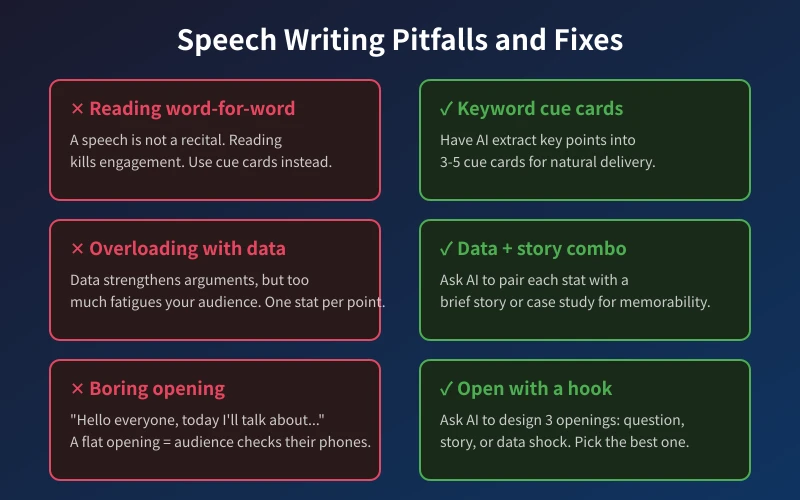
Mistake 1: Reading word-for-word
A speech isn't a recital. Reading kills engagement. Use AI to extract keywords into cue cards and deliver naturally.
Mistake 2: Overloading with data
Data strengthens arguments, but too much fatigues your audience. One key stat per point is enough. Have AI pair each data point with a brief story.
Mistake 3: Boring opening
"Hello everyone, today I'll talk about..." = audience starts checking phones. Ask AI to design 3 opening styles (question, story, data shock) and pick the strongest one.
Mistake 4: No call to action
A great closing tells the audience what to do next. Even a simple "Let's make it happen" beats "Thank you" ten times over.
Mistake 5: Ignoring time limits
You wrote 3000 words, then realized you only have 5 minutes. Set the time limit first, and let AI control the content volume accordingly.
Speech Templates for Common Occasions
Work Presentation
"Write a 10-minute project update speech for my department heads and colleagues. Focus on results and next steps. Professional but not boring."
Wedding Toast
"Write a 3-minute wedding toast. I'm the groom's best friend. Warm and humorous tone with a short story about our friendship."
Product Launch
"Write a product launch speech for [product name]. Goal: make the audience understand and try the product. Make it inspiring with a strong call to action."
Competition Speech
"Write a 5-minute speech for a [position] competition. Showcase my abilities and vision. Confident but not arrogant."
Wrapping Up
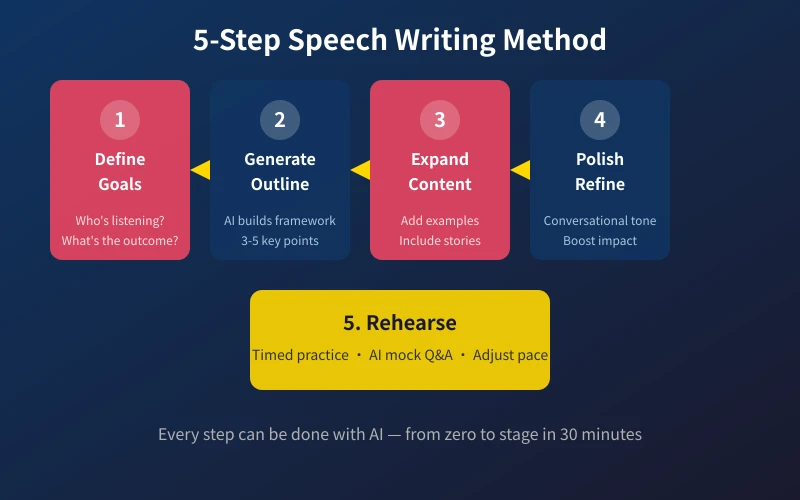
AI won't go on stage for you, but it can solve the most painful part of speech writing — the anxiety of starting from scratch. The 5-step method: Define Goals → Generate Outline → Expand Draft → Polish → Rehearse. Each step has a ready-to-use prompt template.
Next time you need to give a speech, don't stare at a blank document. Open AI, start with the first prompt, and you'll have a well-structured, compelling speech in 30 minutes.
Related Articles
AI Speech to Text: Beginner's Guide to Convert Voice to Text in 3 Steps
Learn how to convert speech to text using AI tools. Perfect for meeting notes, content creation, and video subtitles. Three practical scenarios with step-by-step instructions.
TutorialsAI Local Deployment Guide: Run Large Models in 3 Steps for Free
Learn how to deploy AI models locally in just 3 steps. No coding experience needed, completely free, and your data stays private on your own computer.
TutorialsAI Shopping Decision Guide: From Price Comparison to Avoiding Pitfalls
Learn how to use AI for shopping decisions. From price comparison to avoiding pitfalls - make smarter purchasing choices with AI assistance.
Comments are not yet available, stay tuned