AI Voice Input Practical Guide: Replace Typing with Your Voice, 10x Efficiency Boost
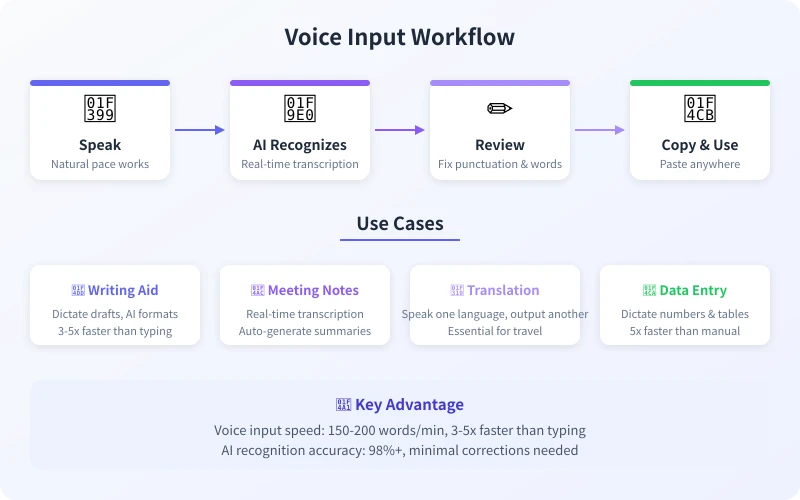
Most people type at 40-60 words per minute, while speaking speed can reach 150-200 words per minute. If you are still typing character by character, it is time to try AI voice input. It does more than just convert speech to text — it can automatically add punctuation, correct typos, and even organize your words into articles.
What Is AI Voice Input?
Traditional voice input simply transcribes what you say word for word. AI voice input adds three key capabilities:
- Smart Punctuation — Automatically adds commas, periods, and question marks based on meaning, without you needing to say them out loud
- Context Correction — Uses surrounding context to distinguish homophones, such as choosing the correct word from similar-sounding options
- Format Cleanup — Auto-formats paragraphs, generates lists, and adjusts output rhythm based on your speaking pace
Step 1: Choose the Right Tool for You
Different scenarios call for different voice input tools. Here are tested recommendations:
Mobile Recommendations
- iFlytek IME (iOS / Android) — The long-standing champion of Chinese voice recognition, supports offline recognition, strong dialect support, free to use
- Doubao (iOS / Android) — By ByteDance, extremely high Chinese recognition accuracy, built-in AI formatting that organizes speech into key points
- WeChat Keyboard (iOS / Android) — By Tencent, deeply integrated with WeChat, very convenient for voice input when messaging
Desktop Recommendations
- iFlytek Transcribe (Windows / Mac) — Professional-grade speech-to-text, supports long recording transcription, ideal for meeting notes
- Lark Minutes (Web) — By ByteDance, auto-transcribes during meetings and generates meeting summaries
- Sogou IME (Windows / Mac) — Established input method with mature voice input, supports Chinese-English mixed input
AI-Native Tools
- ChatGPT Voice Mode — Talk directly with AI using voice, AI understands your meaning and responds — not just transcription
- Doubao Chat — Similar to ChatGPT voice dialogue, better Chinese experience
- Tongyi Tingwu (Web) — By Alibaba, supports uploading audio files for transcription and real-time voice-to-text
Step 2: Mobile Setup (Using iFlytek IME as Example)
The following steps use iFlytek IME as an example. Other input methods follow similar procedures.
Installation and Basic Setup
- Open your phone app store, search for "iFlytek IME" and install it
- Open phone Settings → General → Keyboard → Add New Keyboard, select "iFlytek IME"
- Enable "Allow Full Access" in the keyboard list
- Open the iFlytek IME app, go to Settings → Voice Settings
- Enable "Smart Punctuation" (automatic punctuation)
- Enable "Smart Correction" (automatic homophone correction)
- Select recognition language: Mandarin / Cantonese / English / Chinese-English mixed
Actual Usage
- In any input field, switch to the iFlytek IME keyboard
- Tap the microphone icon at the bottom left of the keyboard
- Speak into your phone at a normal pace
- Tap "Done" when finished, and the text will appear in the input field
- Review once and correct any errors (usually only 1-2 fixes needed)
Step 3: Desktop Setup (Using Sogou IME as Example)
Installation and Basic Setup
- Visit the Sogou IME website, download and install the latest version
- After installation, right-click the Sogou IME icon in the taskbar
- Select Toolbox → Voice Input
- On first use, you will be prompted to authorize microphone access — click "Allow"
- In voice input settings, select "Mandarin" or "Chinese-English Mixed"
- Enable "Auto Punctuation" and "Smart Correction"
Actual Usage
- In any text editor (Word, WeChat, browser, etc.), position the cursor where you want to type
- Press the shortcut key (default Ctrl + Shift + V) to open the voice input panel
- Click the microphone button to start speaking
- Click "End" when finished — the text is automatically inserted at the cursor position
Step 4: Browser Usage (ChatGPT Voice Mode)
If you want a smarter voice interaction experience, try ChatGPT voice mode directly:
- Open the ChatGPT website or app
- Find the microphone icon in the conversation box (usually on the right side of the input field)
- Click to start speaking — ChatGPT will recognize your voice in real time
- After you finish, AI will understand your meaning and respond
- You can continue asking questions by voice, forming a natural conversation
This is not simple "speech-to-text" — it is true "voice dialogue." AI understands your intent, helps organize your thoughts, generates content, and answers questions.
Voice Input Efficiency Tips
Tip 1: Control Speed and Pauses
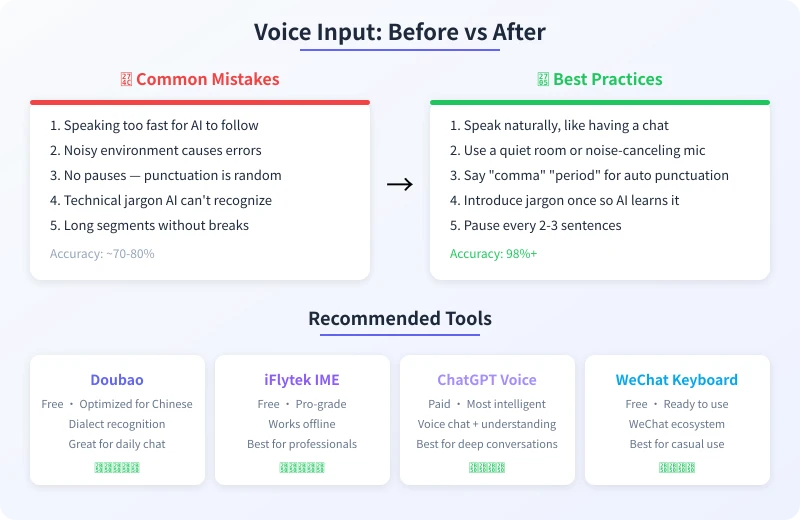
Keep your speaking speed at 150-180 words per minute (roughly normal conversation pace). Pause 1-2 seconds after each complete thought so AI can automatically add punctuation. Avoid speaking in one long burst — the second half may lose accuracy.
Tip 2: Use Voice Commands for Formatting
You can include specific commands while speaking to let AI adjust formatting:
- Say "new line" → automatic line break
- Say "comma" "period" "question mark" → auto-add punctuation (some tools do this automatically even without saying them)
- Say "delete" or "remove that last sentence" → deletes the previous sentence
- Say "new paragraph" → creates a paragraph break at the current position
Tip 3: Outline First, Then Fill In
For longer content, do not try to say everything at once. First speak the rough outline: "I want three sections — the first is background, the second is how-to, the third is conclusion." Then expand each section one by one.
Tip 4: Combine with AI Formatting
Voice input content is usually more conversational. After input, paste the text into an AI tool (like ChatGPT or Doubao) and say "help me turn this spoken text into formal writing" or "organize this into a bullet-point list" — AI will quickly refine your content.
Practical Use Case Examples
Use Case 1: Writing First Drafts
Speak your content into your phone, the voice input auto-converts to text, then paste it into AI for polishing. The entire process is 3-5x faster than typing.
Use Case 2: Meeting Notes
Open iFlytek Transcribe or Lark Minutes during meetings and let the tool auto-transcribe. Generate meeting summaries directly after the meeting — no manual note-taking needed.
Use Case 3: Multilingual Translation
Speak what you want to express in Chinese, then have AI translate it into English, Japanese, or other languages. Especially useful when traveling abroad — like having a personal translator in your pocket.
Use Case 4: Quick Message Replies
Received a long message but don't want to type a reply? Just use voice input and hit send. WeChat Keyboard and Sogou IME both support voice input directly in WeChat.
Frequently Asked Questions
What if voice recognition is inaccurate?
Ensure a quiet environment, speak clearly, and maintain a moderate pace. If a specific technical term is always misrecognized, try saying the word once first — some tools will "learn" your pronunciation. Also, choose input methods that support "custom dictionaries" (like iFlytek) to manually add professional terms.
Can I use dialects?
iFlytek IME supports Cantonese, Sichuan dialect, Henan dialect, and many others. Doubao and WeChat Keyboard mainly support Mandarin. If your dialect accent is heavy, consider practicing Mandarin first or choosing a tool with dialect support.
Does voice input compromise privacy?
Most voice input tools upload voice data to the cloud for recognition. If you are concerned about privacy, choose tools with offline recognition support (like iFlytek IME's offline mode), or switch to typing when entering sensitive information.
Will long voice input get cut off?
Most tools have a time limit for single voice input sessions (usually around 60 seconds). Say one segment, tap "Done," then continue with the next. iFlytek Transcribe and Tongyi Tingwu support long recording transcription, making them suitable for meeting scenarios.
Related Articles
AI Speech to Text: Beginner's Guide to Convert Voice to Text in 3 Steps
Learn how to convert speech to text using AI tools. Perfect for meeting notes, content creation, and video subtitles. Three practical scenarios with step-by-step instructions.
TutorialsAI Local Deployment Guide: Run Large Models in 3 Steps for Free
Learn how to deploy AI models locally in just 3 steps. No coding experience needed, completely free, and your data stays private on your own computer.
TutorialsAI Shopping Decision Guide: From Price Comparison to Avoiding Pitfalls
Learn how to use AI for shopping decisions. From price comparison to avoiding pitfalls - make smarter purchasing choices with AI assistance.
Comments are not yet available, stay tuned