Complete Tutorial on Integrating Cherry Studio with Token Circle

Cherry Studio is an open-source AI client tool that supports connecting to various OpenAI-compatible API services. This article will detail how to connect Token Circle to Cherry Studio, completing configuration in 5 minutes.
Introduction to Cherry Studio
Cherry Studio is a cross-platform desktop AI client that supports Windows, macOS, and Linux. Its core features include:
- Multi-model switching: Quickly switch between different AI models within the same interface
- OpenAI compatible: Supports all services compatible with the OpenAI API format
- Session management: Supports multi-turn conversations, conversation history, export, and more
- Local-first: Data is stored locally, ensuring privacy
- Free and open-source: Completely free to use, with transparent and open code
Step 1: Download and Install Cherry Studio
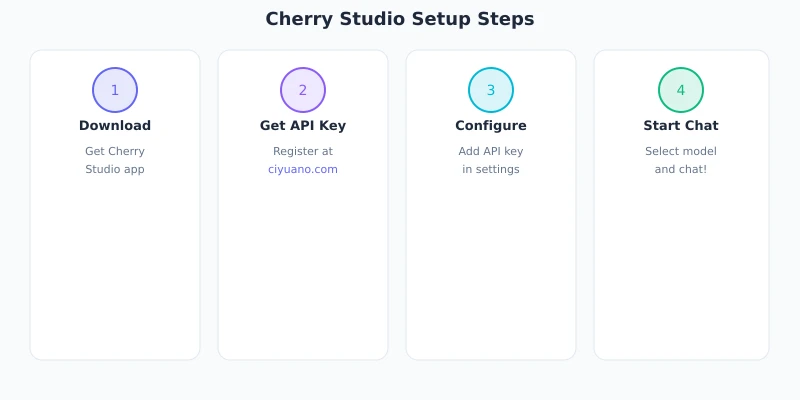
Visit the official Cherry Studio website and download the version suitable for your operating system:
- Windows: Download the .exe installer and double-click to install
- macOS: Download the .dmg file and drag it into the Applications folder
- Linux: Download the .AppImage or .deb package
Once installed, launch Cherry Studio and you will see a clean chat interface.
Step 2: Configure Token Circle API
2.1 Add Provider
In the left menu of Cherry Studio, find "Settings", then click "Providers" or "API Providers". Click the "Add" button and select the "OpenAI Compatible" type.
2.2 Fill in Configuration Information
In the pop-up configuration window, fill in the following information:
| Configuration Item | Content |
|---|---|
| Name | Token Circle or any name |
| API Base URL | https://www.ciyuano.com/v1 |
| API Key | The API Key obtained from the Token Circle user center |
| Model | Add manually or click "Get model list" |
2.3 Save and Test
After filling in, click "Save". Then return to the chat interface, select the provider and model you just added from the top model selector, send a test message, and confirm that you receive a reply normally.
Step 3: Choose the Right Model
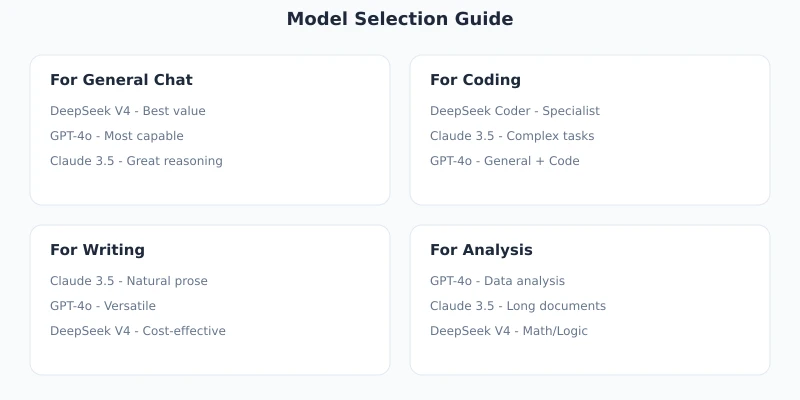
Token Circle currently supports the following mainstream models. You can choose according to your needs:
| Model | Features | Use Cases | Price |
|---|---|---|---|
| DeepSeek V4 | Strong general ability, balanced Chinese and English | Daily conversation, translation, writing | 0.5/1 yuan |
| MiMo v2.5 PRO | Strong reasoning ability, high code quality | Programming, mathematics, Agent | Free |
| GLM-5 | Excellent Chinese understanding, rich knowledge | Chinese writing, knowledge Q&A | 0.8/1.5 yuan |
| Qwen Plus | Good long context support | Long document analysis, summarization | 0.4/0.8 yuan |
Advanced Configuration
Add Multiple Models
You can add multiple models for the same provider. In the provider configuration, click the "Add" button next to the model list, and enter the model ID (e.g., deepseek-v4, mimo-v2.5-pro, glm-5).
Set System Prompt
In Cherry Studio's chat settings, you can configure different system prompts for different conversations. For example:
- Programming Assistant: "You are a professional programming assistant, proficient in Python, JavaScript, and other languages."
- Translation Assistant: "You are a professional translator, proficient in Chinese-English translation, maintaining the original style."
- Writing Assistant: "You are a writing assistant, helping users polish articles and generate content."
Adjust Parameters
In the chat settings, you can adjust the following parameters:
- Temperature: Controls the randomness of responses (0.1 for more precise, 0.9 for more creative)
- Max Tokens: Controls the maximum output length
- Top P: Controls the sampling range
FAQ
Q: What if it prompts "API Key invalid"?
A: Please confirm that the API Key is correctly copied (starts with sk-), and confirm that your account balance is sufficient. You can check the key status in the Token Circle user center.
Q: What if there is a connection timeout?
A: Check your network connection and confirm that the Base URL is filled in correctly. If you are using a proxy, ensure the proxy configuration is correct.
Q: Does it support image upload?
A: Some models support image input (e.g., MiMo v2.5 PRO). You need to enable the "Support Images" option in the model configuration.
Summary
Through the steps above, you have successfully connected Token Circle to Cherry Studio. The entire process takes only 5 minutes:
- Download and install Cherry Studio
- Add an OpenAI-compatible provider, fill in the Token Circle API address and key
- Choose the right model and start chatting
Cherry Studio's interface is clean and intuitive. Combined with Token Circle's multi-model support, you can easily switch between different models at any time to find the one best suited for your current task.
Next Steps: Try connecting to other client tools, such as LobeChat, Cursor, etc. Token Circle's API is fully compatible with the OpenAI SDK, and the connection method is almost the same.
Related Articles
AI 本地部署入门:零基础三步跑起大模型,完全免费
不用注册、不用充钱、完全离线。本文手把手教你用 Ollama 等工具,在自家电脑上部署运行开源大模型,从零开始完成本地 AI 部署的全过程。
TutorialsAI 帮你做购物决策:从比价到避坑的完整实操指南
买手机、买耳机、买电脑,AI 真的能帮你选对吗?本文用五个实操步骤,手把手教你让 AI 完成价格对比、参数解析、口碑筛选和避坑提醒,小白也能 10 分钟搞定购物决策。
TutorialsAI 语音输入与语音转文字:零基础 5 分钟上手,解放双手的写作新方式
打字太慢?说话比打字快 3 倍。这篇文章手把手教你用 AI 语音输入工具,从选择工具、开始录音到转文字、编辑导出,五大步骤、六大场景,让你从此"说话即写作"。
Comments are not yet available, stay tuned