Getting Started with AI Automation Workflows: Let AI Handle Your Repetitive Tasks
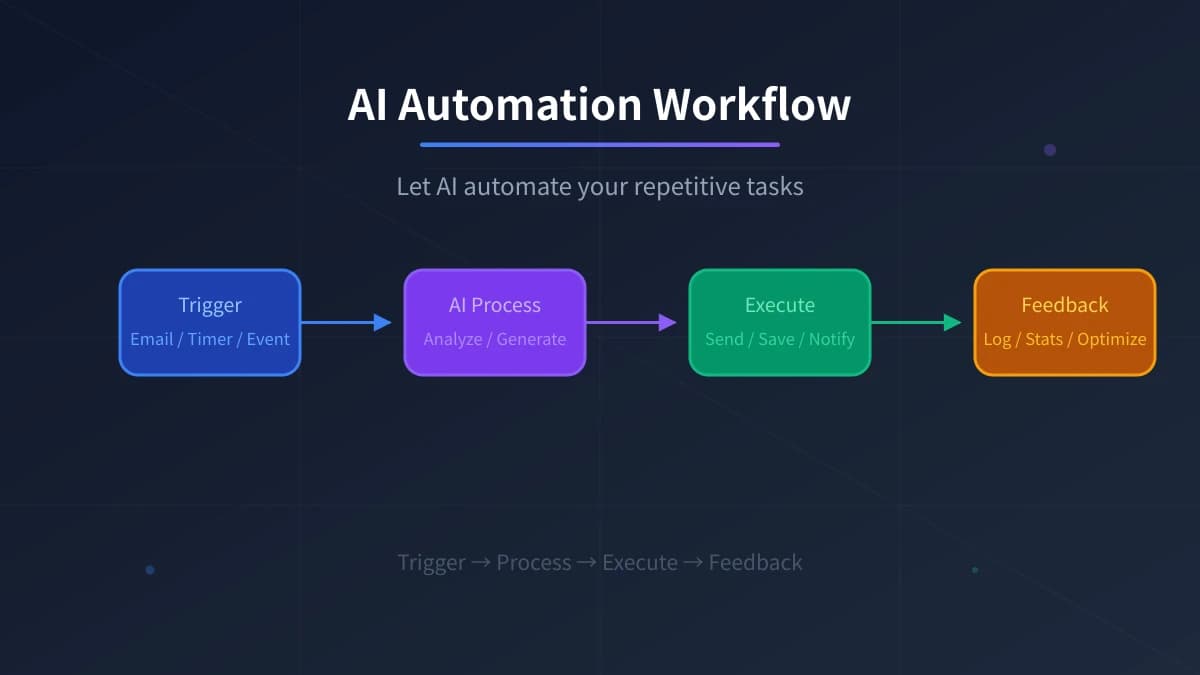
What is an AI Automation Workflow?
Simply put, an automation workflow lets AI handle a series of repetitive tasks for you. You don’t need to manually perform each step—just set the rules, and the AI will execute the process automatically.
For example: every day you check your email, sort important messages, and write a daily report for your team. This can all be automated by AI—you set it up once, and it does the work for you every day.
Why Should Beginners Also Understand Automation?
Many people think “automation” is for programmers and has nothing to do with them. But in reality, today’s automation tools are very user-friendly—you can build workflows by simply dragging and dropping. Without writing a single line of code, you can have AI help you:
- Automatically sort and reply to emails
- Generate daily work reports
- Monitor data changes and send alerts
- Automatically organize files and documents
- Schedule social media posts
Doing these manually might take 1–2 hours each day, but once you set up the automation, you barely have to lift a finger.
The 5 Most Common Automation Scenarios
Below are five automation scenarios perfect for beginners. Each can be set up in under 30 minutes:
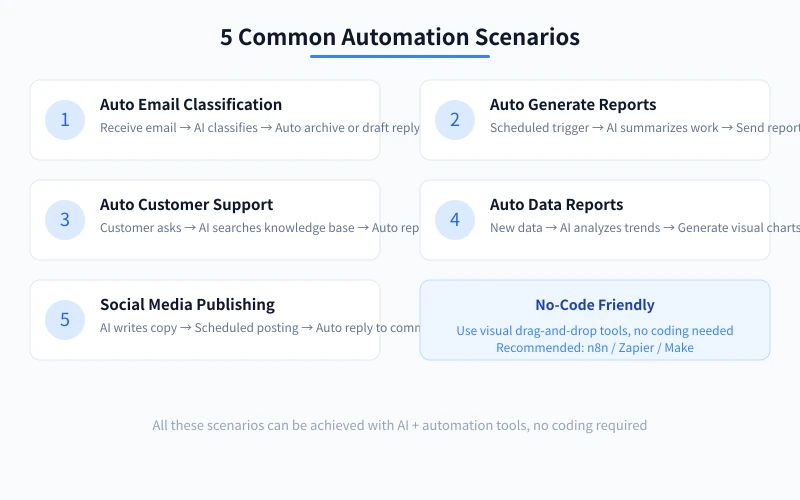
Scenario 1: Automatic Email Sorting and Replies
Who it’s for: Professionals who receive a large volume of emails daily
Workflow:
- Set a trigger: when a new email arrives
- AI analyzes the email content and determines the type (work, marketing, notification, etc.)
- Automatically categorize into the appropriate folder
- For common questions, AI generates a draft reply
When you open your inbox, important emails are already organized—you just need to review the AI’s replies.
Scenario 2: Automatic Daily/Weekly Report Generation
Who it’s for: Employees who need to report on their work regularly
Workflow:
- Set a time-based trigger: every day at 5 PM
- AI reads your calendar, to-do list, and chat records
- Automatically summarizes the day’s completed work
- Generates a formatted daily report and sends it to the team
You just need to do a final check for accuracy—it only takes a few seconds.
Scenario 3: Automated Customer Inquiry Responses
Who it’s for: People running e-commerce, stores, or customer service
Workflow:
- Triggered when a customer asks a question in the chat window
- AI searches the knowledge base for a relevant answer
- Automatically generates and sends a reply
- If AI cannot answer, it is transferred to a human agent
Common questions (e.g., shipping times, return policies) can be answered automatically; only complex issues require human intervention.
Scenario 4: Automatic Data Report Updates
Who it’s for: Managers who need to review data regularly
Workflow:
- Set a time-based trigger: every Monday at 9 AM
- AI extracts the latest data from a database or spreadsheet
- Analyzes trends and generates charts
- Automatically sends the report to relevant people
No more manually creating reports every Monday morning.
Scenario 5: Social Media Content Publishing
Who it’s for: People running social media accounts or managing public accounts
Workflow:
- AI creates copy based on a given topic
- Scheduled publishing to different platforms
- Automatically replies to common comments
- Collects engagement data and generates a weekly report
You just need to plan your content direction in advance—leave the rest to AI.
Comparison of Mainstream Automation Tools
There are many automation tools on the market. The image below helps you quickly understand their differences:
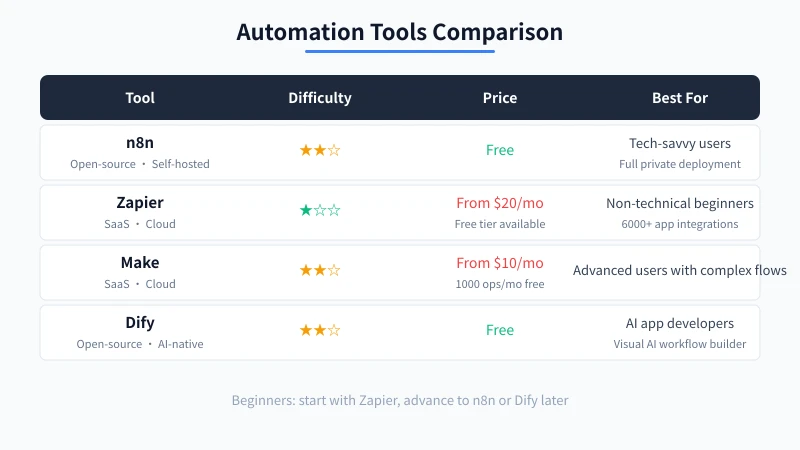
n8n: Open-source, free, and powerful
n8n is an open-source automation tool that you can deploy on your own server. Its advantages are that it’s completely free, powerful, and supports customization. The downside is that it requires some technical foundation to deploy and maintain.
Who it’s for: Users with some technical background who want full control over their data.
Zapier: Easiest to use, most integrations
Zapier is the most popular automation tool on the market, supporting integrations with over 6,000 apps. Its interface is very intuitive—you can build workflows by dragging and dropping. The downside is that it’s relatively expensive, and the free plan has usage limits.
Who it’s for: Complete beginners with no technical skills who want to get started quickly.
Make: Good value, flexible workflows
Make (formerly Integromat) is cheaper than Zapier but just as powerful. It supports more complex process designs and is suitable for workflows with multiple steps and branches.
Who it’s for: Users who need complex workflow design and have a limited budget.
Dify: AI-native, designed for AI applications
Dify is a platform focused on AI applications, helping you build AI chatbots, knowledge base Q&A systems, and more. It is open-source and supports self-hosting.
Who it’s for: Developers or entrepreneurs who want to build AI applications.
Beginner’s Guide: Building Your First Workflow with Zapier
If you’re a complete beginner, we recommend starting with Zapier. Here are the steps to build your first workflow:
Step 1: Sign up for an account
Visit the Zapier website and sign up for a free account using Google or email. The free plan allows 100 tasks per month, which is enough for learning and testing.
Step 2: Create your first Zap
Click the “Create Zap” button to enter the workflow editor. You’ll see two areas: Trigger and Action.
Step 3: Set a trigger
Choose a trigger condition, such as “when a new email arrives.” Zapier will guide you to connect your email account and set filters (e.g., only process emails from a specific sender).
Step 4: Add AI processing
In the Action area, select the “ChatGPT” or “Claude” integration and set the AI’s task. For example: “Analyze the content of this email, determine which category it belongs to (work/marketing/notification/other), and generate a short draft reply.”
Step 5: Set subsequent actions
Based on the AI’s judgment, set different actions. For example:
- If it’s a work email: mark as important, send a notification to your phone
- If it’s a marketing email: automatically archive to the “Promotions” folder
- If it’s a notification email: save to a spreadsheet
Step 6: Test and activate
Zapier provides a testing feature—you can use real data to verify that the workflow works correctly. After testing, click “Turn on Zap” to enable it.
3 Practical Tips for Building Workflows
Tip 1: Start simple
Don’t try to build a complex workflow from the beginning. Start with a simple trigger + action, make sure it runs correctly, and then gradually add more steps.
Tip 2: Make good use of AI’s judgment
AI excels at understanding and judging. Give the “thinking” parts to AI, and the “execution” parts to the automation tool. For example: AI judges the email type → automation tool performs the archiving action.
Tip 3: Regularly check and optimize
Automation workflows aren’t “set and forget.” We recommend checking the run log once a week to see if any executions failed, and adjust the rules accordingly.
Common Questions
Do I need to write code to set up an automation workflow?
No. Tools like Zapier and Make offer visual interfaces—you just drag and drop nodes and fill in configurations. Of course, if you can write code, you can implement more advanced features.
Is the free plan enough?
For personal users, the free plan is usually sufficient. Zapier’s free plan offers 100 executions per month, while Make’s free plan offers 1,000 executions per month. If your workflow doesn’t run very often, the free plan is perfectly adequate.
Is data security guaranteed?
Major automation tools all have strict data security measures. However, if you are handling highly sensitive data, we recommend using n8n with a self-hosted solution—your data stays entirely on your own server.
What if a workflow fails?
Most tools have error notification features that will send you an email alert when something goes wrong. You can check the run log for the specific error reason, then adjust the configuration to fix the issue.
Related Articles
AI Speech to Text: Beginner's Guide to Convert Voice to Text in 3 Steps
Learn how to convert speech to text using AI tools. Perfect for meeting notes, content creation, and video subtitles. Three practical scenarios with step-by-step instructions.
TutorialsAI Local Deployment Guide: Run Large Models in 3 Steps for Free
Learn how to deploy AI models locally in just 3 steps. No coding experience needed, completely free, and your data stays private on your own computer.
TutorialsAI Shopping Decision Guide: From Price Comparison to Avoiding Pitfalls
Learn how to use AI for shopping decisions. From price comparison to avoiding pitfalls - make smarter purchasing choices with AI assistance.
Comments are not yet available, stay tuned